How to Edit a Talking-Head Video With AI (Pauses, Retakes, Zooms and Captions in One Click)
How to edit a talking head video with AI: cut pauses, ums and retakes, add zooms, captions, music and cutaways in one click. Steps, costs and tips.
The short answer: you can hand the whole edit to AI and get back a finished video, not a project to fix.
- Upload your raw recording (or paste a link) on the Media page and pick Auto edit.
- Choose a style (Best YouTube Edit or Clean pace) and a format (YouTube 16:9 or Short 9:16).
- Click Edit the video. Pauses, "um"s and retakes are cut; zooms, title, captions, sound effects and music are added.
Try it on your own recording →
What "auto edit" actually does
Most "AI editors" for talking-head videos do one thing: they remove silences, and then you still open a timeline and do the rest by hand. Renderster's Auto edit does the whole pass a human editor would do on a video of someone talking to the camera:
- Pauses of 0.7 seconds or more are cut down, leaving a short breath so the speech does not sound chopped.
- Hesitation sounds like "um", "uh" and "hmm" go. Real words like "like" stay, because removing them changes what you said.
- Retakes go. If you stop a sentence and say it again, the last take stays. Lines you repeat on purpose stay.
- A test before you start or a remark after your goodbye ("is it recording?", "was that good?") is left out.
- Punch-in zooms on every cut, so jump cuts look intentional, and a slow zoom on the strongest lines.
- The framing follows your face if you walk around or hold the phone.
- A title at the start, captions burned in, keywords and numbers popping up as you say them.
- Sound effects (a whoosh between parts, an impact on a reveal), kept well under your voice.
- Music that matches how you talk, coming in and dropping out at the right moments (more on that below).
- Clean sound: rumble filtered and, in a noisy room, the noise under your voice reduced.
Here is a real example: a raw phone video of someone ranting to the camera, edited with no human touching it. It is one of the examples on the Studio page.
What you need
A recording of you talking (a vlog, a tutorial, a lesson, a podcast segment) up to 30 minutes, and a Renderster account on a paid plan. Every paid plan starts with a 7-day free trial that includes 100 credits, which covers a few edits.
Step 1: Upload the raw recording
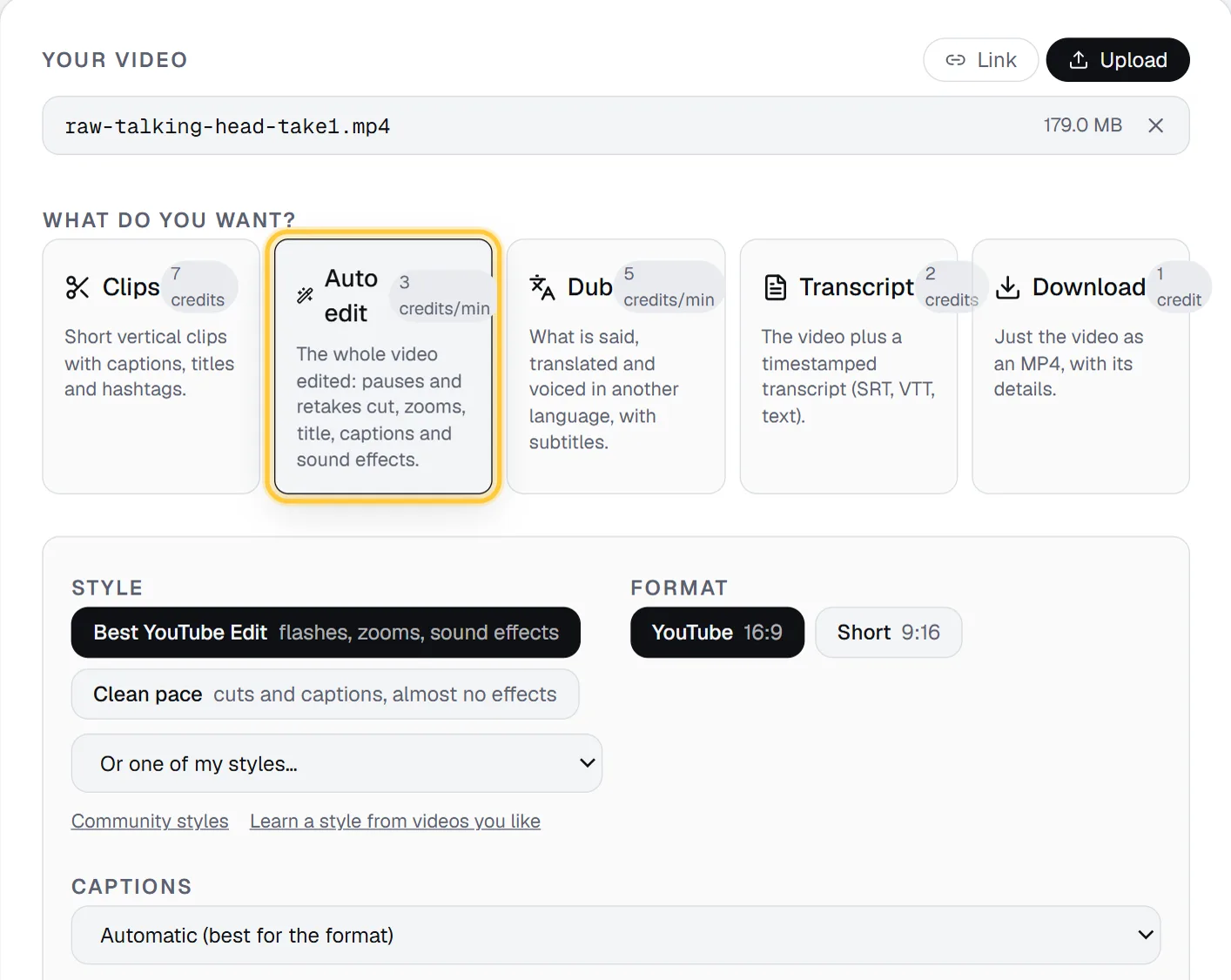
Open the Media page and, under Your video, either paste a link (YouTube, TikTok, Instagram, X, Facebook or a direct .mp4) or switch to Upload and choose the file. Uploads take MP4, MOV, WebM and MP3 up to 2 GB.
Then, under What do you want?, pick Auto edit. The card reads "The whole video edited: pauses and retakes cut, zooms, title, captions and sound effects" and shows the price: 3 credits per minute.
Recorded in several takes or files? Use More videos (optional) and + Add another video. Up to 10 videos are edited in order as one video, each opening a new part, up to 30 minutes in all.
Step 2: Clean it up: silences, "um"s and retakes
Pause and filler removal is always on in Auto edit. Two choices live under More options:
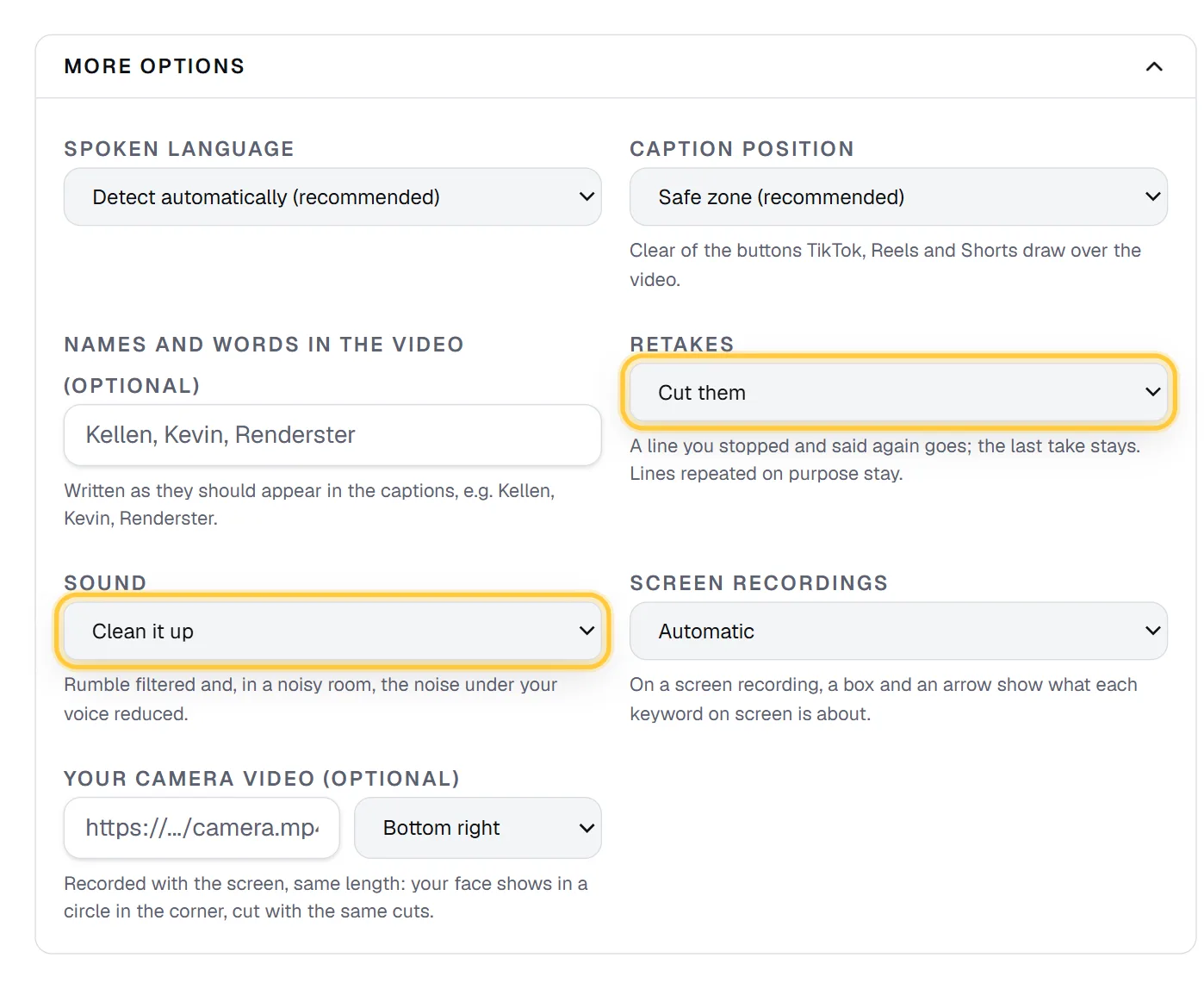
- Retakes: Cut them (the default) or Keep every take. Keep them if you repeat lines on purpose for effect, or if you are editing a scripted piece where every take is already clean.
- Sound: Clean it up (the default: rumble filtered and room noise reduced) or As recorded. The volume is evened out either way.
Also in More options: Names and words in the video (optional). Type the names and brand words you say, written the way they should appear ("Kellen, Renderster"), and the captions spell them your way. This is the single best fix for caption typos.
Step 3: Pick the style: Best YouTube Edit or Clean pace
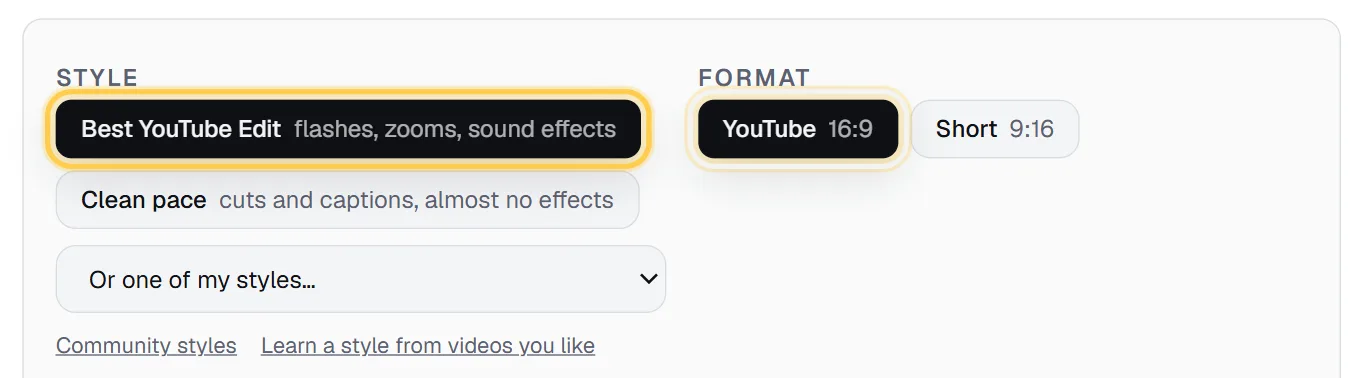
Under Style you have two built-in looks:
| Best YouTube Edit | Clean pace | |
|---|---|---|
| Pauses and retakes cut | Yes | Yes |
| Punch-in on every cut | Yes | Yes |
| Slow zoom on the strongest lines | Yes | No |
| White flashes and whips between parts | Yes | No |
| Sound effects | Some (whoosh, impact, riser) | Only on the title |
| Keywords, numbers and emojis popping up | Yes | No |
| Shake on impacts | Yes | No |
| Best for | YouTube videos, hooks, opinion pieces | Lessons, courses, coaching, calm advice |
In both styles the framing changes every 7 to 10 seconds on average: faster in heated parts, slower in calm ones.
Pick YouTube (16:9) or Short (9:16) under Format. In 9:16 the framing follows your face, and the title and zooms stay clear of it.
Want a look of your own? Learn a style from videos you like takes 1 to 3 videos edited the way you want, measures how they are cut (pace, punch-ins, flashes, captions, energy) and saves it as your style, for 2 credits per video. Community styles lists styles other creators learned and shared. Only the editing pattern is shared, never their videos.
For the high-energy version of this (faster cuts, more sound effects), see how to edit like MrBeast with AI.
Step 4: Cutaways: your B-roll, stock, or AI animations
A talking head with nothing else on screen gets tiring. The B-roll (optional) field takes up to 10 links to screenshots, product shots, video files, or YouTube, TikTok and Instagram videos, one per line. Now and then the video cuts to one for 3 seconds while your voice goes on.
No B-roll of your own? Leave the field empty and choose what the cutaways can be:
- None: only you on screen. The pace comes from the cuts and effects.
- Free stock clips that match what you say. Same price.
- Animations made for your video: big numbers, icons, charts, kinetic type. +3 credits per cutaway.

The animations are the part most tools don't have: when you say "we grew 40% in three months", the cutaway is that number counting up, drawn for your video in your language. The full breakdown of the three options is in how to add B-roll automatically.
The rest of the panel:
- Your name on screen (optional): your name and role, shown for a few seconds after the title.
- Music: Pick a fitting track for me · free (the default), a track you choose from the free library (you can listen first), an original track made for this video (+5 credits), your own music (a link), or No music. It plays under the voice and lowers itself while you speak.
- Progress bar along the top, so people see how much is left.
- Captions: Automatic (best for the format) or any caption style.
Click Edit the video. The button shows the most it can cost for this video ("up to N credits"). You can leave the page; the job keeps running, and you get an e-mail when it is done.
Step 5: Review the edit and the "director's" choices
The job page shows an Edited video card with the player and a summary line: the edited length next to the original length, how many seconds of pauses and how many retakes were cut, then the style, cuts, zooms, flashes, cutaways, keywords on screen and sound effects counted.
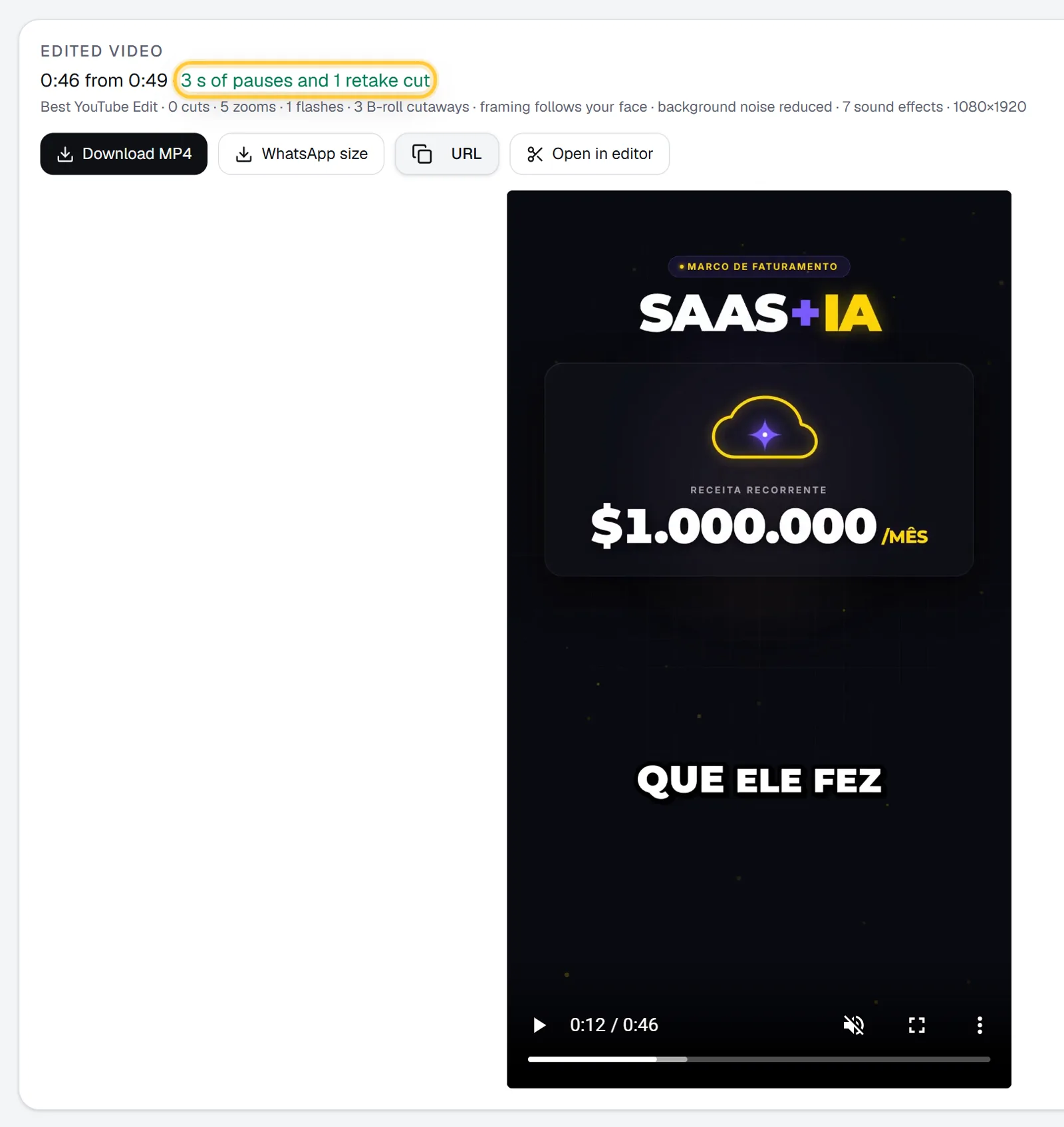
Behind those choices is an editing director. Before anything is cut, it reads what you say and how you say it (how loud and how fast, sentence by sentence) and decides:
- The energy of each part. In a heated stretch the framing changes faster; in a calm explanation it holds longer.
- The music. Not by topic, by feeling: a heated rant gets heavy rock or phonk, excited hype gets electronic or pop, calm advice gets calm music, a sad story gets piano.
- When the music comes in. From the start, or later, with the first strong line, if the video opens quietly.
- The drops. Right before a punchline, a reveal or the turn of a rant, the music cuts out for a beat so the line hits harder, then comes back.
You can read its reasoning in the Logs tab of the job: one line with what it thinks the video is, the music mood, the sentence the music enters at, the number of drops and how many sentences are low, mid and high energy.
Downloads: Download MP4, and when the file is big, WhatsApp size, a 720p copy under 15 MB that WhatsApp sends as a video. Open in editor puts the edited video on a timeline if you want to add text, overlays or another track by hand.
Tips for recording so the AI edits better
- Pause before a retake. Stop, breathe, then say the line again from its start. A clear restart is easy to spot; a half-word restart in the middle of a sentence is not.
- Keep the mic close and the room quiet. Noise reduction helps, but a lav or a phone 50 cm from your mouth beats any cleanup.
- Put your name list in. If you say product names, guests or slang, add them to Names and words in the video. Captions are the first thing viewers notice when they are wrong.
- Say the numbers out loud. "Three steps", "40%", "in 2026": keywords and numbers are what pop up on screen and what the animated cutaways are built from.
- Record a screen tutorial? Leave Screen recordings on Automatic: each keyword you mention gets a box and an arrow on screen. Add Your camera video (optional) and your face goes in a circle in a corner, cut with the same cuts.
What it costs
Auto edit costs 3 credits per started minute of the edited video, not of the raw recording. The job reserves the most it can cost when it starts, and the minutes of pauses it cuts come back to you.
| Raw recording | Edited length (example) | Credits | About, on Starter |
|---|---|---|---|
| 5 min | 4 min | 12 | US$0.58 |
| 12 min | 9 min | 27 | US$1.31 |
| 30 min | 24 min | 72 | US$3.48 |
Add-ons: +3 credits per animated cutaway used, +5 for an original music track. Stock clips, the free music library, retakes, sound cleanup and the WhatsApp copy cost nothing extra. Starter is US$29 for 600 credits a month (about US$0.048 a credit), and a job that fails gives its credits back. All plans are on the pricing page.
Do it automatically
The same edit is one API call, so you can run it on every new recording from n8n, Make, Zapier or a script:
curl -X POST https://renderster.com/media \
  -H "X-API-Key: YOUR_API_KEY" \
  -H "Content-Type: application/json" \
  -d '{
    "url": "https://example.com/raw-take.mp4",
    "type": "auto_edit",
    "options": { "edit_style": "best-youtube", "orientation": "horizontal", "music": "auto", "motion_broll": true },
    "webhook_url": "https://example.com/hooks/edit-ready"
  }'
Note that through the API, music is off unless you ask for it ("music": "auto" lets the director pick). The finished video is in result.edited. Every option is in the docs. You can also ask for it in plain words from Claude or ChatGPT: see how to make videos with Claude. If you also cut Shorts from your long videos, turning a YouTube video into Shorts works the same way.
Comparing tools? Our take on Descript alternatives covers editors built for people who talk to the camera, and Renderster vs Submagic covers the captions side.
FAQ
How do I edit a talking-head video fast?
Let software do the first pass. Upload the raw recording, pick Auto edit on Renderster's Media page and a style, and you get the finished video back with pauses, "um"s and retakes cut, zooms, captions, sound effects and music. Then watch it once and only fix what bothers you.
Can AI remove pauses and filler words automatically?
Yes. Auto edit cuts every pause of 0.7 seconds or more down to a short breath and removes hesitation sounds like "um" and "uh". It does not remove real words such as "like" or "you know", because cutting them can change the meaning of a sentence.
Does it cut retakes, or only silences?
It cuts retakes too. When you stop a line and say it again, the earlier attempt goes and the last take stays. Lines you repeat on purpose stay. If you prefer to keep everything, set Retakes to "Keep every take" under More options.
Can I make a vertical Short from the same recording?
Yes. Set Format to Short (9:16). The framing follows your face as you move, and the title and zooms stay clear of it. If you want several short clips instead of one edited video, use Clips on the same page.
Is auto edit free?
Auto edit is part of the paid plans. Every paid plan starts with a 7-day free trial with 100 credits, enough for several edits at 3 credits per minute of edited video. The Free plan covers one clips job (up to 3 clips).
How long can the video be?
Up to 30 minutes of source per edit, in one file or up to 10 files joined in order.