How to Turn a YouTube Video Into Shorts (Free, in About 3 Minutes)
How to turn a YouTube video into Shorts: paste the link, pick length and captions, and get vertical clips with titles and hashtags. First video free.
To turn a YouTube video into Shorts:
- Paste the video link into Renderster's Media page and pick Clips.
- Choose the clip length (Auto 20–60 s), Vertical 9:16 and a caption style.
- Click Get clips. The AI picks the best moments and gives you captioned vertical clips with titles and hashtags.
Your first video is free (up to 3 clips). Try it on your own video →
The 3 minutes is your time: pasting a link and clicking a few buttons. The processing runs in the background. You can close the tab and come back.
What you need
A YouTube link (or a video file) and a free Renderster account. The Free plan gives you one clips job with up to 3 clips and no watermark. More clips, downloads and transcripts are in the paid plans, which start with a 7-day free trial.
You don't need to own a desktop editor, and you don't need to download the video first. Renderster also takes TikTok, Instagram, X and Facebook links, and uploads up to 2 GB.
Step 1: Paste the YouTube link
Sign in and open Media & Clips. The page title says "Turn a long video into clips". Paste the link into the box under Your video. Any normal YouTube link works: youtube.com/watch?v=…, youtu.be/…, a Shorts link or a live link.
A preview card shows up a moment later with the thumbnail, the channel, the length and the view count. If the video has YouTube's "most replayed" graph, you see it as a small line under the title, with the note "We will favor the moments viewers replay the most." More on that in Step 3.
Under What do you want?, pick Clips (7 credits). On the Free plan, Clips is the only option you can click.
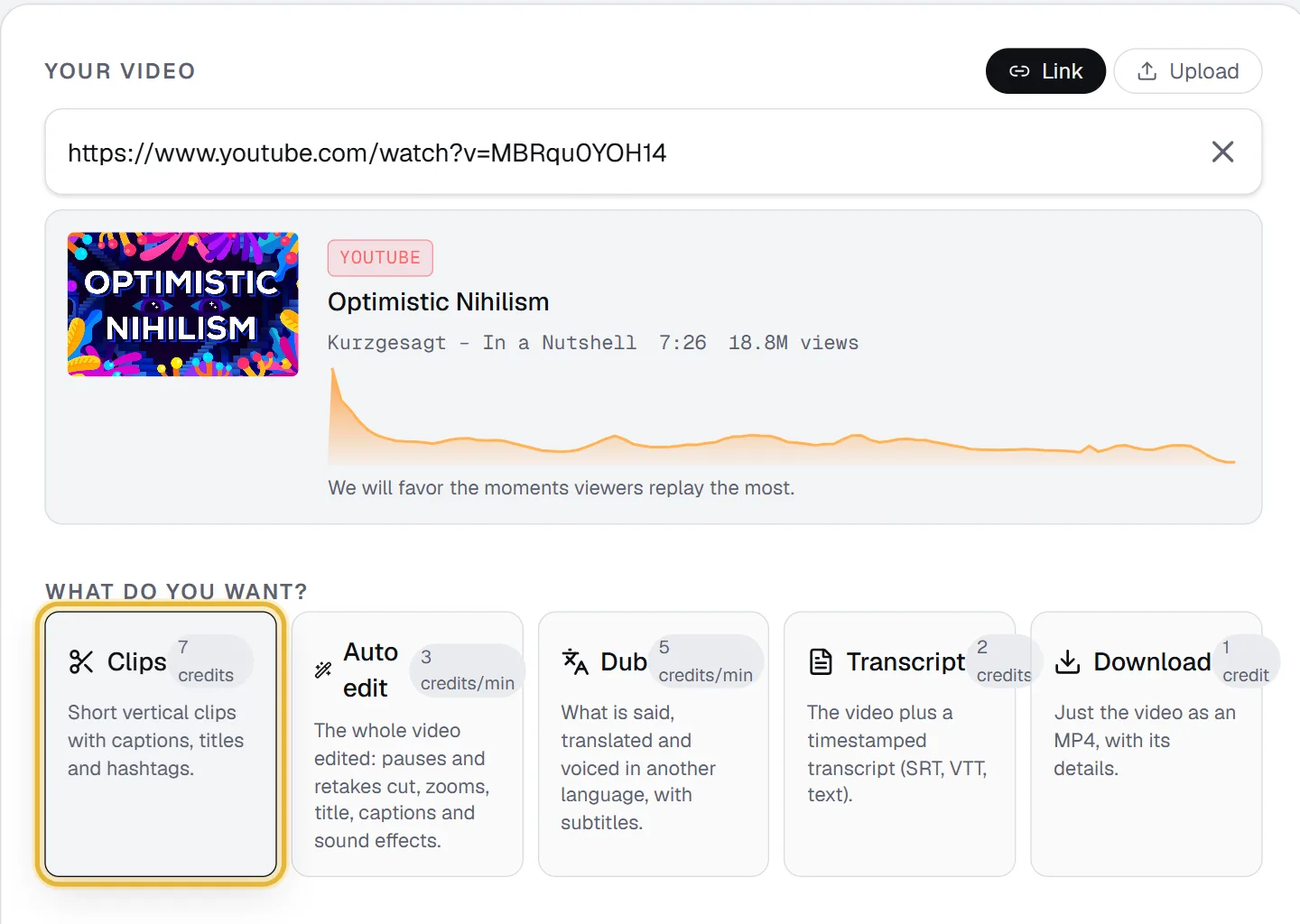
If the video is on your computer instead, click Upload next to Link and pick the file. The box says "MP4, MOV, WebM, MP3 · up to 2 GB". Clips need a picture, so use a video file, not just the audio.
Step 2: Pick length, format and caption style
Three choices matter most.
How many clips. 3, 5, 8 or 10. The Free plan stops at 3. The price is the same whatever you pick: one clips job is 7 credits.
Clip length. The options are:
| Option | Length | Good for |
|---|---|---|
| Auto | 20–60 s | Most Shorts. The AI ends each clip where the idea ends. |
| Short | under 30 s | Quick hits, punchlines, one tip |
| Medium | 30–60 s | Stories and explanations |
| Long | 60–90 s | TikTok and Reels, where longer clips are common |
| Extra long | 1.5–3 min | Full answers from interviews and podcasts |
Caption style. Pick one from the gallery: Bold, Karaoke, Highlight, One word, Boxed, Clean, Neon, Box, Beast, Cortes BR or Minimal. Or No captions. Each card shows what it looks like. Bold and Karaoke are a safe start for most Shorts.
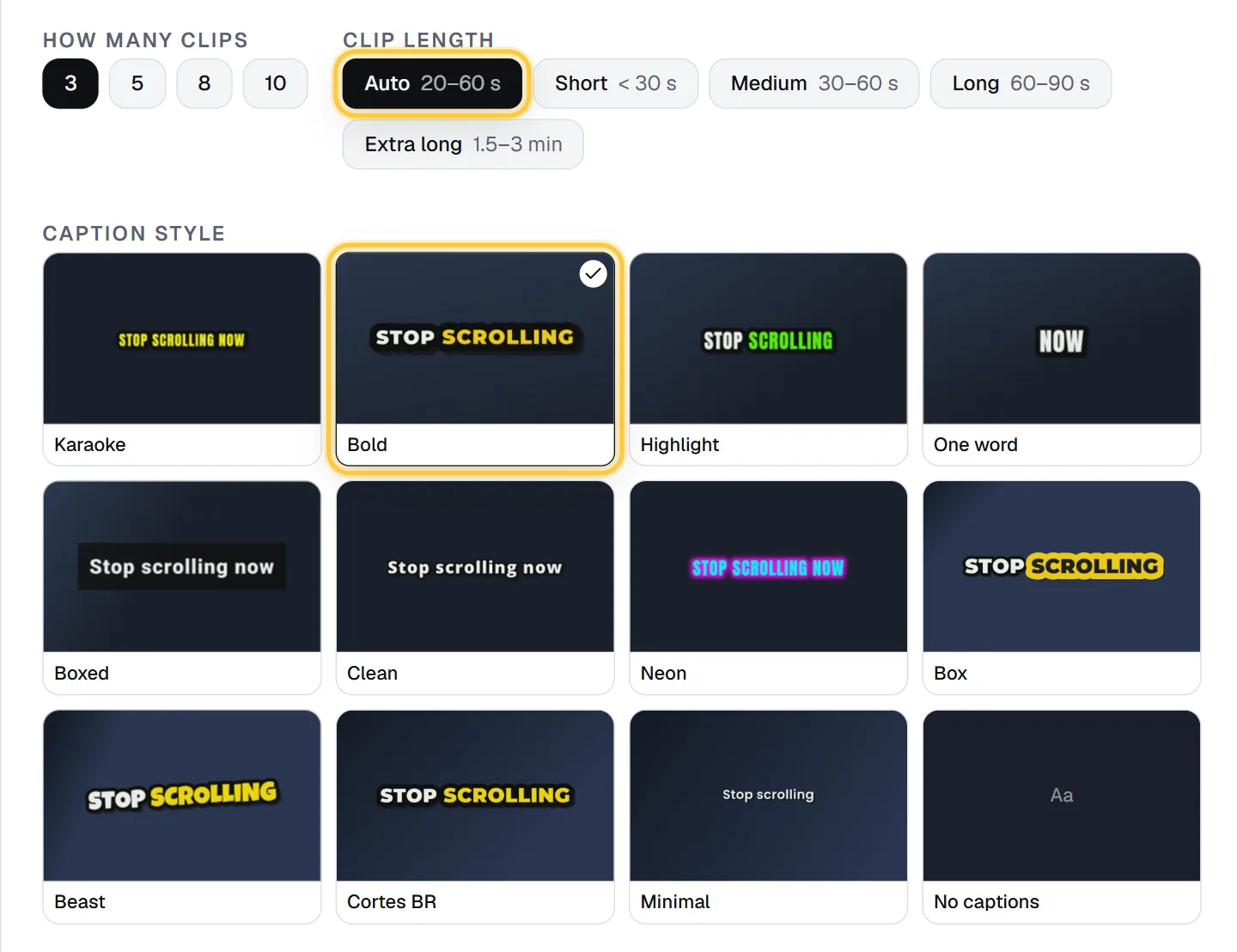
The format is Vertical 9:16 (Shorts, Reels, TikTok) by default. You can change it under More options to Square 1:1, Horizontal 16:9 or Original (no crop). In the same panel:
- Caption position: leave it on Safe zone (recommended). It keeps the captions clear of the buttons TikTok, Reels and Shorts draw over the video.
- Layout: Auto (follow the subject) for one person, Two speakers (one above the other) for podcasts and interviews, Gaming (facecam on top) for streams.
- Names and words in the video: type names the speech recognition might get wrong ("Kellen, Renderster"). Captions will spell them that way.
Two more switches on the main form are worth a look:
- Title at the start (on by default) shows the clip title in a box for the first seconds, so viewers know why to keep watching.
- Open with the best line starts each clip with its strongest sentence as a teaser, then plays the clip.
If you only want clips about one subject, type it in Only moments about, for example "pricing" or "his childhood". Leave it empty to get the best moments on any subject.
Step 3: Let the AI pick the moments (and why it favors the most replayed parts)
Click Get 5 clips · 7 credits (the button changes with your count). The job page opens. You can leave; the job keeps running.
How long it takes depends on the video. The app gives an estimate before you click. As a rough guide from that estimate, a 20-minute video with 3 clips takes about 4 minutes, and a 60-minute video with 5 clips about 9 to 10 minutes.
While it runs, Renderster:
- Fetches the video and its details.
- Transcribes what is said, with timing for each word.
- Reads the transcript and picks moments that stand on their own: a clear hook, a full idea, a payoff.
- Checks those moments against YouTube's "most replayed" graph and the audio energy.
- Crops each clip to vertical, follows the speaker, burns in the captions and the title.
Step 4 is the part most tools skip. YouTube's replay graph shows where real viewers went back to watch again. When a video has it, the AI is told where the peaks are, and the replay data counts for about a third of each clip's final score. The rest is the AI's rating of the moment (about half) and the audio energy. A funny line that people replayed 10 times will usually beat a fine line nobody went back to.
If the video is new or has few views, YouTube has no graph yet. The clips are then picked from what is said and from the energy of the audio. You can check any video's graph first with our free most replayed tool.
Step 4: Download, title and hashtags
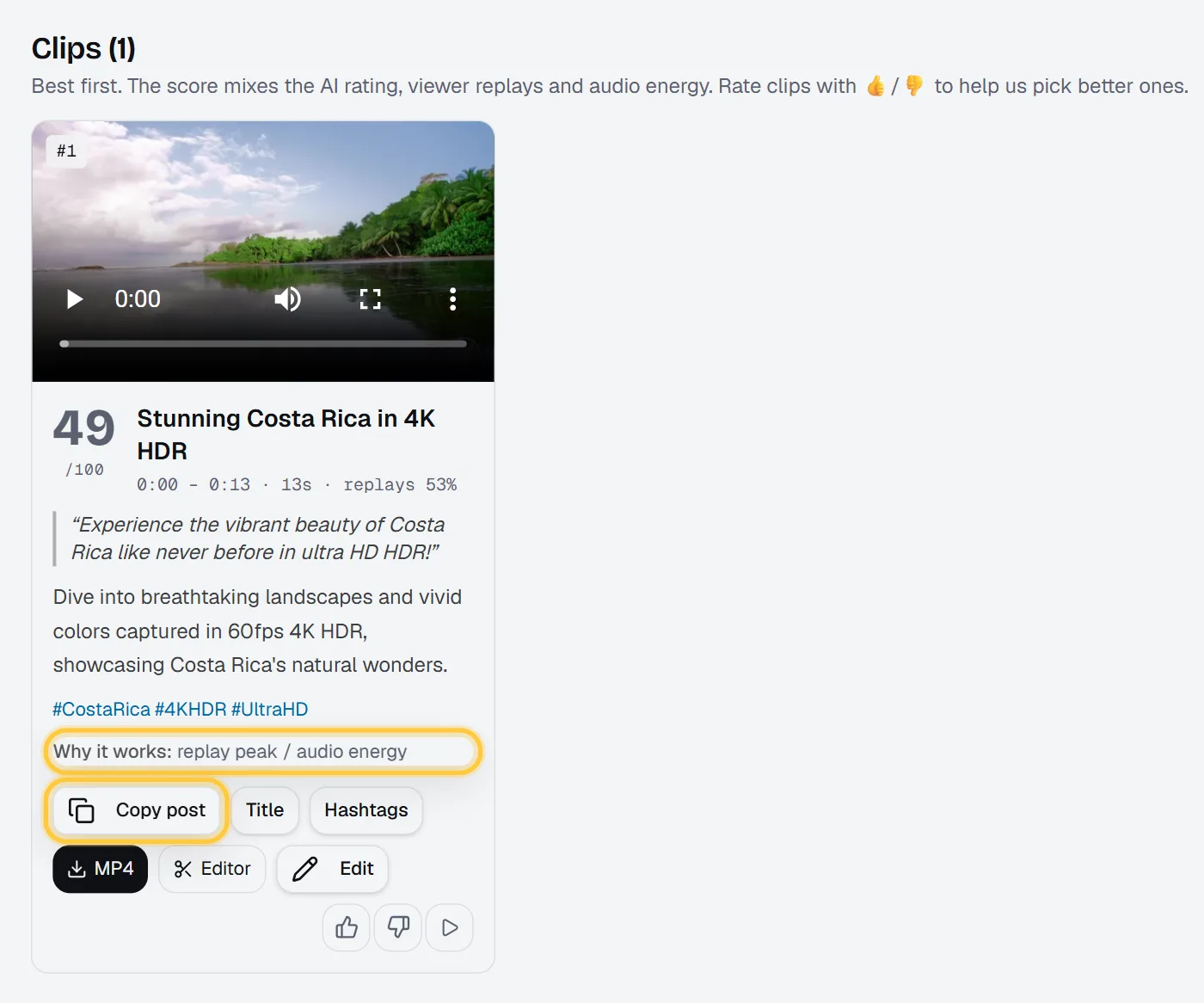
When the job ends, the page shows each clip as a card, best first. Each card has:
- The clip, ready to play.
- A score out of 100, with grades for Hook, Flow, Value and Trend.
- A title, a hook line, a short description and hashtags, in the language of the video.
- Why it works: one line on why the AI picked this moment.
- Buttons: Copy post (title, description and hashtags in one go), Title, Hashtags and MP4 to download.
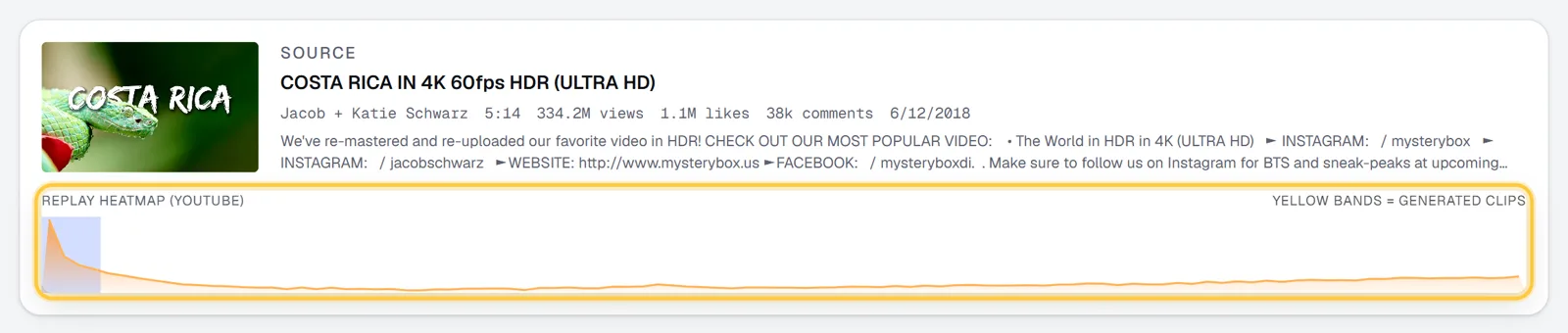
Above the clips, the Source card shows the Replay heatmap (YouTube). Yellow bands mark where each clip came from. It's a quick way to see that the clips sit on the peaks.
If a clip starts a second too late or a caption has a typo, paid plans have an Edit button on each clip. You can move the start and end, rename it, change the caption style or fix a caption line, and render it again for 1 credit. Use the thumbs up and down to rate clips; it helps us pick better ones.
To post, download the MP4, upload it in the YouTube app as a Short, and paste the copied post text.
The free YouTube way (Remix → Edit into a Short) and its limits
YouTube has its own tool, and it is worth knowing. On the watch page of your video in the YouTube app, tap Remix, then Edit into a Short. According to YouTube Help (checked October 2026), you can select up to 60 seconds of the video, then add text or filters, and the Short links back to the original.
The limits, from the same page:
- It only works on public videos you uploaded yourself. Private and unlisted videos, and videos with third-party copyright claims, can't be used.
- The video must allow sampling ("Allow people to sample this content" in YouTube Studio).
- You pick the moment yourself, by scrubbing. No AI picks it for you.
- No automatic captions burned in, no reframing to follow the speaker, no titles or hashtags.
It is fine for one quick Short from your own upload. For a podcast, an interview, or a channel you edit for someone else, finding the moments by hand is where the hours go.
Tips: hooks, length, safe zone
- The first two seconds decide. Turn on Title at the start, or Open with the best line if the clip starts slowly. Both are on the clips form.
- Shorter is not always better. Auto (20–60 s) lets each clip end where the idea ends. A 45-second clip that finishes its thought beats a 20-second clip that cuts mid-sentence.
- Keep captions in the safe zone. The default position stays above the caption, channel name and buttons that Shorts and TikTok draw at the bottom.
- Use Only moments about for series. "Only moments about pricing" across 10 videos gives you a themed playlist of Shorts.
- Post the best, not all. The cards are sorted by score. Post the top ones first and keep the rest for slow weeks.
What it costs vs OpusClip
Renderster charges per video. OpusClip charges per minute of source video. OpusClip's API docs say "1 Credit = 1 minute of video processing" and "API projects have a 10-credit minimum". Their plans page lists 150 processing minutes a month on Starter and 300 on Pro, and their pricing page shows Starter at $15/month and Pro at $29/month (all checked October 2026).
| Source video | Renderster | OpusClip |
|---|---|---|
| 10 minutes | 7 credits (~$0.34 on Starter) | 10 credits (10 of 150 monthly minutes on Starter) |
| 60 minutes | 7 credits (~$0.34) | 60 credits (40% of a Starter month) |
| 120 minutes | 7 credits (~$0.34) | 120 credits (80% of a Starter month) |
Renderster's Starter plan is $29/month with 600 credits, so 1 credit is about $0.048 and a clips job about $0.34. Unused credits roll over up to 3 times the monthly amount. 1440p and 4K clips (Business) cost the clips price twice.
To be fair: OpusClip's cheapest plan costs less per month than ours, and for very short videos (under 4 minutes or so) per-minute pricing can come out cheaper. The gap opens on long videos: podcasts, streams, webinars. More detail in Renderster vs OpusClip and on our pricing page.
Do it for every new video (n8n / Claude)
Clipping one video by hand is fine. Clipping every upload is a job for automation. Everything on the Media page is one API call:
curl -X POST https://renderster.com/media \
  -H "X-API-Key: YOUR_API_KEY" \
  -H "Content-Type: application/json" \
  -d '{"url": "https://www.youtube.com/watch?v=VIDEO_ID", "type": "clips",
       "options": {"clip_count": 5, "orientation": "vertical", "captions": true},
       "webhook_url": "https://example.com/hooks/clips-ready"}'
In n8n, an RSS trigger on your channel's feed plus one HTTP Request node with that body gives you clips for each new upload, and the webhook tells you when they are ready. The full workflow, with a JSON you can import, is in How to automate YouTube Shorts with n8n. You can also add Renderster as a connector in Claude or ChatGPT and ask for clips in plain words: see how to make videos with Claude. The API docs are at /docs.
Making clips from a podcast? The podcast clips guide covers the two-speaker layout, and Renderster for podcasts has examples. To add captions to a full video instead of clips, see how to add captions automatically.
FAQ
Can I turn a YouTube video into Shorts for free?
Yes. A free Renderster account includes one clips job with up to 3 captioned vertical clips, with no watermark. YouTube's own "Edit into a Short" is also free, but only for public videos you uploaded, up to 60 seconds, and you pick the moment yourself.
Can I make Shorts from someone else's YouTube video?
Technically the tool works with any public link, but you need the rights to repost the content. Clip your own videos, videos from creators who hired you, or content whose license allows it. YouTube may claim or remove reposted clips that you don't have rights to.
How long should a YouTube Short be?
There is no single best length. Use Auto (20–60 s) to start: each clip ends where the idea ends. Short (under 30 s) works for punchlines and quick tips; Long (60–90 s) and Extra long (1.5–3 min) suit full answers from interviews.
How long does it take to turn a long video into Shorts?
Your part takes about 3 minutes. The processing depends on the video length and the number of clips: the app's estimate is about 4 minutes for a 20-minute video with 3 clips, and about 9 to 10 minutes for an hour-long video with 5 clips. It runs in the background.
Does it work with long videos, like a 2-hour podcast?
Yes, and the price does not change with length: one clips job is 7 credits for a 10-minute video or a 2-hour one. For podcasts with two people on camera, use the Two speakers layout.
Will the clips have a watermark?
No. Clips from Renderster have no watermark, on the Free plan or on paid plans.