How to Add B-Roll Automatically With AI (Your Links, Stock, or AI-Animated Cutaways)
Use an AI B-roll generator to add cutaways automatically: your own clips, stock that matches what you say, or animations made for your video.
The short answer: let the edit place the B-roll for you, timed to what you say.
- Upload your talking-head video on the Media page and choose Auto edit.
- In B-roll (optional), paste up to 10 links of your own, or leave it empty and pick stock clips or Animations made for your video.
- Click Edit the video. The cutaways land on the right sentences while your voice goes on.
What B-roll does for retention
B-roll is anything on screen that isn't you talking: a screenshot of the thing you mention, a product shot, a clip of a city when you say where you were, a chart when you give a number. It does three jobs:
- It resets attention. A new image every so often gives the eye something fresh, which matters most in the middle of a video where people drift away.
- It shows instead of tells. "Our signups doubled" lands harder with a line going up than with a face saying it.
- It hides cuts. A cutaway over a jump cut makes the edit feel smooth.
The hard part has never been the idea. It's the work: finding the right clip for each sentence, trimming it, placing it, matching its size and color to your video. In a manual editor you do this per cutaway. In Renderster's Auto edit, you choose where the B-roll comes from and the edit does the placing.
There are three sources. You can use one per video.
Option 1: Your own clips and screenshots (up to 10 links)
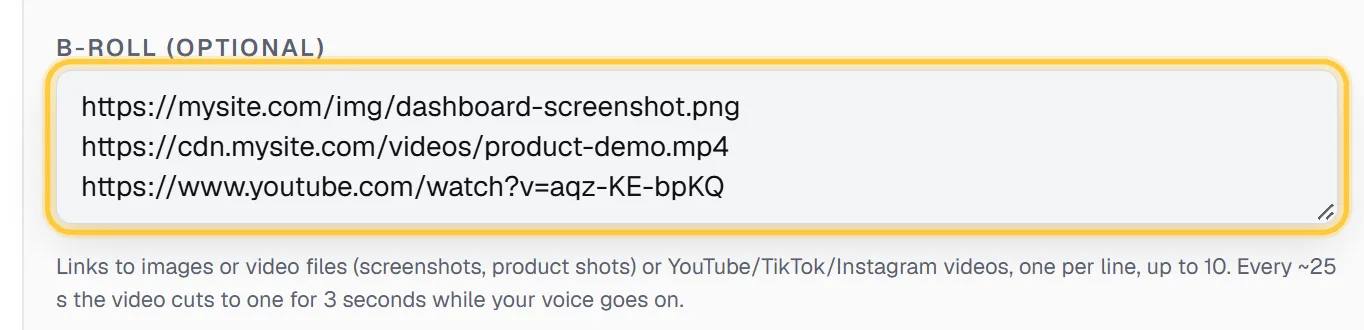
When the B-roll needs to be yours (your app, your product, your face at an event), paste links in the B-roll (optional) field, one per line, up to 10:
- Images: screenshots, product photos, slides (a link to the file).
- Video files: a link to an .mp4 or similar.
- Videos on YouTube, TikTok, Instagram, X or Facebook: the link to the post.
What happens to them:
- Each one becomes a 3-second cutaway, sized to your video's format and converted to its color format, so it doesn't look pasted on.
- They are used in the order you pasted them, one per cutaway, while your voice keeps going.
- If you paste more links than the video has room for, the first ones are used. A link that can't be fetched is skipped, the next one takes its place, and the job page tells you which one failed.
Tip: order your links the way the video goes. The first link shows at the first cutaway, so if you talk about the dashboard before the pricing page, put the dashboard screenshot first.
Option 2: Stock clips picked from what you say
No footage of your own? Leave the field empty and, under No B-roll of your own? The cutaways can be:, choose Free stock clips that match what you say. Same price as an edit without them.
The edit reads the transcript, takes the passages where a cutaway fits, and searches a stock footage library for clips that match what you are saying there, including who or what you talk about. Each clip is placed close to the sentence it illustrates. The authors of the stock clips used are credited on the job page, with links.
Stock works well for travel, lifestyle, food, fitness and general topics, where "a person running on a beach" or "a busy office" says what you are saying. It works less well for abstract ideas (pricing, strategy, a statistic), where generic footage looks like filler. For those, the next option is better.
Option 3: AI animations made for your video
The third choice is Animations made for your video: big numbers, icons, charts, kinetic type. +3 credits per cutaway.
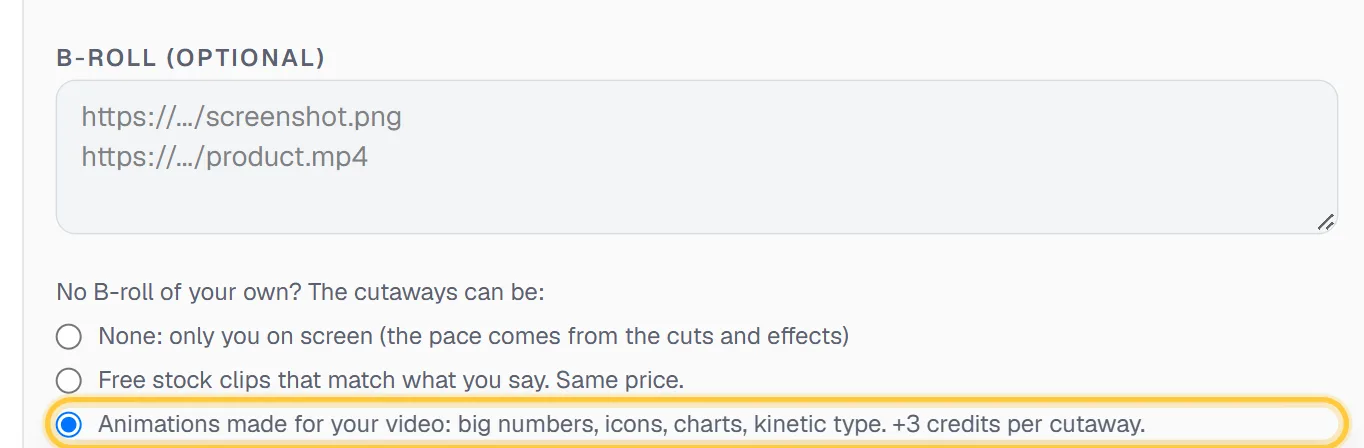
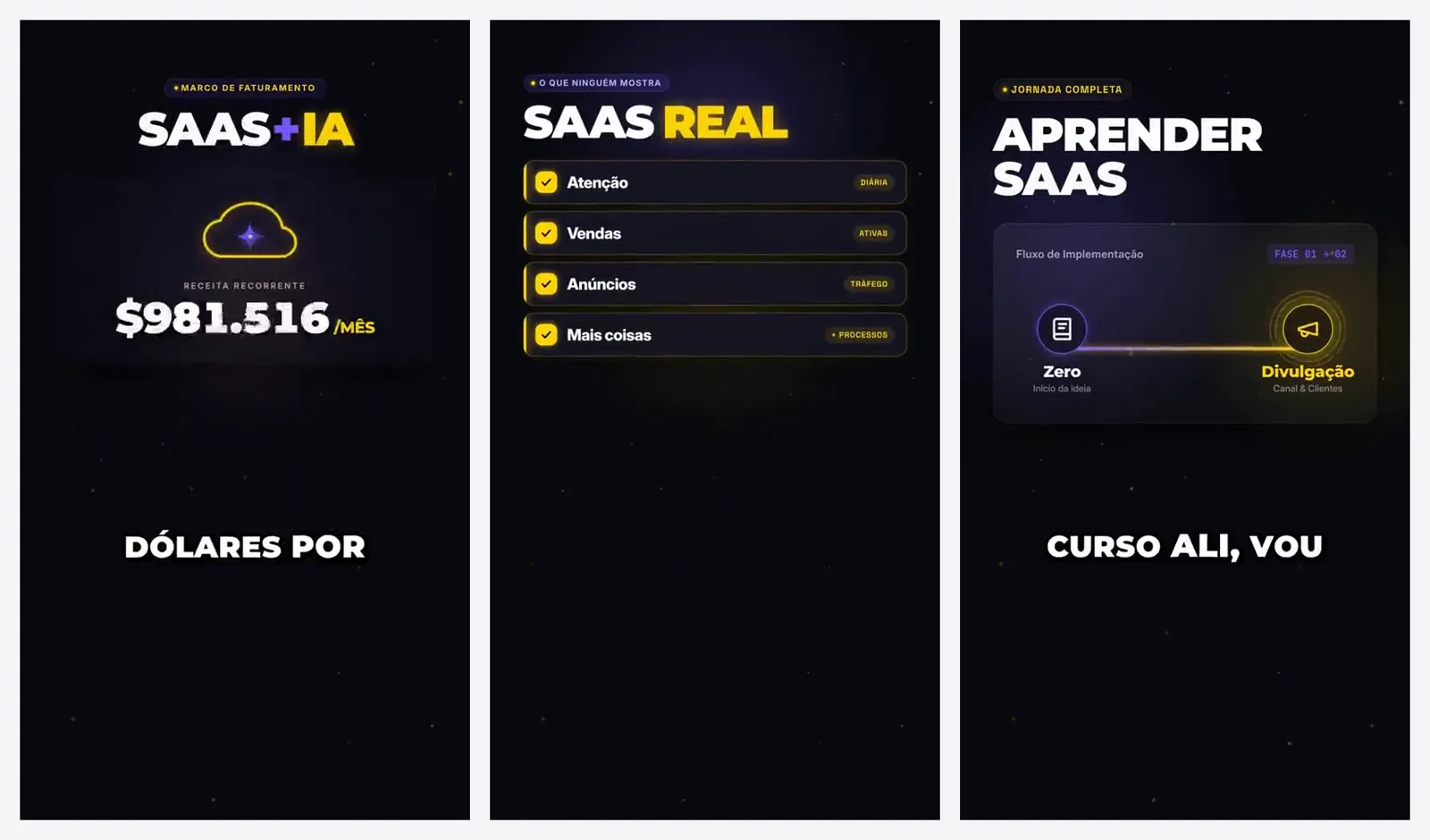
Instead of searching for footage, the edit designs a short animation for each passage where a cutaway fits. For each one it writes a headline of 1 to 4 words (the key idea, a number, the name of a thing) and decides what moves: a big number counting up, a chart rising, an icon drawn line by line, a checklist ticking, two things compared side by side, a timeline, a price tag. Then it animates it at your video's size.
Some details that matter:
- The text is in the language you speak. Portuguese video, Portuguese headlines.
- Each one is readable in under a second and stays on screen for 3 seconds.
- No people, faces or photos. Only shapes, type, icons and data, so nothing looks like fake footage of a real place or person.
- Passages with nothing to show get no animation. It won't invent a chart for a sentence without a point.
This is the option for explainers, business and finance content, tutorials, and any video full of numbers. The auto edit example on Renderster's Studio page uses it: a raw phone video, edited with animated cutaways and no human touching it.
Studio, the same team of agents behind these cutaways, also makes full animated videos from a text description: see how to make an animated explainer video with AI.
How often it cuts away
Cutaways follow the style you pick for the edit:
| Style | A cutaway about every | Each one lasts |
|---|---|---|
| Best YouTube Edit | 12 seconds | 3 seconds |
| Clean pace | 25 seconds | 3 seconds |
| Hyper (API) | 10 seconds | 3 seconds |
The faster styles cut away more often than Clean pace. A style you learned from reference videos uses the rhythm it measured in them.
Where they don't go matters as much. The edit keeps you on screen for the opening of a new part, for your strongest lines and for reveals, because those moments work best on your face. The first cutaway comes one gap into the video at the earliest, so a very short video may not get one.
One limit to know: HDR videos (common on recent phones with HDR recording on) don't get your B-roll links or animated cutaways, because cutaways in them would look washed out or too bright. HDR files used as B-roll are skipped for the same reason. The job page tells you when that happens. Recording in standard dynamic range avoids it.
Step by step
- Open the Media page, paste a link or upload your video (MP4, MOV, WebM up to 2 GB) and pick Auto edit.
- Choose a Style (Best YouTube Edit or Clean pace) and a Format (YouTube 16:9 or Short 9:16).
- Paste your links in B-roll (optional), or leave it empty and pick None, stock clips or animations.
- Set captions and music as you like (the default music lets the edit pick a fitting free track).
- Click Edit the video.
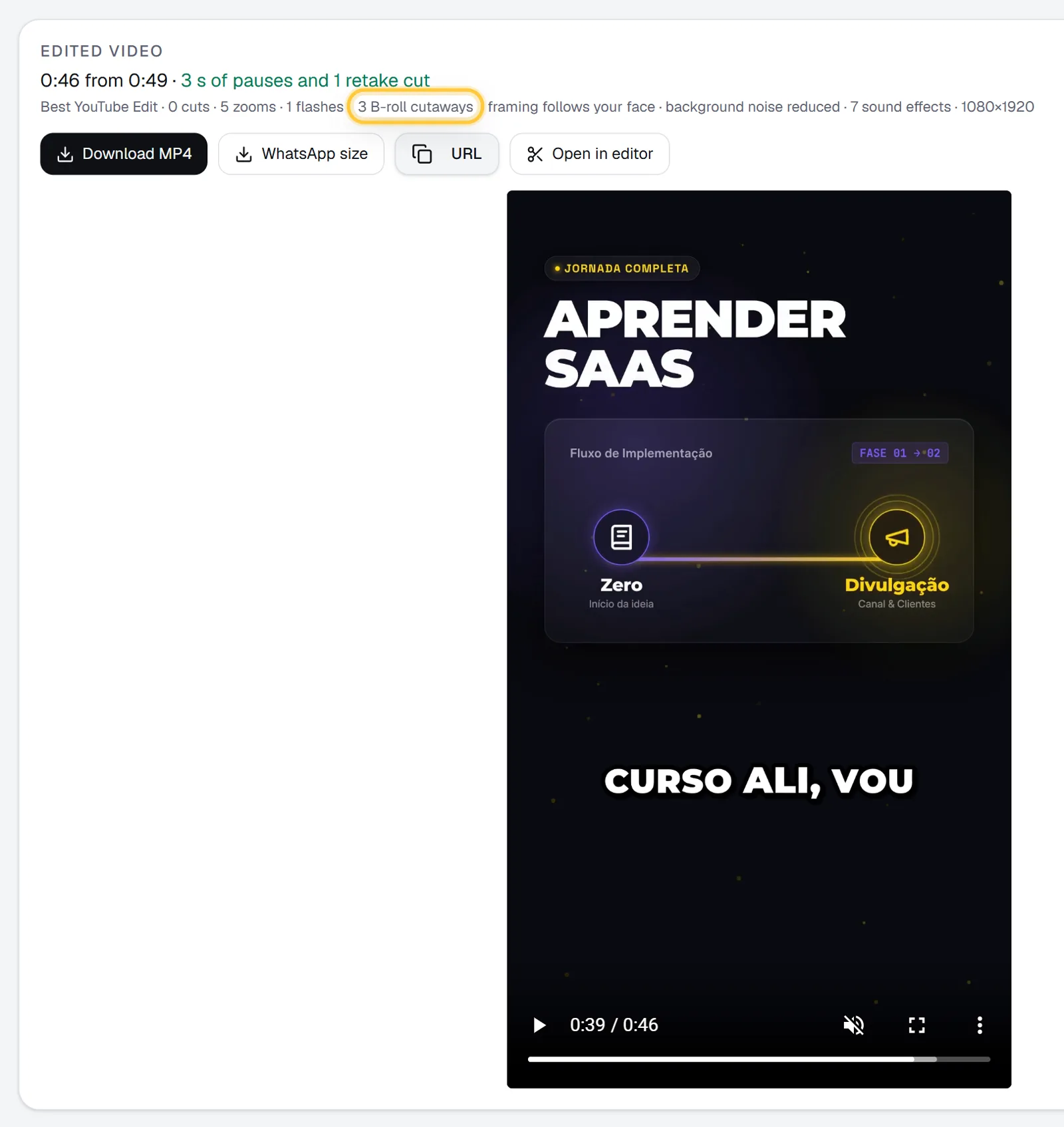
When it's done, the Edited video card on the job page lists how many B-roll cutaways were used, next to the cuts, zooms and sound effects, and credits the stock authors when stock was used.
Want to move one cutaway by hand? Open in editor puts the edited video on a timeline, and the editor has its own free stock search for videos and photos.
Costs
| Option | Extra cost |
|---|---|
| Your own links (up to 10) | None |
| Stock clips that match what you say | None |
| Animations made for your video | +3 credits per cutaway used, at most 10 per video |
The edit itself costs 3 credits per started minute of the edited video. Two examples on the Starter plan (US$29 for 600 credits, about US$0.048 a credit):
- An 8-minute video with stock B-roll: 24 credits, about US$1.16.
- The same video in Best YouTube Edit with animated cutaways: 24 credits plus up to 10 animations at 3 credits = up to 54 credits, about US$2.61. You pay only for the animations the edit actually uses; the rest is given back.
Edits with animated cutaways also have a daily limit per plan: 5 a day on Starter, 20 on Pro and 60 on Business (2 a day during the free trial). Auto edit is part of the paid plans, each with a 7-day free trial that includes 100 credits.
Do it automatically
All three options are fields of the same API call. Send broll with your links, or stock_broll: true, or motion_broll: true (not together with stock):
curl -X POST https://renderster.com/media \
  -H "X-API-Key: YOUR_API_KEY" \
  -H "Content-Type: application/json" \
  -d '{
    "url": "https://example.com/my-video.mp4",
    "type": "auto_edit",
    "options": { "edit_style": "best-youtube", "orientation": "horizontal", "motion_broll": true, "music": "auto" }
  }'
The docs list every option. For the rest of the edit (pauses, retakes, zooms, captions and music), see how to edit a talking-head video with AI.
FAQ
What is an AI B-roll generator?
It's a tool that adds cutaways to your video for you: it reads what you say, decides where a cutaway helps, and fills it with matching footage or graphics. Renderster's Auto edit can use your own links, stock clips that match the speech, or animations designed for each passage.
How do I add B-roll without editing by hand?
Upload your video to Renderster's Media page, choose Auto edit, and either paste up to 10 B-roll links or leave the field empty and pick stock clips or animations. The edit places 3-second cutaways at the right sentences and keeps your voice going under them.
Is the stock footage free to use?
Yes. The stock option uses free stock clips and costs nothing extra on top of the edit. The authors of the clips used are credited on the job page. The other paid add-on is the animated cutaways, at 3 credits each.
Can I choose which sentence each cutaway goes on?
With your own links, the order you paste them is the order they appear. With stock and animations, the edit matches each cutaway to the passage it illustrates. For exact placement, open the edited video in the editor and move it on the timeline.
How is this different from adding B-roll in CapCut?
In CapCut you find, trim and place every clip yourself. Here you choose the source once and the whole video gets its cutaways in one pass, along with the rest of the edit (pauses cut, zooms, captions, music). If you like to fine-tune, you can still open the result in an editor afterwards.
Why didn't my video get any B-roll?
Usually one of three reasons: the video is too short for the gap of its style, it was recorded in HDR (links and animations are skipped there to avoid washed-out colors), or every link failed to load. The job page shows a warning that says which.