How to Clip a Podcast for TikTok, Reels and Shorts (Both Speakers in Frame)
How to clip podcasts for TikTok: upload the episode, stack both speakers in a vertical frame, add captions, and get titles and hashtags for each clip.
To clip a podcast for TikTok with both speakers in frame:
- Paste the episode's YouTube link (or upload the video file) on Renderster's Media page and pick Clips.
- Under More options, set Layout to Two speakers (one above the other) and the length to Medium 30–60 s.
- Click Get clips and post the best ones with the titles and hashtags it writes.
What makes a podcast moment clip-worthy
Most podcast clips fail for one of two reasons: the moment needs context the viewer doesn't have, or the frame shows half a person. The second one is a cropping problem. We'll fix it in Step 2. The first one is about picking the right moment.
A clip-worthy podcast moment usually has:
- A hook in the first sentence. A strong claim, a question, a number, a "nobody talks about this".
- One complete idea. It starts and ends inside the clip. No "as I said earlier".
- A reaction. The second speaker laughing, pushing back or saying "wait, what?". This is why both faces matter.
- A payoff. A punchline, a lesson, a surprising answer.
Renderster's AI reads the full transcript looking for exactly this, and grades each clip on Hook, Flow (how complete and self-contained the idea is), Value (emotion, insight, humor or controversy) and Trend (fit with what performs on Shorts right now). If the episode is on YouTube and has a "most replayed" graph, the moments viewers went back to watch count too.
Here's a hook checklist you can copy for reviewing clips by hand:
[ ] The first 3 seconds make sense with no context
[ ] The idea finishes before the clip ends
[ ] Someone reacts on camera (laugh, pushback, surprise)
[ ] The title promises what the clip delivers
[ ] The captions are readable on a phone, clear of the app buttons
Step 1: Paste the episode (YouTube, upload up to 2 GB, or audio)
Sign in and open Media & Clips. You have two ways in:
- Link: paste the episode's YouTube link. TikTok, Instagram, X and Facebook links work too, as does a direct link to an
.mp4file. - Upload: click Upload and pick the file. The box takes "MP4, MOV, WebM, MP3 · up to 2 GB".
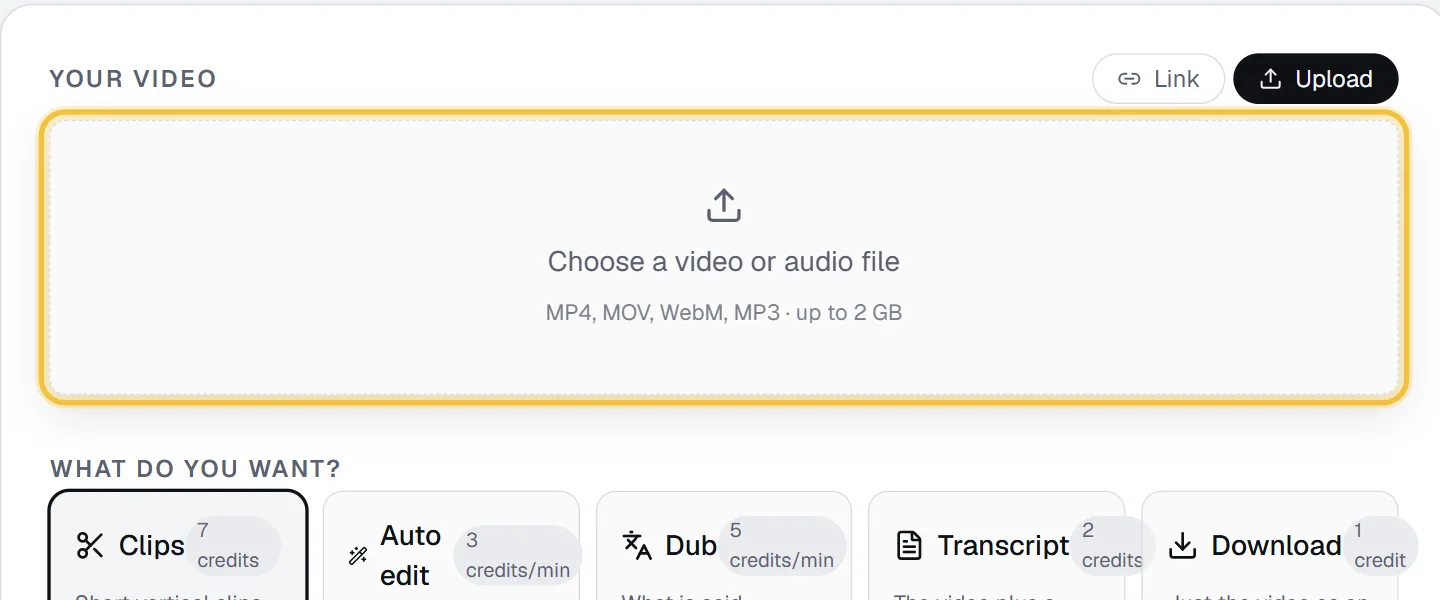
About audio-only podcasts: clips for TikTok need a picture, so a clips job needs a video file. If your show is audio only, an MP3 still works for a Transcript job (paid plans), which you can use for show notes and to find quotes. For clips, record video, even a single wide shot.
Then pick Clips under What do you want?.
Step 2: Choose "Two speakers" framing
This is the step that makes or breaks podcast clips.
Most podcasts are filmed in 16:9 with two people side by side. A vertical 9:16 crop of that frame is narrow. With a normal crop you get one person, or the gap between them. The listener hears a reaction from someone they can't see.
Open More options and set Layout:
- Auto (follow the subject): one crop that follows whoever matters. Good when the episode cuts between close-ups of each person.
- Two speakers (one above the other): "The person on the left on top, the one on the right below. For podcasts and interviews." Each half is centered on that person's face.
- Gaming (facecam on top): for streams, not podcasts.
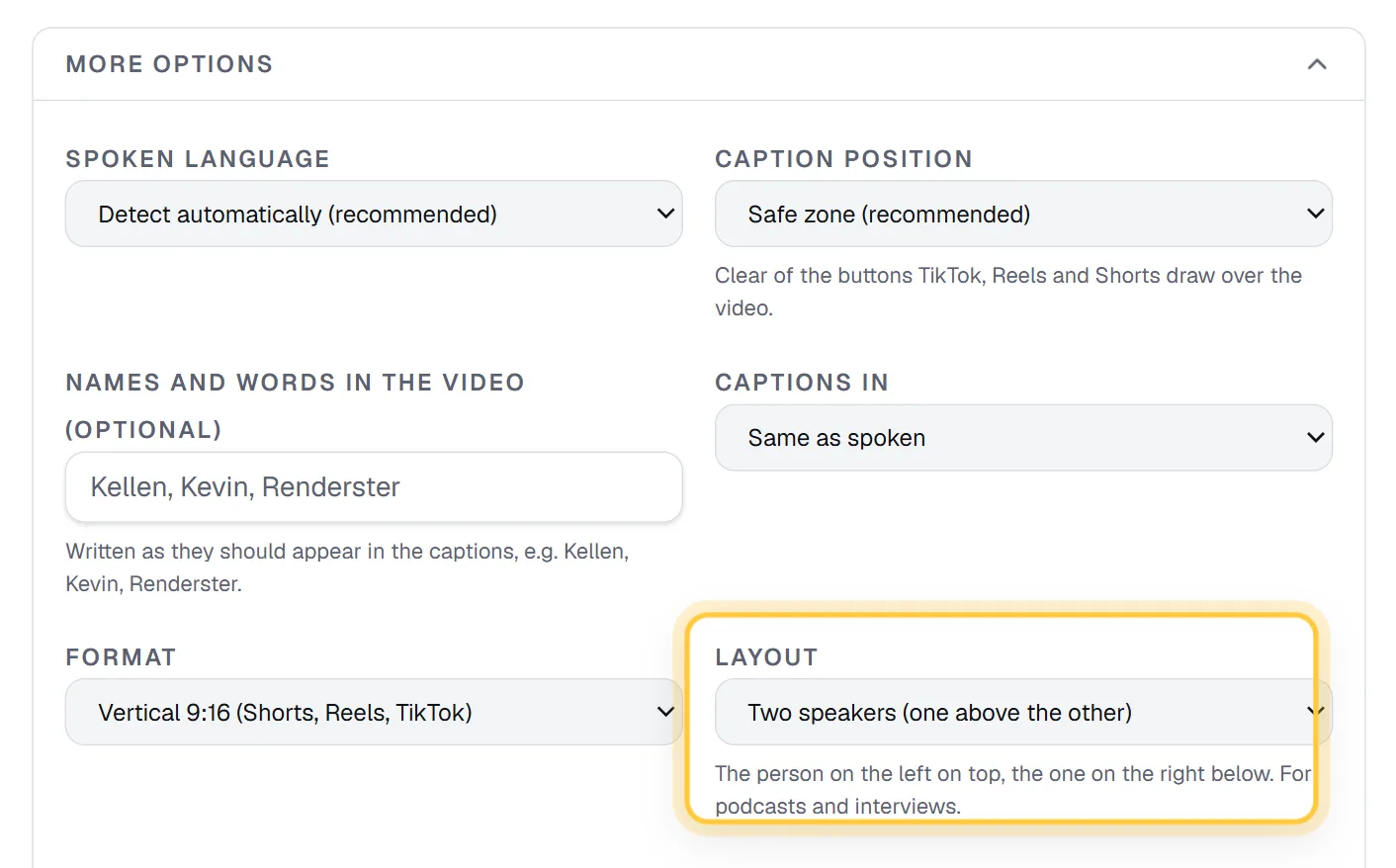
The layout only applies to vertical clips of a horizontal video, so keep Format on Vertical 9:16. It costs nothing extra.
What happens if the AI can't find two people in a clip (say, a moment where the camera shows only one host)? That clip falls back to the normal Auto crop and the job shows a warning. You don't get a broken frame.
A tip if you're setting up the camera: a wide shot where both people are fully in frame, each on their own side, gives the Two speakers layout the best result.
Step 3: Length and captions for TikTok
Length. Podcast answers take time to land. Medium (30–60 s) is a good default for TikTok and Shorts. If your guests give long answers, try Long (60–90 s), or Extra long (1.5–3 min) for full stories. Auto (20–60 s) lets the AI end each clip where the idea ends.
How many. 3, 5, 8 or 10 clips per job. The price is the same: 7 credits per job. The Free plan allows one job with up to 3 clips.
Captions. Plenty of people scroll with the sound off, and captions help the ones with sound on follow fast talkers too. Pick a style in the Caption style gallery. For podcasts, three work well:
- Cortes BR: white uppercase with a thick black edge, the spoken word yellow and bouncing. It's the classic podcast-cut look.
- Karaoke: each word fills yellow as it is said.
- Clean: smaller lines with a soft shadow, for calmer shows.
In More options, keep Caption position on Safe zone (recommended) so the captions stay clear of TikTok's buttons.
Two more settings help podcasts in particular:
- Names and words in the video: type your guest's name, your show's name and any jargon. The captions will spell them right.
- Cut the pauses: removes silences and the "um"s inside each clip. Long-form conversation has a lot of them.
If you want clips about one topic only (say, an episode on fundraising where you just want the "valuation" parts), type it in Only moments about.
Click Get 5 clips · 7 credits. The app shows an estimate before you start. For a 2-hour episode with 5 clips, the estimate is around 15 minutes. You can close the tab.
Step 4: Review titles, hashtags and "why it works"
The job page lists the clips best first. Each card has the clip, a score out of 100 with the four grades, a title, a hook line, a short description, hashtags, and Why it works, one sentence on why the AI picked it. Titles and hashtags come out in the language spoken in the episode.
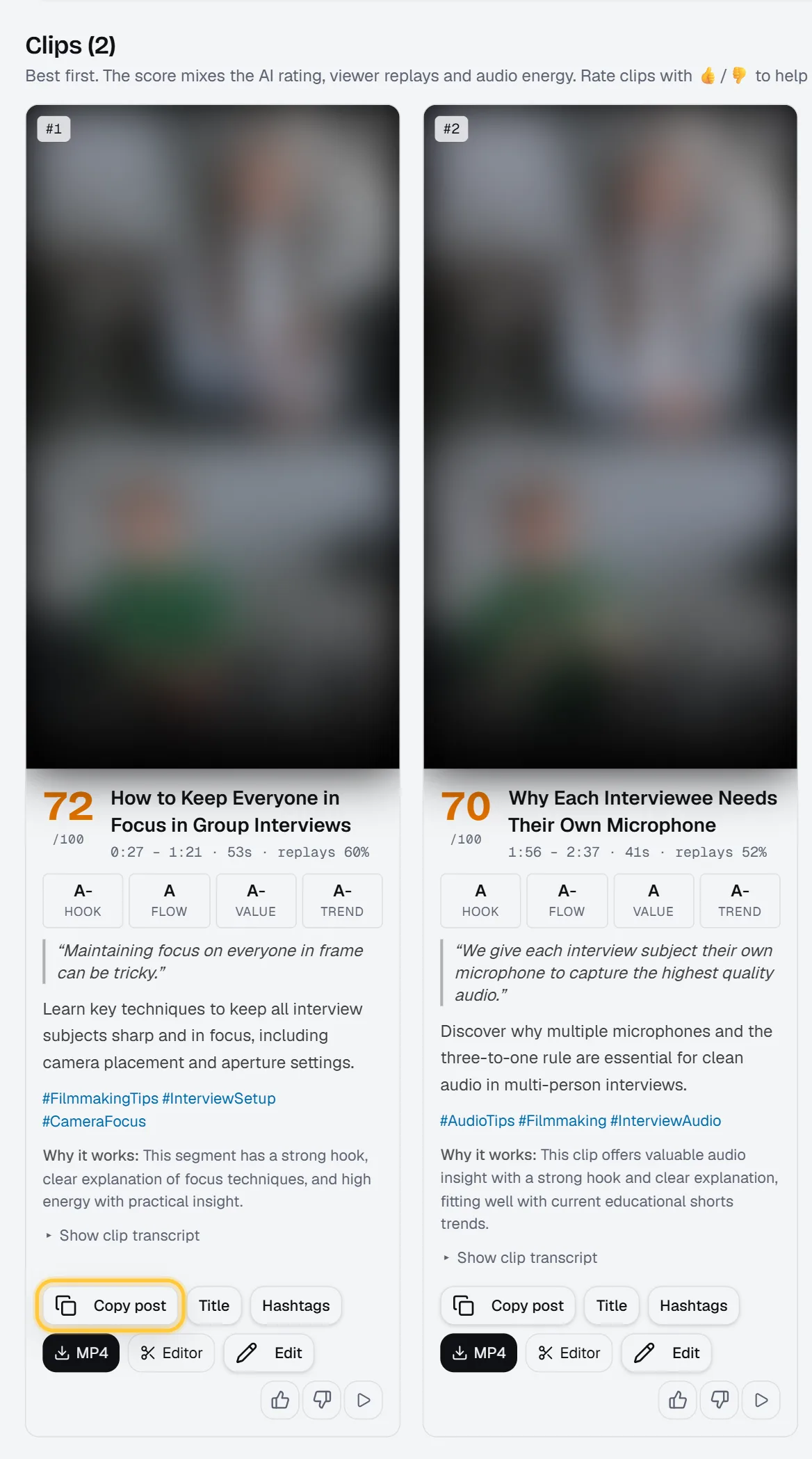
Use Copy post to grab the title, description and hashtags in one go, and MP4 to download. On paid plans, Edit lets you nudge the start or end by a second, change the title or fix a caption line, then render that clip again for 1 credit. Not happy with the whole set? On paid plans, Generate new clips cuts a new set from the same episode without downloading it again.
If you edit in Premiere Pro, DaVinci Resolve or Final Cut, Export XML gives you a timeline with every clip marked on the source.
Posting cadence (3–5 clips per episode)
There's no magic number, but a weekly show can post 3 to 5 clips per episode without repeating itself:
- Day 1 (episode day): the strongest clip, to send people to the full episode.
- Days 2 to 5: one clip a day, mixing topics.
- Keep one in reserve for a slow week.
Post the same clip to TikTok, Reels and Shorts. Change the caption text a little for each platform if you like, but the video can stay the same. All three are 9:16.
Watch which clips get shares and comments, not just views. Then use Only moments about on the next episode to find more of what worked.
Cost per episode: Renderster vs per-minute tools
Many clipping tools charge by the minute of source video. OpusClip's API docs state "1 Credit = 1 minute of video processing", and their plans page lists 150 processing minutes a month on Starter and 300 on Pro ($15 and $29 a month on their pricing page, checked October 2026). Long podcasts eat that fast.
Renderster charges per video: 7 credits per clips job, whatever the length. On Starter ($29/month, 600 credits), that's about $0.34 per episode.
| Weekly show, 4 episodes a month | Renderster | OpusClip (per minute) |
|---|---|---|
| 1-hour episodes | 28 credits a month (5% of Starter) | 240 minutes (more than Starter's 150) |
| 2-hour episodes | 28 credits a month (5% of Starter) | 480 minutes (more than Pro's 300) |
| One 2-hour episode | 7 credits (~$0.34) | 120 minutes |
Some tools charge per clip instead. Klap's pricing page lists 100 clips a month for $14/month billed yearly (checked October 2026). If you only cut a few clips per episode, per-clip pricing can work fine too. Per-minute pricing is what hurts long shows.
With Renderster, unused credits roll over up to 3 times your monthly amount. See pricing, Renderster vs Klap and Renderster vs OpusClip.
Clip every new episode automatically
If you publish on YouTube, you can skip the form. One API call creates the clips job with the Two speakers layout:
curl -X POST https://renderster.com/media \
  -H "X-API-Key: YOUR_API_KEY" \
  -H "Content-Type: application/json" \
  -d '{"url": "https://www.youtube.com/watch?v=EPISODE_ID", "type": "clips",
       "options": {"clip_count": 5, "min_seconds": 30, "max_seconds": 60,
                   "orientation": "vertical", "layout": "two_speakers", "captions": true},
       "webhook_url": "https://example.com/hooks/clips-ready"}'
Hook that to your channel's RSS feed in n8n, Make or Zapier, and every new episode turns into clips without anyone opening the app. The webhook fires when the job ends; then GET https://renderster.com/media/JOB_ID returns each clip with its MP4 link, title and hashtags. The step-by-step workflow is in How to automate YouTube Shorts with n8n, and all the options are in the docs.
New to clipping? Start with the general guide, how to turn a YouTube video into Shorts. For more podcast examples, see Renderster for podcasts.
FAQ
How do I get both podcast hosts in a vertical clip?
Use a split layout that stacks them. In Renderster, open More options and set Layout to "Two speakers (one above the other)": the person on the left goes on top, the person on the right below, each centered on their face. It works on vertical clips of a horizontal video and costs nothing extra.
How long should podcast clips be for TikTok?
30 to 60 seconds is a good default, because podcast answers need a few sentences to land. Use 60 to 90 seconds or longer for full stories. The idea should finish inside the clip; a complete 50-second clip beats a cut-off 20-second one.
How many clips should I post per podcast episode?
A weekly show can post 3 to 5 clips per episode: the strongest on release day, then one a day. Post the same 9:16 clip to TikTok, Reels and Shorts.
Can I clip an audio-only podcast?
Not into video clips: a clips job needs a picture. You can upload an MP3 for a transcript (paid plans) and use it for show notes and quotes. For clips, film the recording, even with one wide shot.
How much does it cost to clip a podcast episode?
On Renderster, one clips job is 7 credits whatever the episode length, about $0.34 on the Starter plan. The Free plan includes one job with up to 3 clips. Per-minute tools charge by the length of the episode, so a 2-hour show costs 120 minutes of credit there.
Can I upload the episode file instead of a YouTube link?
Yes. Click Upload on the Media page and pick the file: MP4, MOV, WebM or MP3, up to 2 GB. Clips need a video file.