How to Add Captions to a Video Automatically (TikTok-Style, Word by Word)
How to add captions to a video automatically: word-by-word TikTok-style captions, safe-zone placement, translated captions, and SRT/VTT files.
To add captions to a video automatically:
- Paste a link or upload your video on Renderster's Media page.
- Pick a caption style (Karaoke, Bold, Beast…) and keep the position on Safe zone.
- Start the job. Our speech recognition times every word, and the captions are burned into the video, word by word.
Caption your first video free →
Captions vs subtitles (and why so many feeds are on mute)
People use the two words loosely, so here's the difference this guide uses:
| Captions (burned in) | Subtitles (a file) | |
|---|---|---|
| What it is | Text drawn into the picture | A separate SRT or VTT file |
| Can viewers turn it off? | No | Yes, with the CC button |
| Where it's used | TikTok, Reels, Shorts, ads | YouTube, Vimeo, courses, players |
| Styling | Any font, color, animation | The player decides |
On short-form apps, burned-in captions are the norm. A lot of people scroll with the sound off, and a caption that lights up each word as it's said keeps the eye on the video even with the sound on. On YouTube long-form, a subtitle file is usually better: viewers can turn it off, and YouTube can translate it.
This guide covers both. Steps 1 to 4 burn captions in. The section "Just need the SRT/VTT file?" covers the file.
Step 1: Upload or paste a link
Sign in and open Media & Clips. Paste a link under Your video (YouTube, TikTok, Instagram, X, Facebook, or a direct .mp4 link) or click Upload and pick a file ("MP4, MOV, WebM, MP3 · up to 2 GB").
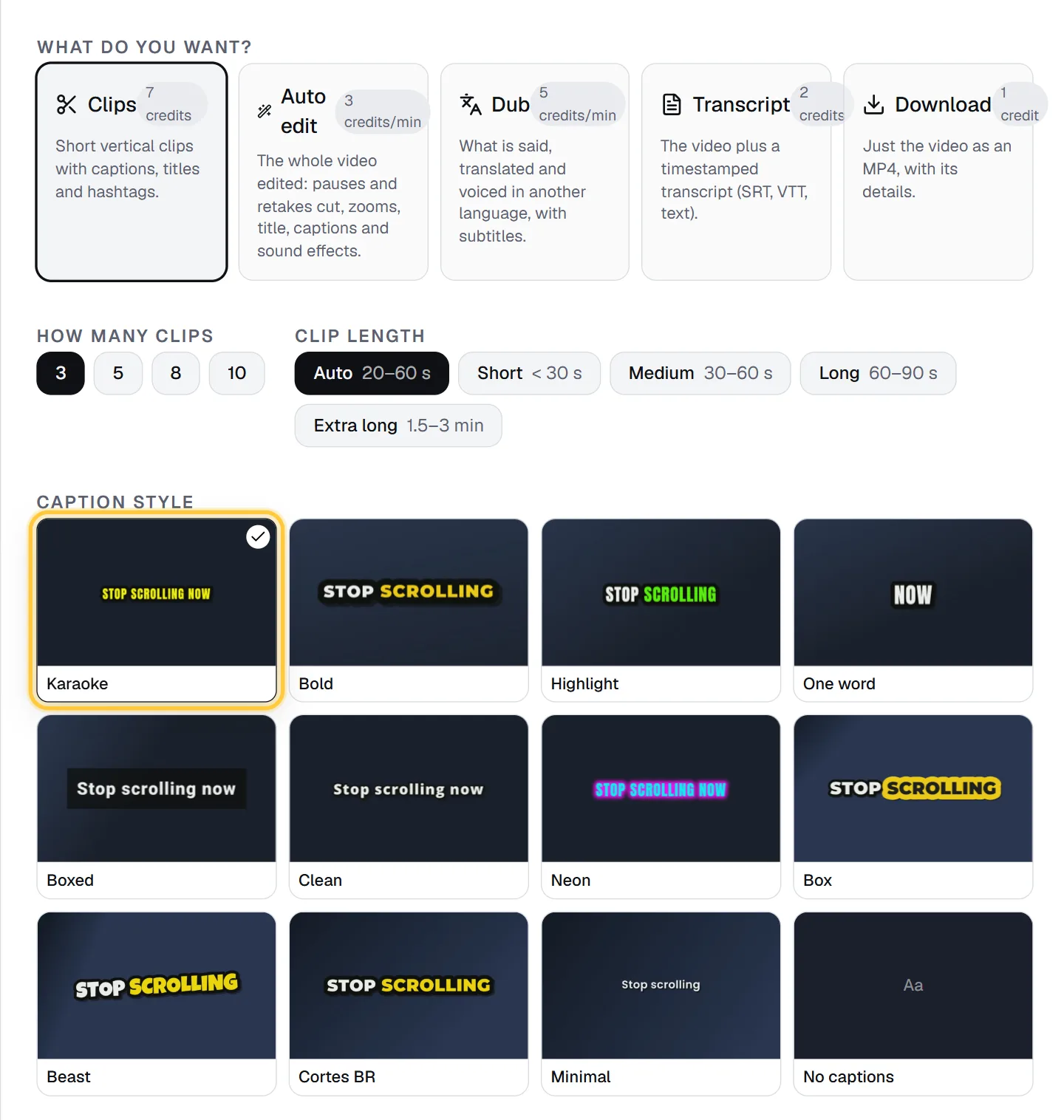
Then pick what you want under What do you want?. Three of the options burn captions in:
- Clips (7 credits): cuts the best moments of a long video into short vertical clips, each with captions, a title and hashtags. This is the one for TikTok, Reels and Shorts. The Free plan includes one clips job with up to 3 clips.
- Auto edit (3 credits per minute): edits the whole video, cutting pauses and retakes and adding zooms, a title, captions and sound effects. See how to edit a talking-head video with AI.
- To caption a full video without editing it, use the visual editor (covered in Step 4).
The rest of this guide uses Clips, the most common case.
Step 2: Pick a caption style and position (safe zone)
The Caption style gallery shows a preview of each look. All of them are timed to the word:
| Style | What it looks like | Good for |
|---|---|---|
| Karaoke | Bold uppercase lines; each word fills yellow as it is spoken | Most Shorts and TikToks |
| Bold | Heavy uppercase; the spoken word bounces, only key words light up | Tips, talking heads |
| Highlight | Lines pop in; the spoken word turns green | Fast talkers |
| One word | One big word at a time in the middle | High-energy edits |
| Boxed | Sentence case on a dark box | Busy backgrounds |
| Clean | Smaller lines with a soft shadow | Talks, interviews |
| Neon | Cyan karaoke with a magenta glow | Gaming, nightlife |
| Box | The spoken word on a yellow marker | Explainers |
| Beast | Two huge cartoon words, the spoken one bouncing in color, tilted | YouTube-style energy |
| Cortes BR | White with a thick edge, the spoken word yellow and bouncing | Podcast cuts |
| Minimal | Small sentence-case lines, soft shadow | Calm, premium videos |
There's also No captions if you want clean clips.
Now the position. Open More options and look at Caption position:
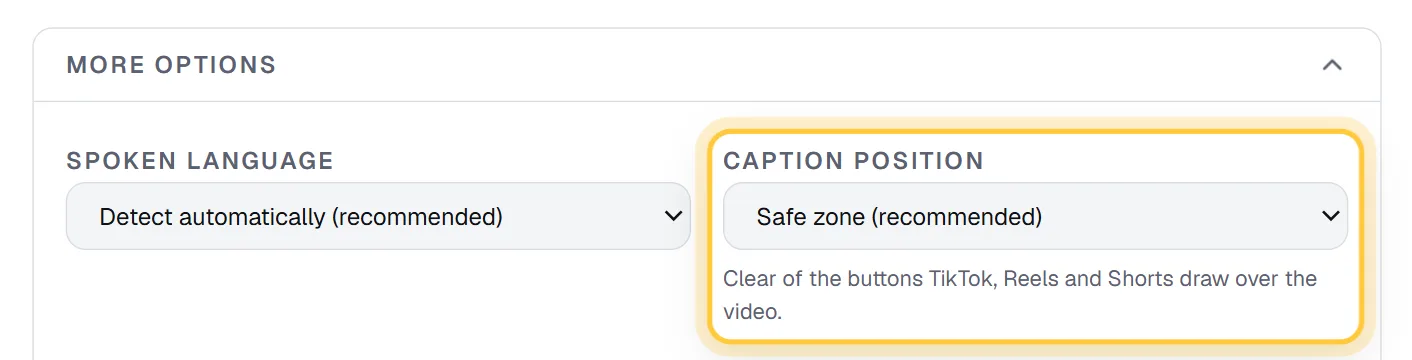
- Safe zone (recommended): "Clear of the buttons TikTok, Reels and Shorts draw over the video." This is the default.
- Top, Middle, Bottom: Bottom is "low, as on TV (on a phone the app may cover it)".
The safe zone matters more than most people think. TikTok draws the caption text, the username, the music line and a column of buttons over the bottom and the right side of the video. Captions placed like TV subtitles end up under them. Leave it on Safe zone unless you have a reason not to.
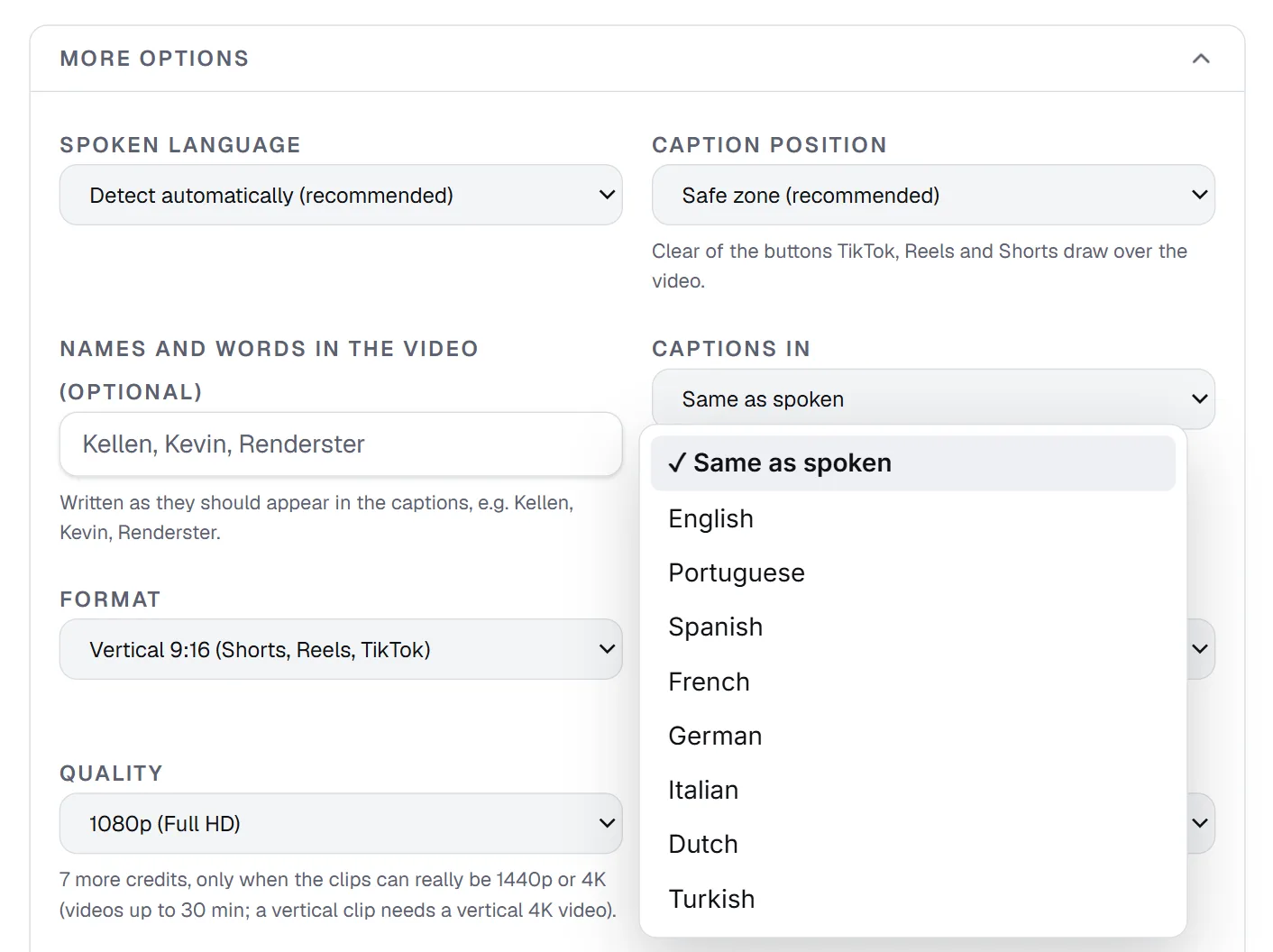
While you're in More options, fill in Names and words in the video. Type names and terms as they should be spelled, separated by commas: "Kellen, Kevin, Renderster". Speech recognition is good with common words and weak with names. This one field fixes most caption typos before they happen.
Step 3: Caption language: same as spoken or translated
Also in More options, Captions in sets the caption language:
- Same as spoken (default): the captions show what is said, in the language it's said in.
- English, Portuguese, Spanish, French, German, Italian, Dutch or Turkish: the captions are translated. So are the titles, hooks, descriptions and hashtags.
This is useful when you speak one language and your audience reads another. A Portuguese podcast can post clips with English captions without anyone re-typing them.
The spoken language is detected automatically. If detection gets it wrong (a video that mixes languages, say), set Spoken language in the same panel.
If you want the voice in another language too, not just the captions, that's dubbing: see how to dub a video with AI.
Click the button at the bottom (Get 5 clips · 7 credits, for example) and the job starts. You can close the tab.
Step 4: Fix a word in the editor
Even good speech recognition misses a word now and then. You have two ways to fix it.
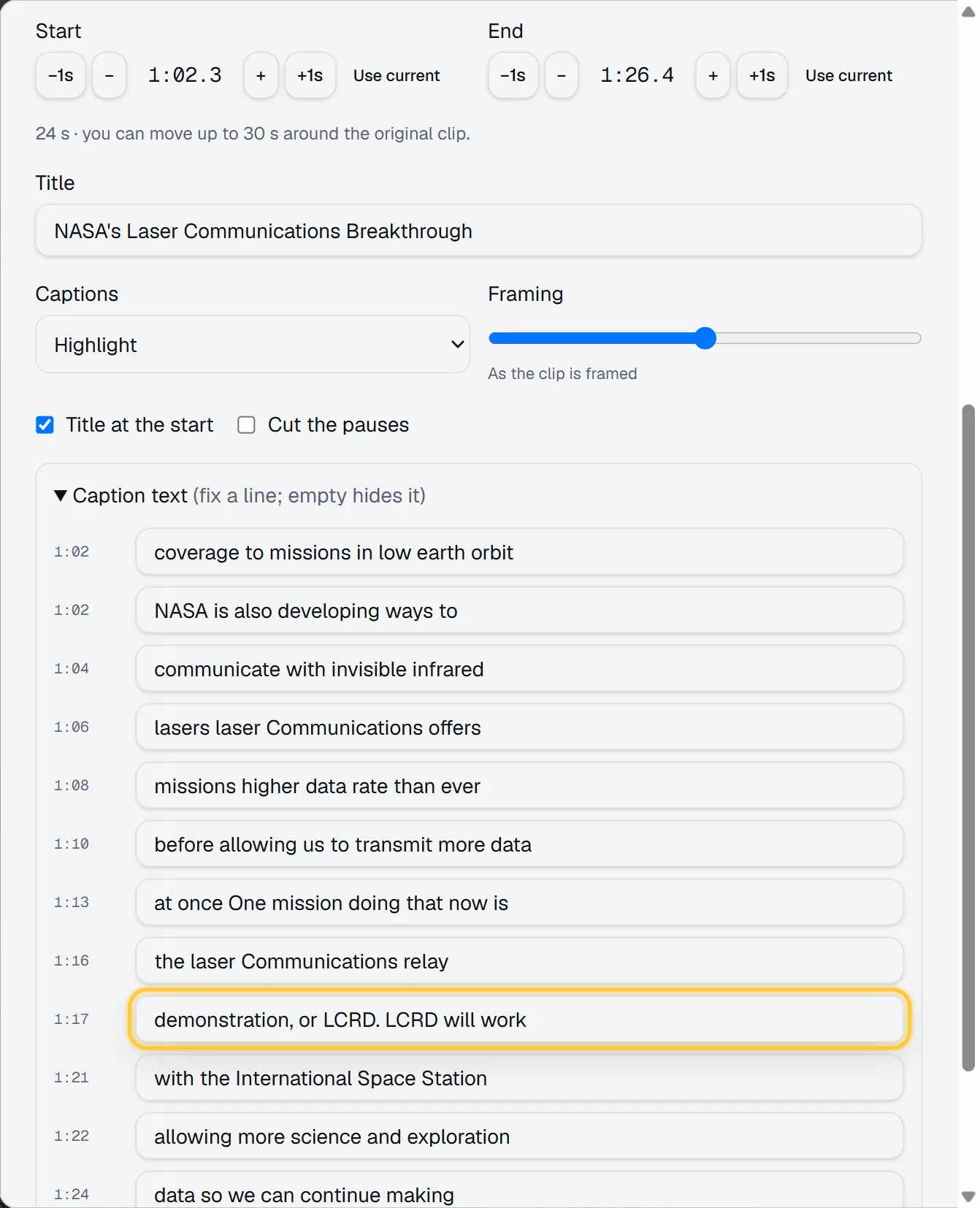
On a clip (paid plans). On the job page, each clip has an Edit button. It opens "Edit clip", where you can move the start and end, change the title, switch the caption style, and open Caption text (fix a line; empty hides it). Each line has its timestamp. Fix the word, click Render the edit · 1 credit, and the clip is rendered again from the video you already have. (Translated captions can't be edited line by line there; fix the spelling with "Names and words" and run it again.)
In the visual editor. The editor at Editor is where you caption a full video without cutting it. Add your video in the Library, open the Captions tab and click Auto captions · 2 credits a video. The captions appear as a list; the message says "Click one to fix a word." Click a line to jump to it and type the fix. Pick the look with the same presets (Karaoke, Bold, Highlight and the rest) and export. Export costs 1 credit per started minute of video.
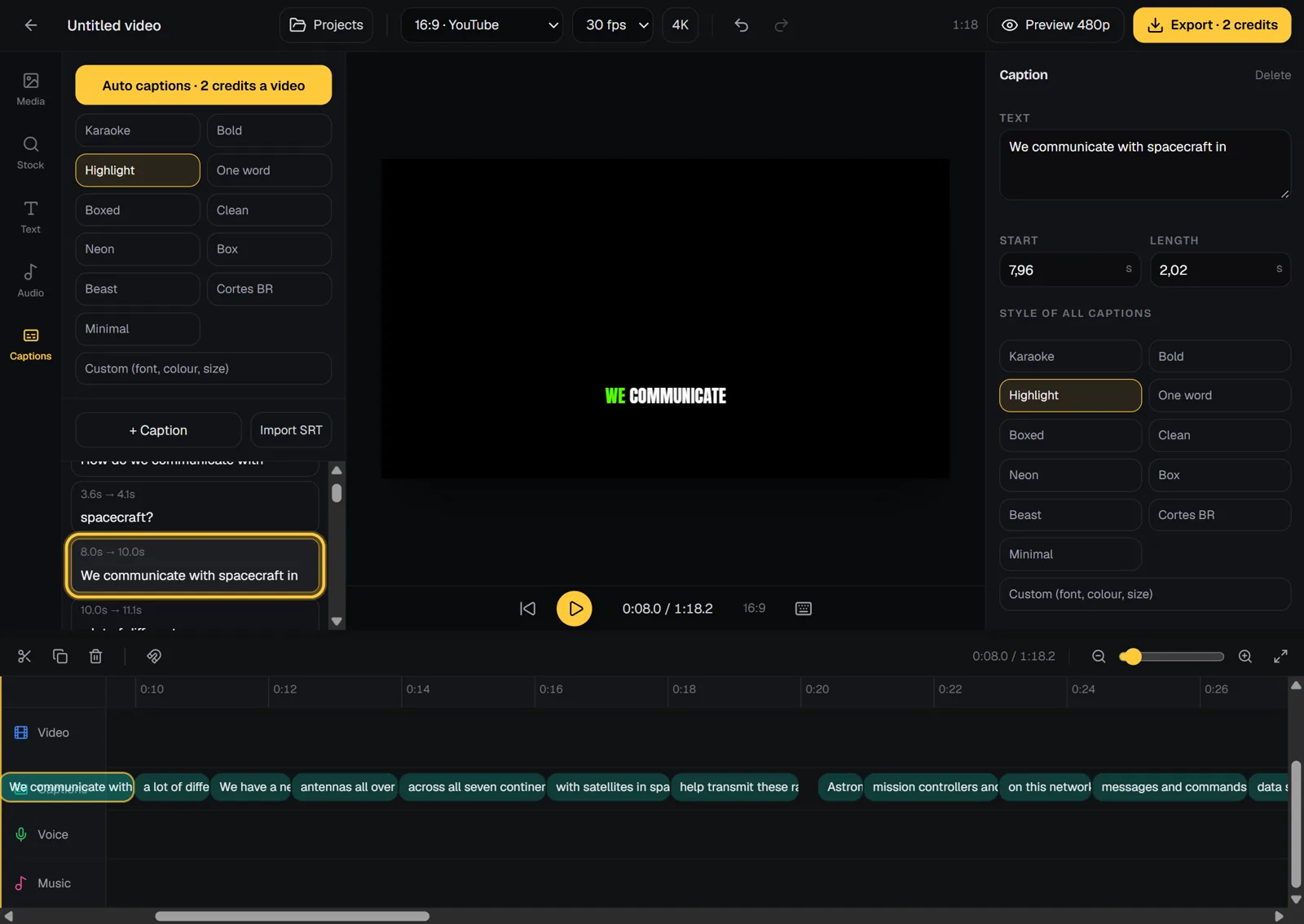
The editor also has Import SRT and + Caption for adding lines by hand.
A free route for YouTube videos: our free YouTube transcript tool gives you an .srt file for any YouTube video that has captions. Import that SRT in the editor and you skip the Auto captions step. You still need the video file in the editor.
Just need the SRT/VTT file?
If you want a subtitle file for YouTube, Vimeo or a course platform, you don't need burned-in captions at all.
- For a YouTube video that already has captions: use the free YouTube transcript tool. No account. Download
.txtor.srt. - For anything else (an upload, TikTok, Instagram, a video with no captions): pick Transcript on the Media page (2 credits, paid plans). When it's done, the job page has buttons for Text, SRT, VTT and JSON (with timing for each word), plus a search box to "Find a moment".
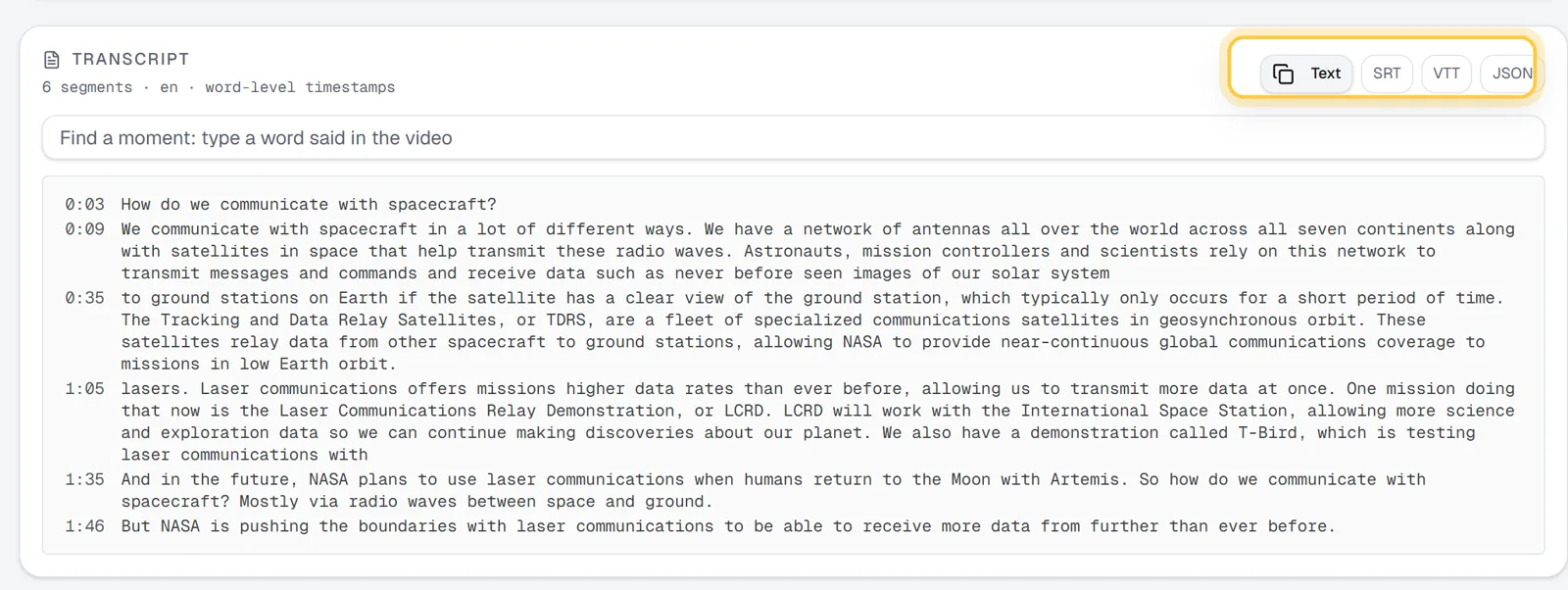
Upload the SRT or VTT in YouTube Studio under Subtitles, and viewers get a CC button they can switch on and off. More on files in how to download a YouTube transcript.
Caption your whole library by API
Have 200 videos to caption? Every option above is one API call. The API works on every plan; transcripts and more than one clips job need a paid plan.
Captioned clips from each video:
curl -X POST https://renderster.com/media \
  -H "X-API-Key: YOUR_API_KEY" \
  -H "Content-Type: application/json" \
  -d '{"url": "https://www.youtube.com/watch?v=VIDEO_ID", "type": "clips",
       "options": {"clip_count": 3, "orientation": "vertical", "captions": true,
                   "caption_style": "karaoke", "caption_language": "en"}}'
Subtitle files for a list of videos, in Python:
import time
import requests

API = "https://renderster.com"
HEADERS = {"X-API-Key": "YOUR_API_KEY"}
videos = ["https://www.youtube.com/watch?v=VIDEO_1", "https://www.tiktok.com/@you/video/123"]

for url in videos:
    job = requests.post(f"{API}/media", headers=HEADERS,
                        json={"url": url, "type": "transcript"}).json()
    while True:
        j = requests.get(f"{API}/media/{job['id']}", headers=HEADERS).json()
        if j["status"] in ("completed", "failed", "cancelled"):
            break
        time.sleep(10)
    tr = (j.get("result") or {}).get("transcript") or {}
    print(url, tr.get("srt_url"), tr.get("vtt_url"))
Instead of polling, you can pass a webhook_url and get called when each job ends. A job that fails gives the credits back automatically. All options, including caption_position and vocabulary, are in the docs. Pricing per plan is on the pricing page.
If you're comparing caption tools, Renderster vs Submagic has the details. Submagic is strong at polishing short videos; Renderster is built for long videos and automation.
FAQ
How do I add captions to a video automatically for free?
On Renderster, the Free plan includes one clips job: up to 3 vertical clips with word-by-word captions burned in, no watermark. For YouTube videos that already have captions, the free YouTube transcript tool gives you an SRT file with no account. Captioning full videos and transcribing uploads are in the paid plans, which start with a 7-day free trial.
What are TikTok-style captions?
Big, bold captions that show a few words at a time and highlight each word as it's said, placed in the middle of the frame and clear of the app's buttons. Karaoke, Bold, Highlight and Beast are TikTok-style looks in Renderster.
Where should captions go on a TikTok or Short?
Above the bottom area and away from the right edge, where the apps draw the username, caption text and buttons. Renderster's "Safe zone" position does this by default.
Can I translate captions into another language?
Yes. Set "Captions in" to English, Portuguese, Spanish, French, German, Italian, Dutch or Turkish, and the captions, titles, hooks and hashtags come out in that language. The spoken language is detected automatically.
How do I fix a wrong word in the captions?
Add names and hard words to "Names and words in the video" before you start, so they're spelled right. After the job, use Edit on a clip and fix the line under "Caption text" (1 credit to render again), or click the line in the editor's Captions tab and type the fix.
Can I get an SRT or VTT file instead of burned-in captions?
Yes. A Transcript job (2 credits) gives you Text, SRT, VTT and JSON with word timings, for links from YouTube, TikTok, Instagram, X and Facebook or for uploads. For YouTube videos with captions, the free transcript tool gives you TXT and SRT.