How to Make a YouTube Thumbnail for Free (No Watermark, No Sign-Up)
How to make a YouTube thumbnail for free: the size YouTube wants, a free maker with no watermark or sign-up, and 5 rules for thumbnails people click.
The short answer: you can make a clean, readable YouTube thumbnail in under a minute, for free, without an account.
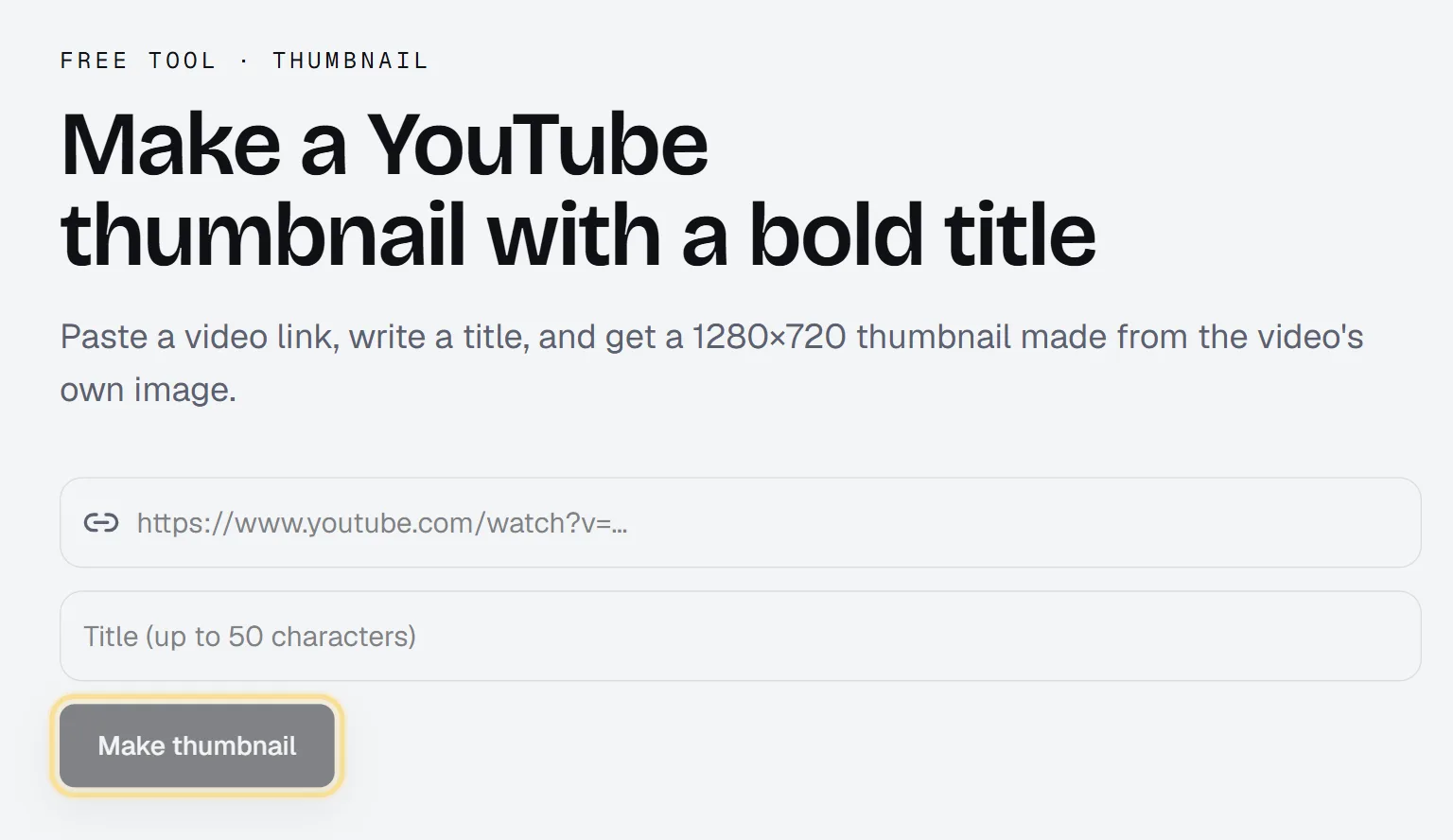
- Open the free YouTube thumbnail maker and paste the link of your video.
- Write a short title, up to 50 characters.
- Click Make thumbnail, download the 1280×720 image and upload it in YouTube Studio.
What this free maker does (and what it doesn't)
Most "free thumbnail makers" are design apps with a free tier: you pick a template, drag text around, and then find a watermark or a paywall at export. This one is much simpler, and it is worth saying exactly what it does so you know when to use it.
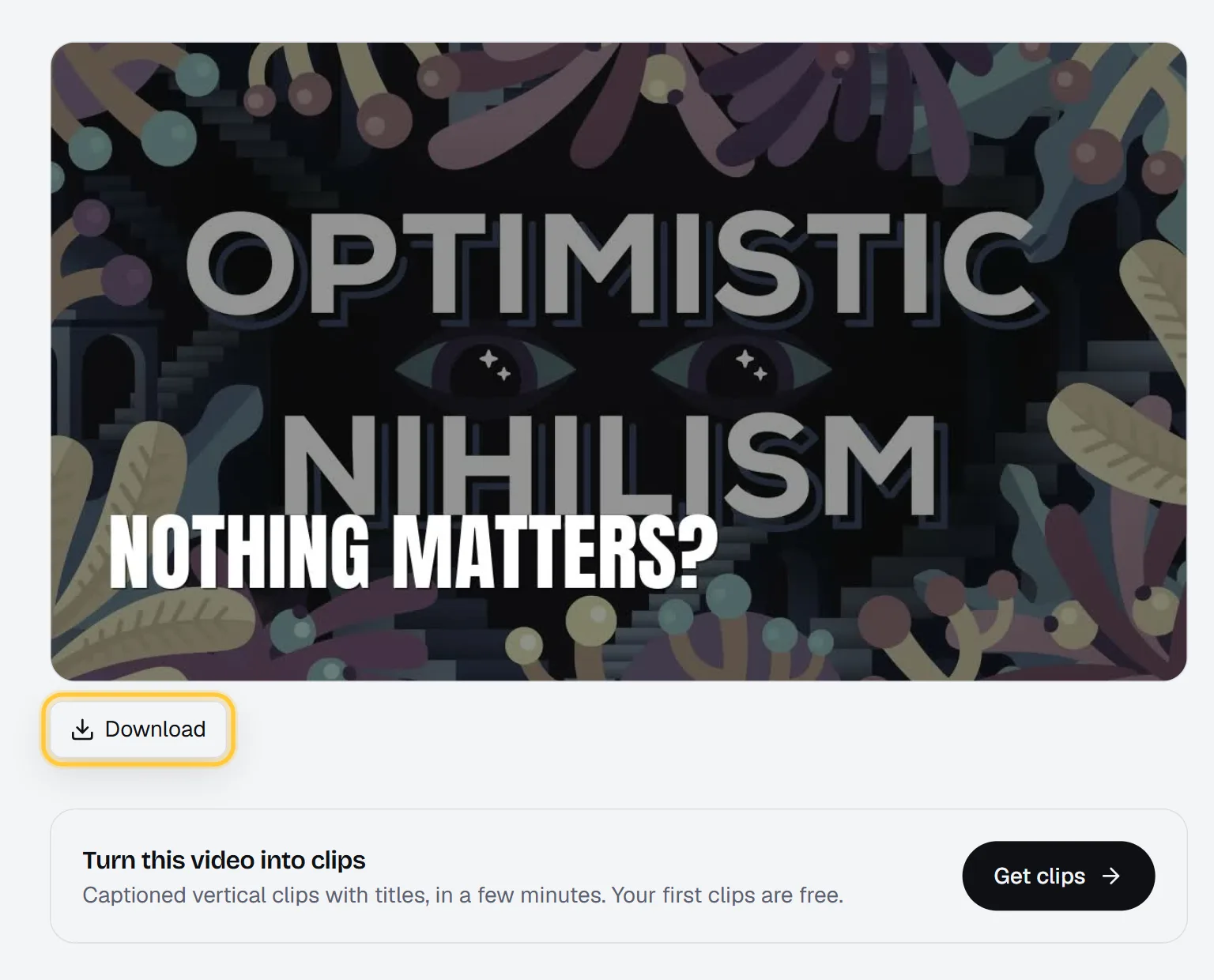
The Renderster thumbnail maker takes the image YouTube already has for your video, darkens it a little so text stands out, and writes your title on top of it in a tall, bold font. That's it. Concretely:
- The background is your video's current thumbnail. If you never uploaded a custom one, that is the frame YouTube picked from your video. The tool asks YouTube for the sharpest version and falls back to a smaller one if the large one doesn't exist.
- A dark layer goes over the image (black at 45%), so white text reads well on any background, bright or busy.
- Your title goes in white, in capital letters, in a condensed bold font, at the bottom left, in up to 3 lines.
- The output is a 1280×720 JPG (16:9), with no watermark and no logo.
- No account and no extension. It is free, with a limit of a few videos a day per visitor.
It is not an AI image generator. It does not cut out your face, add arrows or invent a scene. If you need that, a design app or an AI image tool is the better pick (more on that below). What it is good at is the thing most small channels get wrong: a big, readable title on a frame from the video, done in seconds.
Size and format YouTube wants
Before you make anything, it helps to know the rules. According to YouTube's help page on custom thumbnails (checked October 2026):
| Requirement | What YouTube says |
|---|---|
| Aspect ratio | 16:9 for videos (9:16 for Shorts) |
| Minimum size | 640 pixels wide for videos |
| Suggested resolution | Up to 3840×2160 for videos |
| File types | JPG or PNG, among others |
| File size | Up to 50 MB from a computer; 2 MB when uploading from the phone app |
| Account | Your channel must be verified to upload custom thumbnails |
The image from our maker is 1280×720. That is 16:9, twice the minimum width, and the size most thumbnails have been made at for years. Thumbnails are shown small (a phone feed, a sidebar), so 1280×720 looks sharp in practice. It is a compressed JPG, so the file is small enough for the 2 MB limit of the phone app too.
One thing to know: the maker only makes 16:9 thumbnails. For a Short, YouTube asks for 9:16, and most viewers see a frame of the Short itself, so a 16:9 title card is not the right tool there.
Step 1: Paste the video link
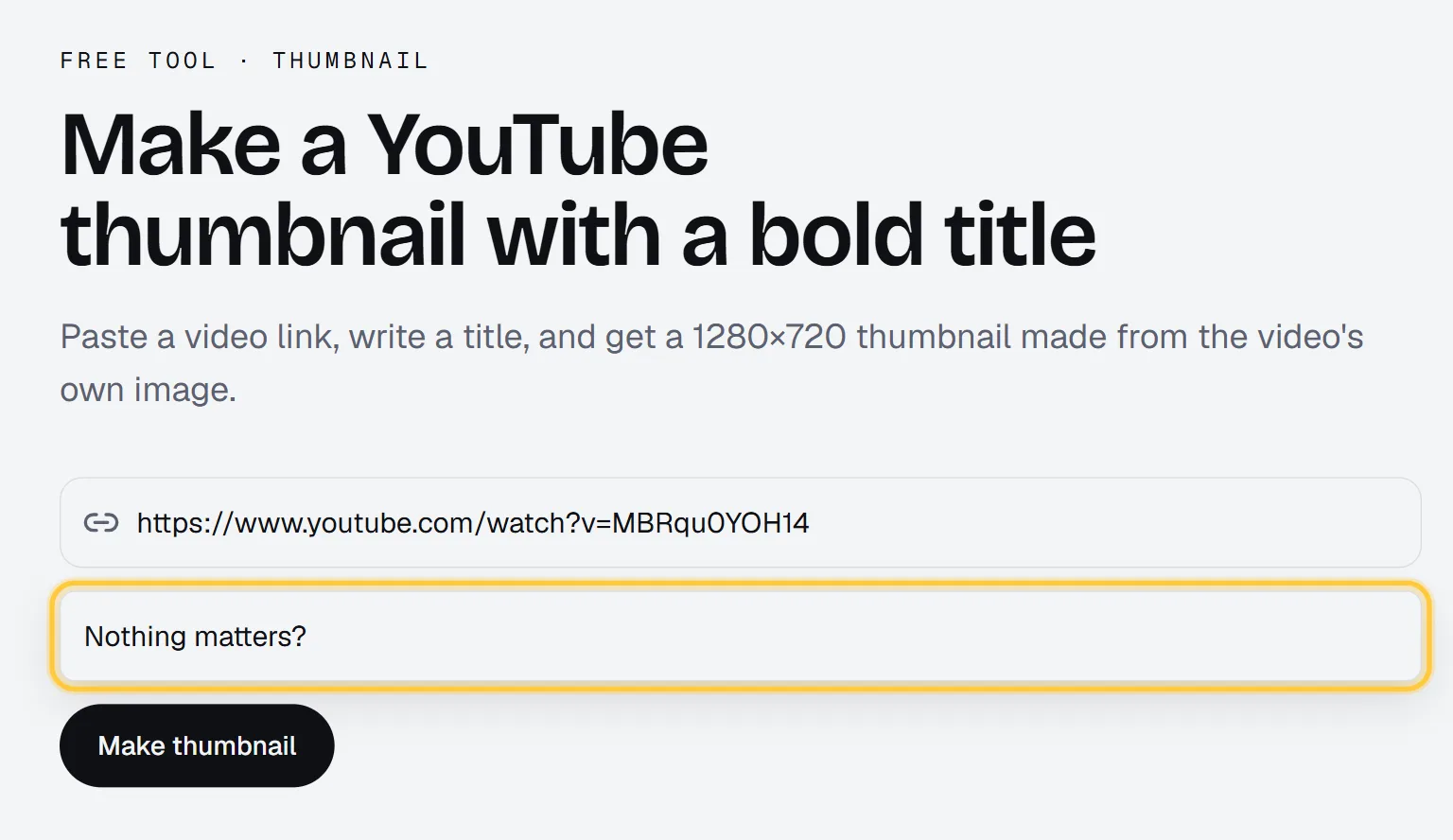
Open /tools/youtube-thumbnail and paste the link of the video. Both long links (youtube.com/watch?v=…) and short ones (youtu.be/…) work.
The video has to be reachable. If it is private, deleted or the link has a typo, you get the message "This video is private, deleted or does not exist. Check the link." Links from TikTok, Instagram or other sites don't work here: the tool only reads YouTube.
Tip: if your video still has the frame YouTube picked automatically and that frame is a blurry mid-blink shot, the result will be a blurry mid-blink shot with a title. Pick a video where the current thumbnail is a decent frame, or set a better frame first in YouTube Studio and then run the tool.
Step 2: Write the title (short wins)
Type the text you want on the image in the Title field. The limits are built around what fits:
- Up to 50 characters.
- Up to 3 lines of about 18 characters each. The tool wraps the words for you. If your words don't fit in 3 lines, it tells you: "This title needs more than 3 lines on the thumbnail. Try shorter words or fewer of them."
- The text is turned into capital letters automatically.
Don't paste your video title here. The thumbnail text should add something the title doesn't say. If the video is called "I Tried Editing a Podcast With 5 Different Apps", the thumbnail could say "ONLY ONE WORKED". Three to five words is the sweet spot.
Step 3: Download it and upload it to YouTube
Click Make thumbnail. In a few seconds the image shows up with a Download button under it. Download it right away: the image link is temporary.
Then, in YouTube Studio:
- Open Content and click your video.
- In Details, find Thumbnail and upload the file.
- Click Save.
Under the result you will also see a box called Turn this video into clips. That is the other half of Renderster: if the video is long, you can turn it into captioned vertical clips for Shorts, TikTok and Reels. Your first clips are free (more in How to Turn a YouTube Video Into Shorts).
When to use something else
Be honest with yourself about what the thumbnail needs:
- You want your face cut out, big, with a reaction. Use a design app with background removal (Canva, Photoshop, Photopea) and a photo you took for the thumbnail. A frame from the video rarely has the expression you want.
- You want an illustrated or impossible scene. An AI image generator is the right tool. Check the license of what it makes, and make sure the image matches what is in the video: a thumbnail that lies gets clicks and then loses viewers in the first seconds.
- You want a branded template for every video. A design app with saved templates does this better.
- You want a fast, readable title card from the video itself, with no sign-up. That is where this free maker fits, and it is what many tutorial, podcast, interview and commentary channels need.
5 rules of thumbnails that get clicks
These are not secrets, but most thumbnails break at least two of them.
1. Make it readable at the size people actually see
Most views come from a phone feed or the sidebar, where your thumbnail is about the size of a stamp. Shrink your image to 20% on screen and look at it. If you can't read the text in one second, it's too long or too thin. This is why the maker uses a tall bold font, capital letters and a dark layer behind the text.
2. One idea, three to five words
The thumbnail and the title work as a pair. The title explains; the thumbnail makes people curious or makes a promise. "5 APPS, 1 WINNER" works better than repeating the full title.
3. One subject, big
A face, a product, a result. If there are four things competing in the frame, the eye lands on none of them. When you pick the frame for your video in YouTube Studio, pick one where the subject fills the picture.
4. Contrast beats color
White text on a dark layer, or dark text on a light area. Mid-grey on mid-anything disappears. If your frame is bright, the 45% dark layer of the maker handles most of this for you.
5. Keep the bottom right clear
YouTube puts the video length in the bottom right corner of the thumbnail. Don't put the key word there. The maker writes the title on the left, away from that corner.
Testing two thumbnails
You don't have to guess which version is better. YouTube Studio has Test & Compare: according to YouTube's help page (checked October 2026), you can test up to 3 titles and thumbnails on a video, YouTube shows them to different viewers, and the version with the highest watch time share wins. It runs on desktop only, needs advanced features turned on, and doesn't work on Shorts. YouTube says a test can take from a few days up to two weeks.
A simple way to use it with the free maker:
- Make version A with one angle ("ONLY ONE WORKED").
- Make version B with a different angle ("I WASTED $200").
- Upload both in Test & Compare and let it run.
Change one thing at a time (the text, or the frame), so you know what made the difference.
Do it automatically
If you publish a lot, or you run a channel for clients, you can make the same kind of image with the Renderster API. With an API key (free accounts get one too), POST /images/render composes an image from a base image, a color layer and text. It is the same image tool the free maker uses, and it doesn't use credits.
curl -X POST https://renderster.com/images/render \
  -H "X-API-Key: YOUR_API_KEY" \
  -H "Content-Type: application/json" \
  -d '{
    "image_url": "https://i.ytimg.com/vi/VIDEO_ID/maxresdefault.jpg",
    "fallback_url": "https://i.ytimg.com/vi/VIDEO_ID/hqdefault.jpg",
    "width": 1280,
    "height": 720,
    "resize_mode": "cover",
    "color": "#000000",
    "opacity": 0.45,
    "text": "ONLY ONE\nWORKED",
    "text_color": "#FFFFFF",
    "font_family": "Anton",
    "fontsize": 96,
    "align": "left",
    "vertical_align": "bottom",
    "text_margin_bottom": 40
  }'
The answer has a url to the finished JPG. You can change the text color (a yellow title is a classic), the alignment, the size, or use your own photo as image_url. Put it in an n8n or Make flow after "new video published" and every video gets a title card. The full list of fields is in the API docs.
What it costs
The free maker costs nothing and has no watermark. There are only two limits: a few thumbnails a day per visitor, and on very busy days the tool may ask you to create a free account to keep going. A free account starts with 60 credits.
If you also want clips from the same video, a clips job is 7 credits whatever the length of the video, and the Free plan includes one clips job with up to 3 clips. See pricing for the rest.
Two more free tools that pair well with a thumbnail: the YouTube transcript tool, to pull the exact words for your title and description (see How to Download a YouTube Transcript), and the most replayed moments tool, to find the moment viewers rewatch, which is often the best frame and the best angle for the thumbnail (see How to Find the Most Replayed Part of a YouTube Video). All the free tools are on /tools.
FAQ
How do I make a YouTube thumbnail for free?
Paste your video link and a short title in a free maker such as /tools/youtube-thumbnail, download the 1280×720 image and upload it in YouTube Studio under Details → Thumbnail. No account, no watermark. For more design control, free tiers of design apps also work, but check the export for watermarks.
What size should a YouTube thumbnail be?
16:9. YouTube asks for at least 640 pixels wide and suggests up to 3840×2160 for videos; 1280×720 is the common size and looks sharp in feeds. Files can be up to 50 MB from a computer and 2 MB from the phone app, as JPG or PNG.
Does the free maker use AI to design the thumbnail?
No. It uses your video's current YouTube thumbnail as the background, adds a dark layer and writes your title on it in a bold font. It doesn't generate images, cut out faces or add graphics. That keeps it fast, free and predictable.
Why can't I upload a custom thumbnail on YouTube?
Your channel has to be verified (YouTube sends a code by phone). Until then, YouTube only lets you pick one of the frames it suggests. Also check the file: JPG or PNG, under 2 MB if you upload from the phone app.
Can I make a thumbnail for a YouTube Short with it?
Not really. The maker only makes 16:9 images, and Shorts thumbnails are 9:16. For Shorts, most viewers see a frame of the video in the feed, so a strong first frame matters more than a title card.
Is there a watermark or a limit?
No watermark. The limit is a few thumbnails a day per visitor, and on very busy days the tool may ask you to create a free account. The image link is temporary, so download the file right after you make it.