How to Download a YouTube Transcript (TXT, SRT or VTT): Free, No Extension
How to download a YouTube transcript for free: paste the link, get the text with timestamps, and save it as TXT or SRT. No extension, no account.
To download a YouTube transcript:
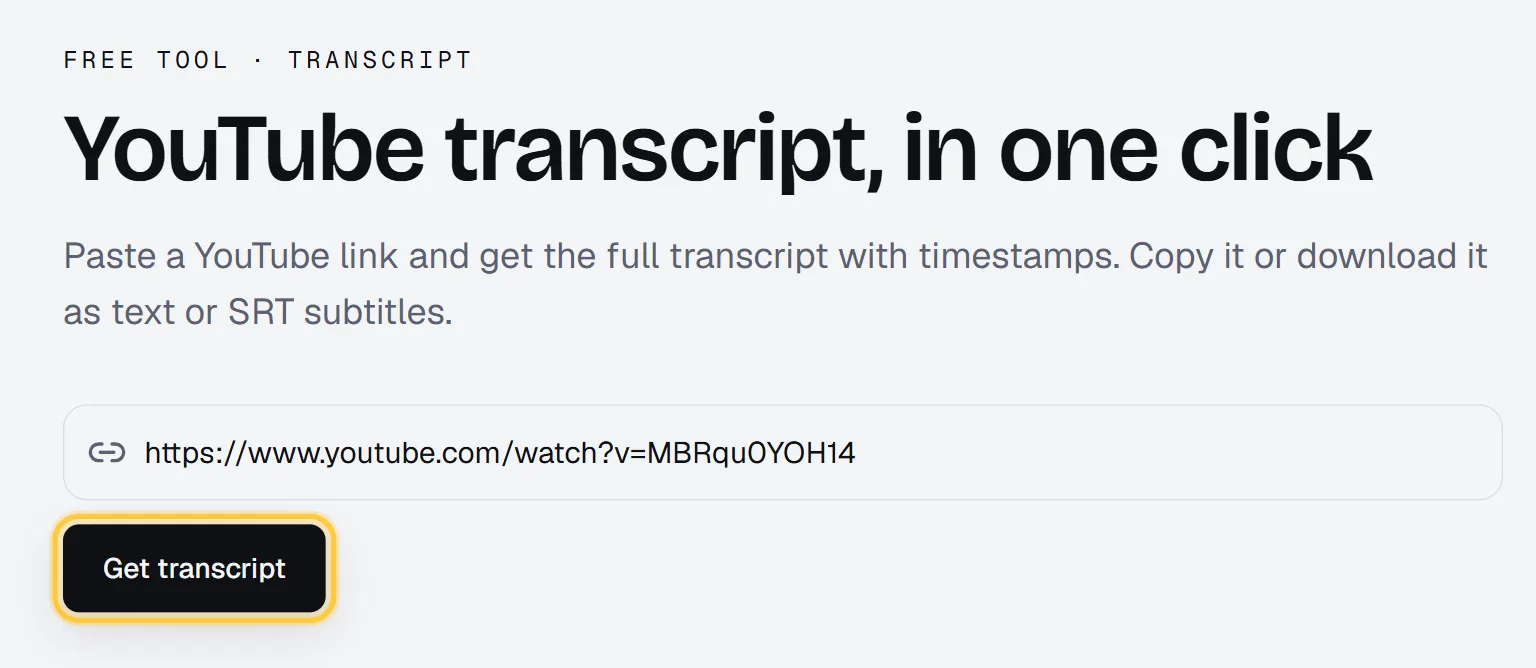
- Open Renderster's free YouTube transcript tool and paste the video link.
- Click Get transcript. The full transcript shows up with timestamps.
- Click .txt or .srt to download it, or Copy to paste it anywhere.
No extension, no account.
Open the free YouTube transcript tool →
The fastest way (free tool)
The YouTube transcript tool is a page with one box and one button. Here's exactly what it does.
What you paste. Any YouTube link: youtube.com/watch?v=…, youtu.be/…, a Shorts link or an embed link. It only takes YouTube links. For TikTok, Instagram and others, see the section on other platforms below.
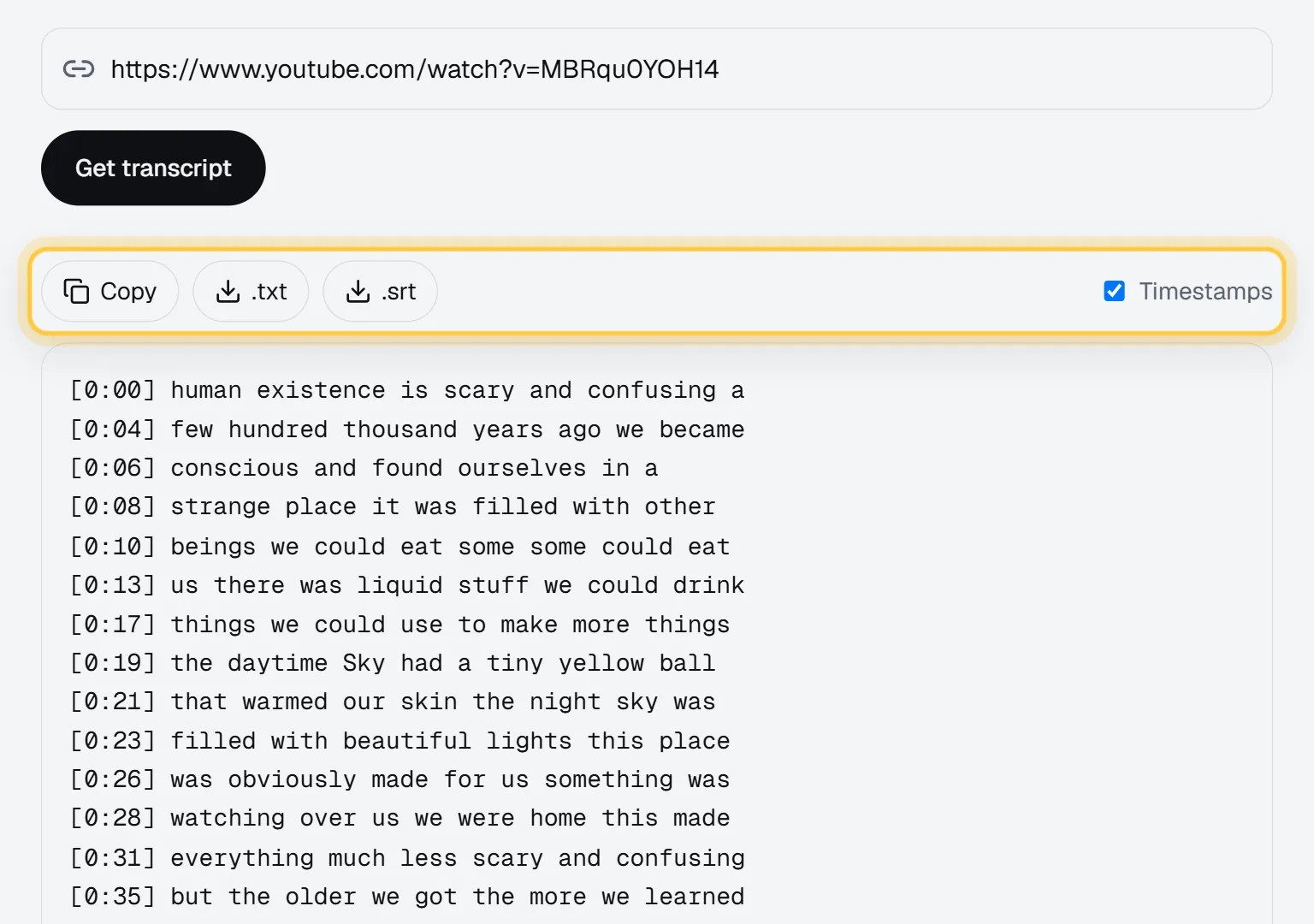
What you get. Click Get transcript and the transcript appears in a box below, one line per caption, each with its start time. The format looks like this:
[0:00] so today we're going to look at three ways
[0:03] to get a transcript out of any video
[0:07] and the first one takes about ten seconds
Under the box, a small line tells you the language of the captions and how many lines there are.
What you can do with it. Four controls sit above the transcript:
- Copy: copies the whole transcript to your clipboard.
- .txt: downloads a plain text file named after the video ID.
- .srt: downloads a subtitle file, with a start and end time for every line.
- Timestamps: a checkbox, on by default. Untick it and the text becomes one clean paragraph without times. It changes what Copy and .txt give you. The SRT always keeps its timing, since that's what an SRT is.
Below the result there's a box called "Turn this video into clips". It's optional: if you want Shorts from the same video, Get clips takes you to the clips form with the link already filled in.
The tool's limits
We'd rather you know them up front:
- It reads the captions the video already has. That's the creator's captions or YouTube's automatic ones. Most videos with speech have one or the other. If a video has none, the tool says "This video has no captions" and points you to a full transcription (see below).
- One caption track. You get the track YouTube serves for that video. There's no language picker.
- Public videos only. A private, deleted or mistyped video gets "This video is private, deleted or does not exist. Check the link."
- A few videos a day. The page says it plainly: free, no account needed, a few videos a day. Videos someone already looked up recently come back from a cache. On very busy days the tool may ask you to create a free account to keep going.
The built-in YouTube way (Show transcript)
YouTube has a transcript panel of its own, and for reading along it's great.
On a computer:
- Open the video on youtube.com.
- Click …more under the title to expand the description.
- Scroll to the end of the description and click Show transcript.
- The transcript opens next to the video. Click any line to jump there.
To get rid of the timestamps in that panel, open its three-dot menu and choose Toggle timestamps.
In the YouTube app on a phone, the transcript is also in the description panel on most videos (tap the title, then look for Show transcript). Menus move around between app versions, so if you don't see it, use the website.
What YouTube doesn't give you is a download button. You can select the text and copy it, but long transcripts are awkward to select, the copy often mixes times and text on separate lines, and there's no SRT. That's the gap the free tool fills.
With or without timestamps
Which one you want depends on what's next:
| You want to… | Use |
|---|---|
| Read it, summarize it, paste it into an AI assistant | Timestamps off, Copy or .txt |
| Quote a moment and link to it | Timestamps on |
| Show notes or chapters | Timestamps on, then pick the topic changes |
| Upload subtitles to YouTube, Vimeo or a course platform | .srt |
| Edit captions in a video editor | .srt |
TXT, SRT or VTT: which file to pick
- TXT is plain text. With timestamps on, each line starts with
[m:ss]. - SRT is the most common subtitle file. Every line has a number, a start and end time (
00:00:03,120 --> 00:00:06,480) and the text. YouTube Studio, Vimeo, Premiere, DaVinci and almost every player read it. - VTT (WebVTT) is the web version of the same idea, used by HTML5 video players and some course platforms.
The free tool gives TXT and SRT. If you need a VTT, you have two options. The quick one: an SRT becomes a VTT with two small changes. Add a first line that says WEBVTT followed by a blank line, and replace the comma in each time with a dot (00:00:03,120 becomes 00:00:03.120). Any text editor's find-and-replace does it. The other option: a Transcript job in the app gives you SRT, VTT and JSON directly (next section).
Transcripts for TikTok, Instagram and videos without captions
The free tool covers YouTube videos that have captions. For everything else, there's the Transcript job in the app.
Sign in, open Media & Clips, paste a link or upload a file, and pick Transcript under What do you want? It costs 2 credits per video and is part of the paid plans (each starts with a 7-day free trial).
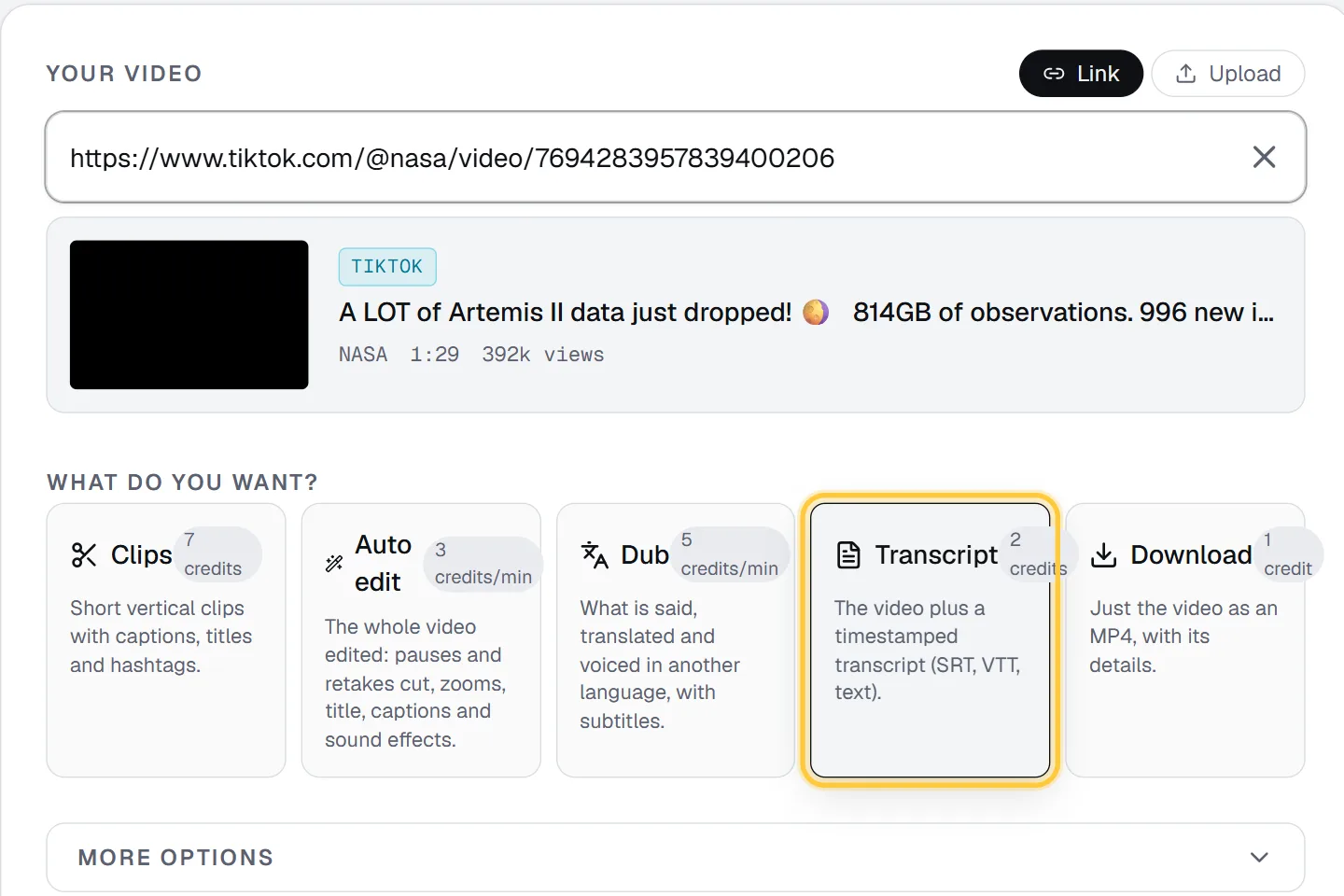
What it handles:
- Links from YouTube, TikTok, Instagram, X and Facebook, plus direct links to video files.
- Uploads: MP4, MOV, WebM or MP3, up to 2 GB. Yes, audio files too: a podcast MP3 works.
- Videos without captions. When the platform has captions, the job uses them. When it doesn't, our speech recognition transcribes the audio.
- Names spelled right. Type names and terms in Names and words in the video (under More options), and the transcript spells them that way.
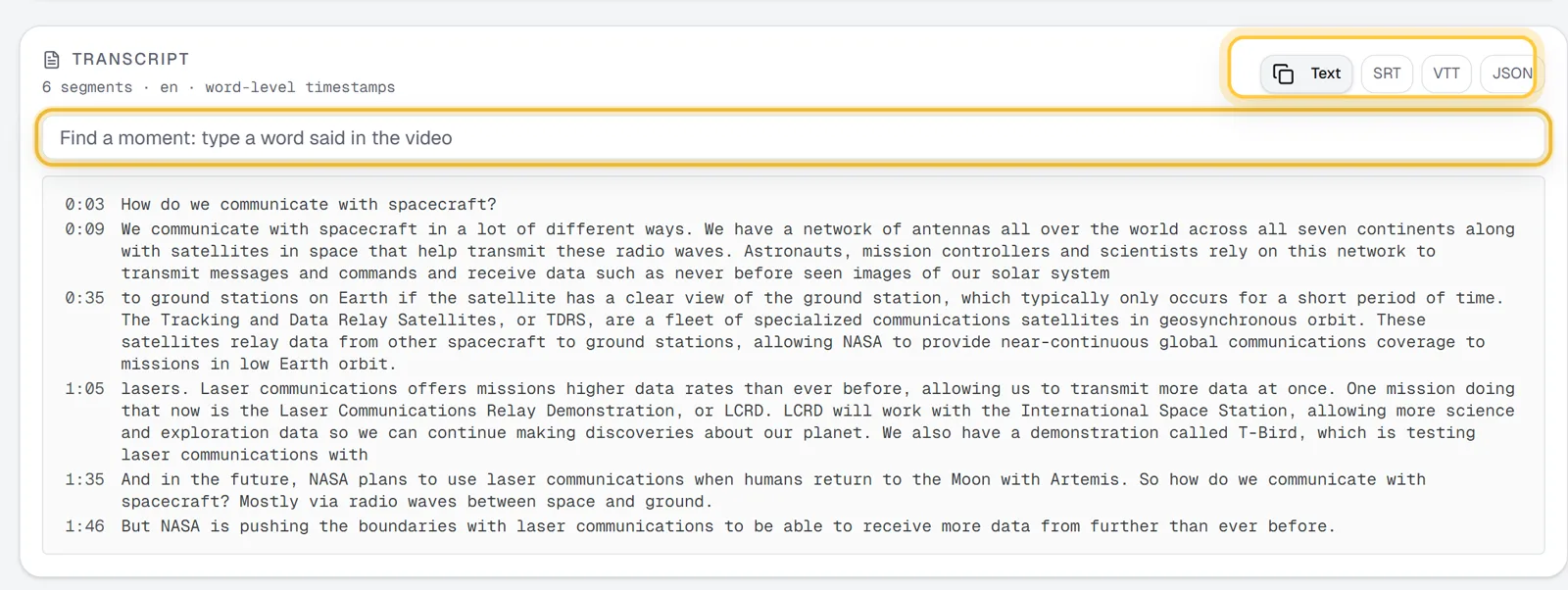
The app's estimate for a 10-minute video is well under a minute. When it's done, the job page shows the transcript with buttons for Text, SRT, VTT and JSON. The JSON has a time for every word, which is what you want for word-by-word captions. There's also a search box, "Find a moment: type a word said in the video". Type a word and click a result to play that moment.
Getting transcripts by API (cURL, Python)
If you need transcripts for many videos, or inside your own app, use the API. It's the same Transcript job: 2 credits per video, on paid plans. Create an API key in the app, then:
curl -X POST https://renderster.com/media \
  -H "X-API-Key: YOUR_API_KEY" \
  -H "Content-Type: application/json" \
  -d '{"url": "https://www.youtube.com/watch?v=VIDEO_ID", "type": "transcript"}'
The answer has the job id and a status_url. Poll it (or pass a webhook_url and wait to be called), and when status is completed, the transcript is in result.transcript: the full text, the timed segments, and links to the files in srt_url, vtt_url and json_url.
In Python:
import time
import requests

API = "https://renderster.com"
HEADERS = {"X-API-Key": "YOUR_API_KEY"}

job = requests.post(f"{API}/media", headers=HEADERS,
                    json={"url": "https://www.youtube.com/watch?v=VIDEO_ID", "type": "transcript"}).json()

while True:
    j = requests.get(f"{API}/media/{job['id']}", headers=HEADERS).json()
    if j["status"] in ("completed", "failed", "cancelled"):
        break
    time.sleep(5)

if j["status"] != "completed":
    raise SystemExit(j.get("message", "the job did not finish"))
tr = j["result"]["transcript"]
print(tr["text"][:500])
print("SRT:", tr.get("srt_url"))
Add "options": {"vocabulary": "Kellen, Renderster"} to spell names right, or "options": {"language": "en"} to set the spoken language instead of detecting it. A job that fails gives the credits back. The full reference is in the docs.
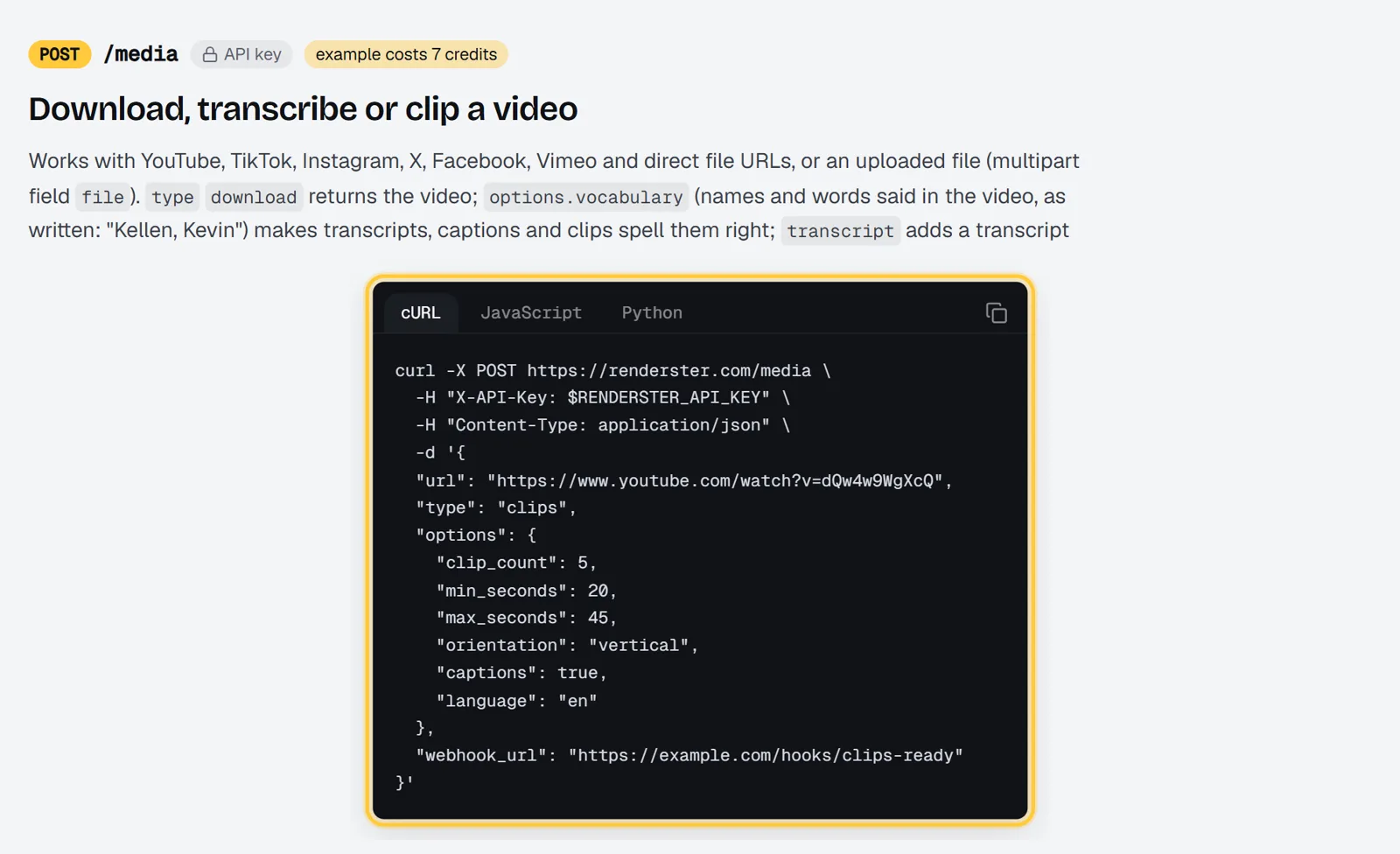
You can run the same call from n8n, Make or Zapier with one HTTP Request node. The n8n Shorts workflow shows the pattern.
What to do with a transcript
A transcript is raw material. A few uses that pay off:
- Summaries and notes. Paste the transcript (timestamps off) into your AI assistant and ask for a summary, key points or a study guide.
- Blog posts and newsletters. A 20-minute talk is several thousand words of material. Edit it into an article.
- Chapters. With timestamps on, find where topics change and add chapters to your YouTube description.
- Quotes for social. Find the best lines and post them as text, with a link to the exact second.
- Clips. The moments worth quoting are usually the moments worth clipping. Renderster's clips job reads the transcript to find them, and favors the parts viewers replay most. See how to turn a YouTube video into Shorts, or check a video's replay peaks with the free most replayed tool.
All our free tools are listed on /tools.
FAQ
How do I download a YouTube transcript for free?
Paste the video link into a free tool like Renderster's YouTube transcript tool, click Get transcript, and download it as .txt or .srt. It works for public YouTube videos that have captions (the creator's or YouTube's automatic ones), with no account and no extension.
Can I download a YouTube transcript with timestamps?
Yes. In the free tool, keep the Timestamps box ticked: every line starts with its time, like [1:23]. For subtitle timing (start and end of every line), download the .srt file instead.
Can I get a YouTube transcript without timestamps?
Yes. Untick Timestamps in the free tool and the transcript becomes one clean block of text, ready to copy or download as .txt. On youtube.com, the transcript panel's menu has "Toggle timestamps".
Why does it say the video has no captions?
Some videos have no captions at all: the creator didn't add any and YouTube didn't make automatic ones (common with music, very short or very new videos). The free tool only reads existing captions. A Transcript job in the Renderster app (paid plans, 7-day free trial) transcribes the audio itself.
Can I download a transcript from TikTok or Instagram?
Not with the free tool, which is YouTube only. A Transcript job in the Renderster app takes TikTok, Instagram, X and Facebook links and uploaded files, for 2 credits per video, and gives you text, SRT, VTT and JSON.
Is there a YouTube transcript API?
Yes. Renderster's POST /media with "type": "transcript" returns the text, timed segments and SRT, VTT and JSON links, for YouTube and other platforms. It costs 2 credits per video on paid plans. The docs have cURL, Python and JavaScript samples.