How to Dub a Video Into English (or 15 Other Languages) With AI
How to dub a video in another language with AI: pick from 16 languages and a voice like the speaker's, get subtitles too. Steps, costs and limits.
The short answer: AI can translate what is said in your video and voice it in another language in a few minutes.
- Paste the video link or upload the file on Renderster's Media page and choose Dub.
- Pick the language under Dub into (16 options) and a Voice (Like the speaker is the default).
- Click Dub the video. You get the dubbed MP4 and subtitles (SRT) of the new speech.
Subtitles, voice-over or dubbing: which one you need
These three get mixed up, and they solve different problems:
| Subtitles | Voice-over | Dubbing | |
|---|---|---|---|
| What the viewer hears | The original voice | A new voice over the original, which stays faintly audible | A new voice in place of the original |
| Viewer has to read | Yes | No | No |
| Works on mute | Yes | No | No |
| Feels native | Least | In between | Most |
| Effort and cost | Lowest | Medium | Highest |
Subtitles are enough when your audience reads comfortably and watches on mute (most feeds). Voice-over is the documentary style: the original voice is still there, quietly, under the translation. Dubbing in the studio sense replaces the voice entirely and often re-syncs lips.
What Renderster's Dub makes sits between voice-over and full dubbing: the new voice speaks over the original sound, which goes quiet under it (the original voice becomes a low murmur), each passage timed to when it was said in the original. You also get subtitles of the new speech. It does not change the picture, so there is no lip-sync. We would rather say that up front than have you find out after.
What you need
A video with speech, up to 20 minutes, that you own or have the rights to translate, and a Renderster account on a paid plan. Every paid plan starts with a 7-day free trial with 100 credits, enough to dub about 20 minutes of video.
Step 1: Paste the link or upload
Open the Media page. Under Your video, paste a link (YouTube, TikTok, Instagram, X, Facebook, Vimeo or a direct .mp4) or switch to Upload and pick the file (MP4, MOV, WebM up to 2 GB). Under What do you want?, choose Dub: "What is said, translated and voiced in another language, with subtitles."
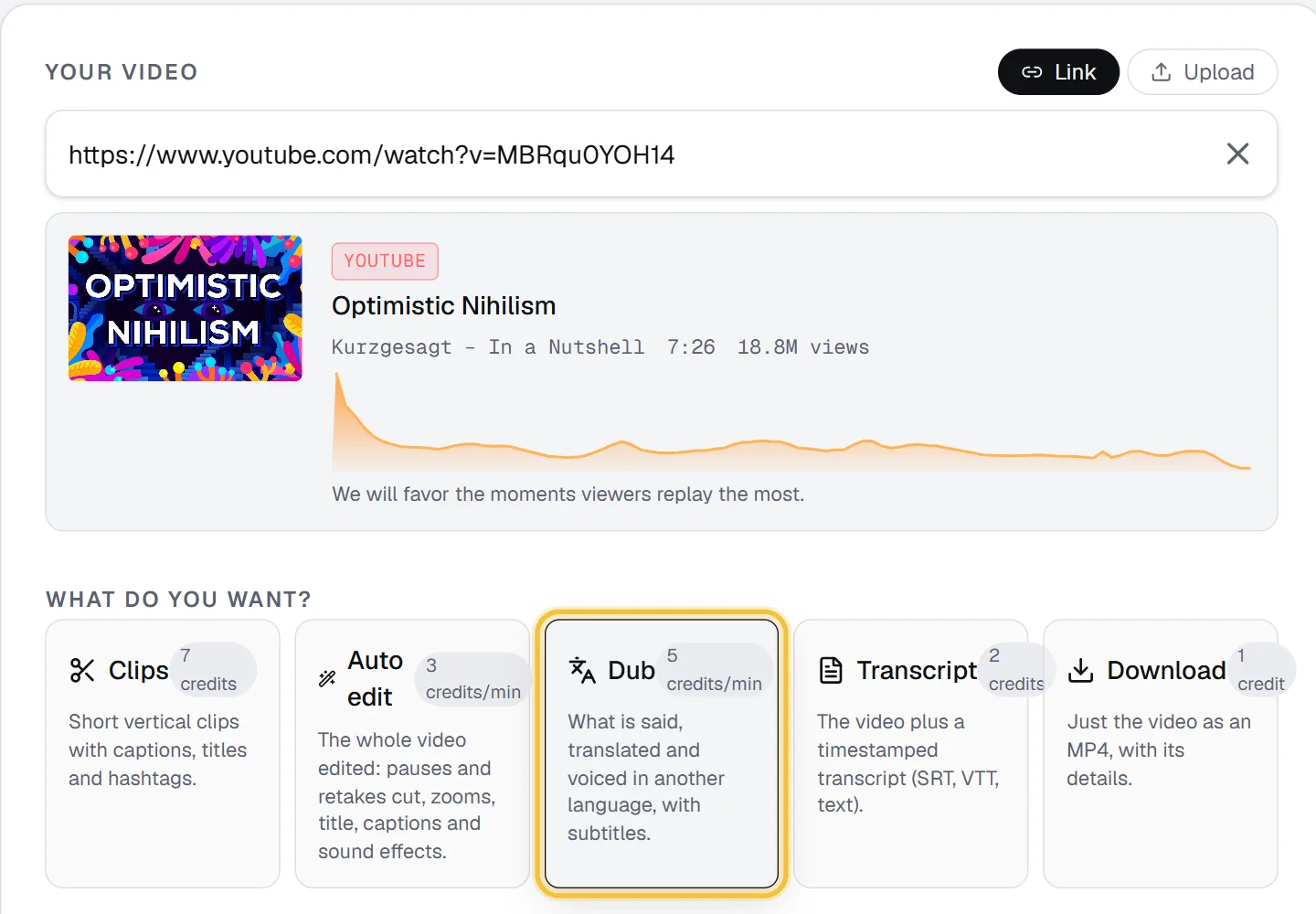
The spoken language is detected automatically. If the video mixes languages or the detection gets it wrong, set it under More options → Spoken language. In the same panel, Names and words in the video (optional) makes sure names and brand words are transcribed (and so translated) the way they are written.
Step 2: Pick the language (16 options)
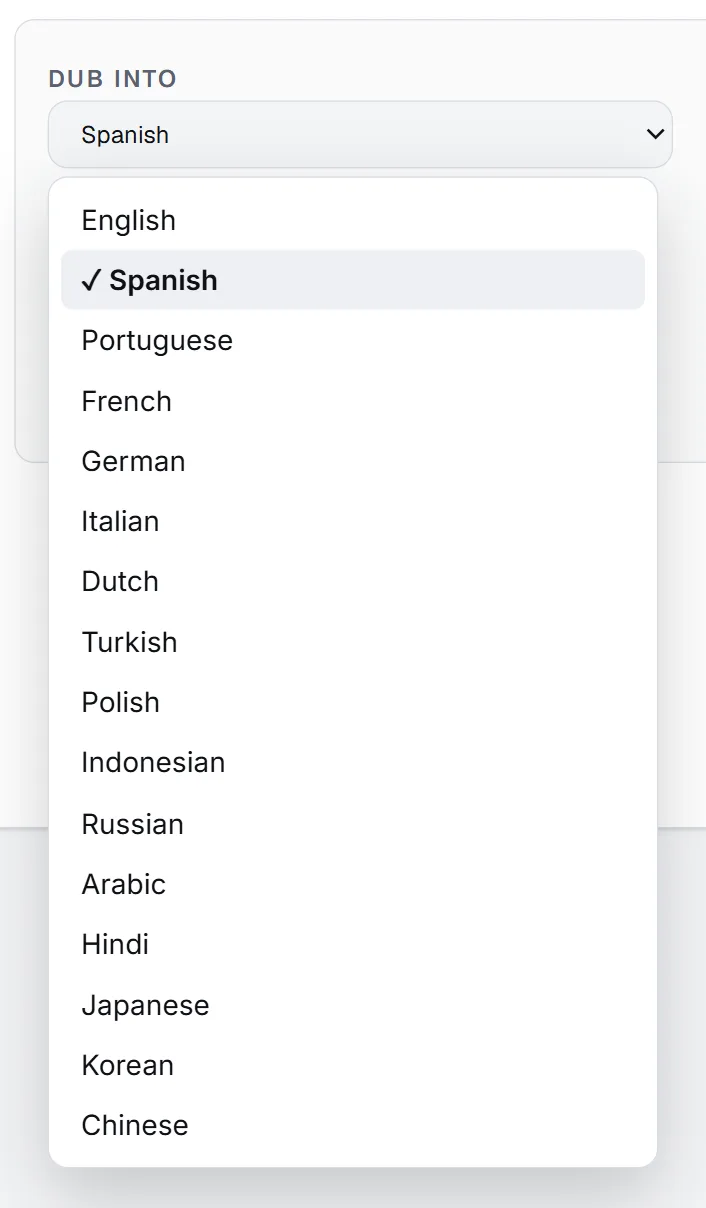
Open Dub into and pick one of the 16 languages:
| English | Spanish | Portuguese | French |
| German | Italian | Dutch | Turkish |
| Polish | Indonesian | Russian | Arabic |
| Hindi | Japanese | Korean | Chinese |
The translation is written to be spoken, not read: each line is kept about as long to say as the original line, and numbers and symbols are written the way they are said. That keeps the new voice in step with the video instead of running over the next sentence.
Step 3: Pick the voice
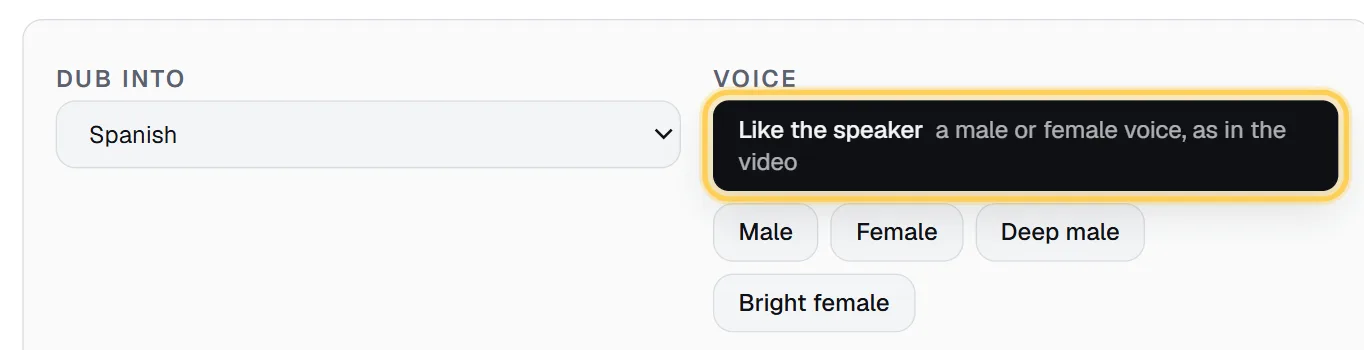
Under Voice:
- Like the speaker (default): a male or female voice, as in the video. It measures the pitch of whoever speaks and picks accordingly.
- Male and Female: a neutral voice of your choice.
- Deep male and Bright female: more character, for narration-style videos or a stronger brand voice.
One voice speaks for the whole video. If your video is an interview with a man and a woman, both will be voiced by the same voice. For a solo creator, a lesson or a narrated video, that is exactly what you want; for a two-person podcast it's a real limitation, so try a short clip first.
Then click Dub the video. The button shows the price for this video when the link is previewed (for example "25 credits" for a 5-minute video).
Step 4: Check the dubbed video and subtitles
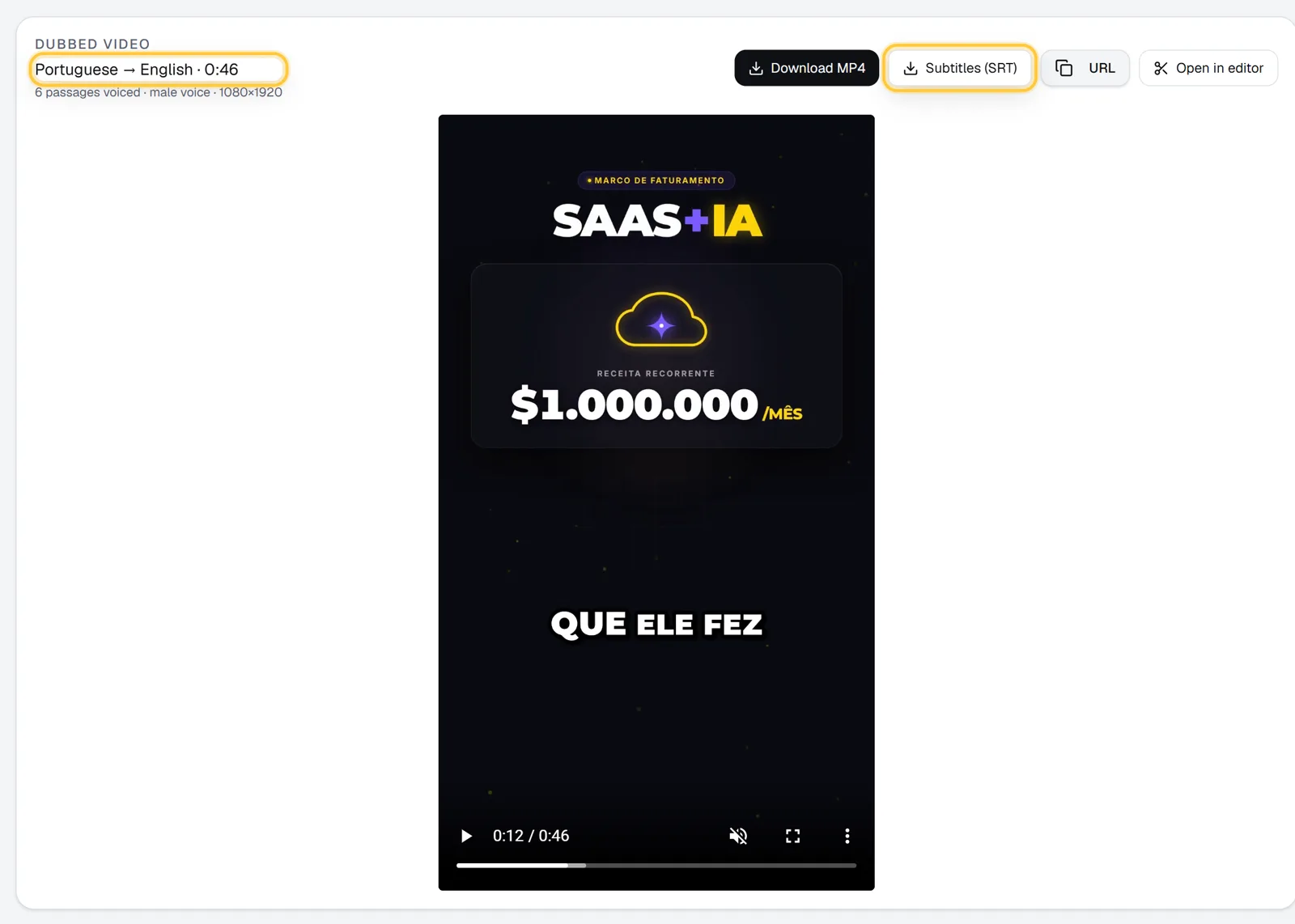
When the job finishes, the job page shows a Dubbed video card: the language pair (for example "Spanish → English"), the length, how many passages were voiced and whether the voice is male or female. Below it, the video plays.
Buttons:
- Download MP4: the dubbed video, picture unchanged.
- Subtitles (SRT): the new speech as subtitles, timed to the dubbed video. Upload it to YouTube as a subtitle track, or use it anywhere else captions go.
- Open in editor: puts the dubbed video on a timeline to add text, overlays or captions.
Watch it once with sound on. Things to check: names (add them to Names and words and run it again if one is off), very fast passages (lines that run long are sped up a little to fit their slot), and jokes or idioms that may not travel. The Studio page has a real example: an edited rant and the same video dubbed into English, both made without a human editor.
Dub your clips, not just the full video
The workflow most dubbing tools skip: cut first, then dub. If you have a long podcast or livestream in one language and want Shorts in another, you don't need to dub two hours.
- Run Clips on the long video to get the best moments as vertical clips with captions, titles and hashtags. See how to turn a YouTube video into Shorts.
- Download each clip you like with its MP4 button and upload it to a new Dub job (or copy the MP4 link and paste it).
A 45-second clip costs 5 credits to dub. Ten English Shorts from a Portuguese podcast cost the clips job (7 credits) plus about 50 credits of dubbing, instead of 600 credits for two hours of full-length dubbing (which wouldn't fit the 20-minute limit anyway).
Only need subtitles in another language, not a voice? Clips can translate the burned-in captions with Captions in under More options (English, Portuguese, Spanish, French, German, Italian, Dutch or Turkish), at no extra cost.
Costs (5 credits/min)
Dub costs 5 credits per started minute of the video, up to 20 minutes.
| Video length | Credits | About, on Starter |
|---|---|---|
| 1 min | 5 | US$0.24 |
| 5 min | 25 | US$1.21 |
| 10 min | 50 | US$2.42 |
| 20 min | 100 | US$4.83 |
Starter is US$29 for 600 credits a month (about US$0.048 a credit); bigger plans make each credit cheaper, and unused credits roll over up to 3x. The subtitles come with the dub at no extra cost, and a job that fails gives its credits back. See the pricing page for every plan, or how we compare on dubbing in Renderster vs Reap.
YouTube's own auto-translate and its limits
YouTube has two built-in options, and they're worth knowing before you pay for anything:
- Auto-translated captions: viewers can turn on captions and pick "Auto-translate" in the player settings. Free, works on most videos with captions, but viewers have to find it and read it.
- Automatic dubbing: as of October 2026, YouTube's help page says it generates translated audio tracks automatically for eligible creators, with English as the most widely supported target. The same page notes that quality varies, that it can struggle with proper nouns, idioms and jargon, and that automatic dubs can't be edited by the creator (source).
If YouTube's dub works for your channel, use it. The reasons to dub yourself: you want the dubbed video as a file to post on TikTok, Reels, a course platform or a client's site; you want to pick the voice; you want subtitles of the new speech; or your video isn't on YouTube at all.
Do it automatically
Dub is one API call with your API key, so you can dub every new video or every clip from n8n, Make, Zapier or your own code:
curl -X POST https://renderster.com/media \
  -H "X-API-Key: YOUR_API_KEY" \
  -H "Content-Type: application/json" \
  -d '{
    "url": "https://www.youtube.com/watch?v=YOUR_VIDEO_ID",
    "type": "dub",
    "options": { "dub_language": "en", "dub_voice": "auto" },
    "webhook_url": "https://example.com/hooks/dub-ready"
  }'
The dubbed video is in result.dubbed.url and the subtitles in result.dubbed.subtitles_url. Language codes and every option are in the docs.
FAQ
How can I dub a video into another language for free?
YouTube's automatic dubbing is free for eligible channels but stays inside YouTube. Renderster's Dub is part of the paid plans; the 7-day free trial includes 100 credits, which at 5 credits per minute covers about 20 minutes of dubbing.
Can I translate a YouTube video to English with AI?
Yes. Paste the YouTube link on the Media page, choose Dub, pick English and a voice. You get the video with English speech over the original sound, plus English subtitles. Only do this with videos you own or have permission to translate.
Does the AI dub keep my voice?
It doesn't clone your voice. "Like the speaker" picks a male or female voice that matches yours, and there are four other voices to choose from. The original sound stays underneath at a low level, so your tone is still faintly there.
Does it sync the lips?
No. The picture is left exactly as it was, and each translated passage starts when the original one did. For talking-head videos seen on a phone this is usually fine; for close-up cinematic shots, lip-synced dubbing is a different, more expensive job.
How long can the video be?
Up to 20 minutes per dub. For longer videos, cut them into parts or, better, make clips first and dub the clips.
Do I get subtitles in the new language?
Yes. Every dub comes with an SRT file of the new speech, timed to the dubbed video, at no extra cost.