How to Make an Animated Explainer Video With AI (From One Text Description)
How to make an animated video using AI from one text description: a team of agents writes, animates, narrates and edits it. Prompts, costs, limits.
The short answer: describe the video in a few sentences and let a team of AI agents make it.
- Open Studio in Renderster and describe the video in What should the video be?
- Pick the format, length, narration voice and language.
- Click Create the video and watch the agents write, animate, narrate and edit it. Your first video is free (up to 20 seconds, watermarked).
What you get
Most "AI explainer" tools give you stock footage with a synthetic voice on top: a clip of people in an office, a clip of a laptop, a voice reading your script. It's fast, but it looks like every other video made the same way, and the footage rarely shows what you are actually explaining.
Renderster's Studio makes something different: an animated video where every scene is designed for your topic. Kinetic type, interface mockups, charts, icons, numbers counting up, particles. A team of agents works on it like a small studio:
- The Director writes the script and the storyboard.
- The Designer animates each scene in code.
- The Critic reviews the frames and sends weak scenes back to be redone.
- The Narrator records the voice, word by word, so captions land exactly.
- The Musician sets the soundtrack.
- The Editor joins the scenes with transitions, captions and the mix.
(A seventh agent, the Explorer, visits a website for product demo videos. That's covered in how to make a product demo video from a website.)
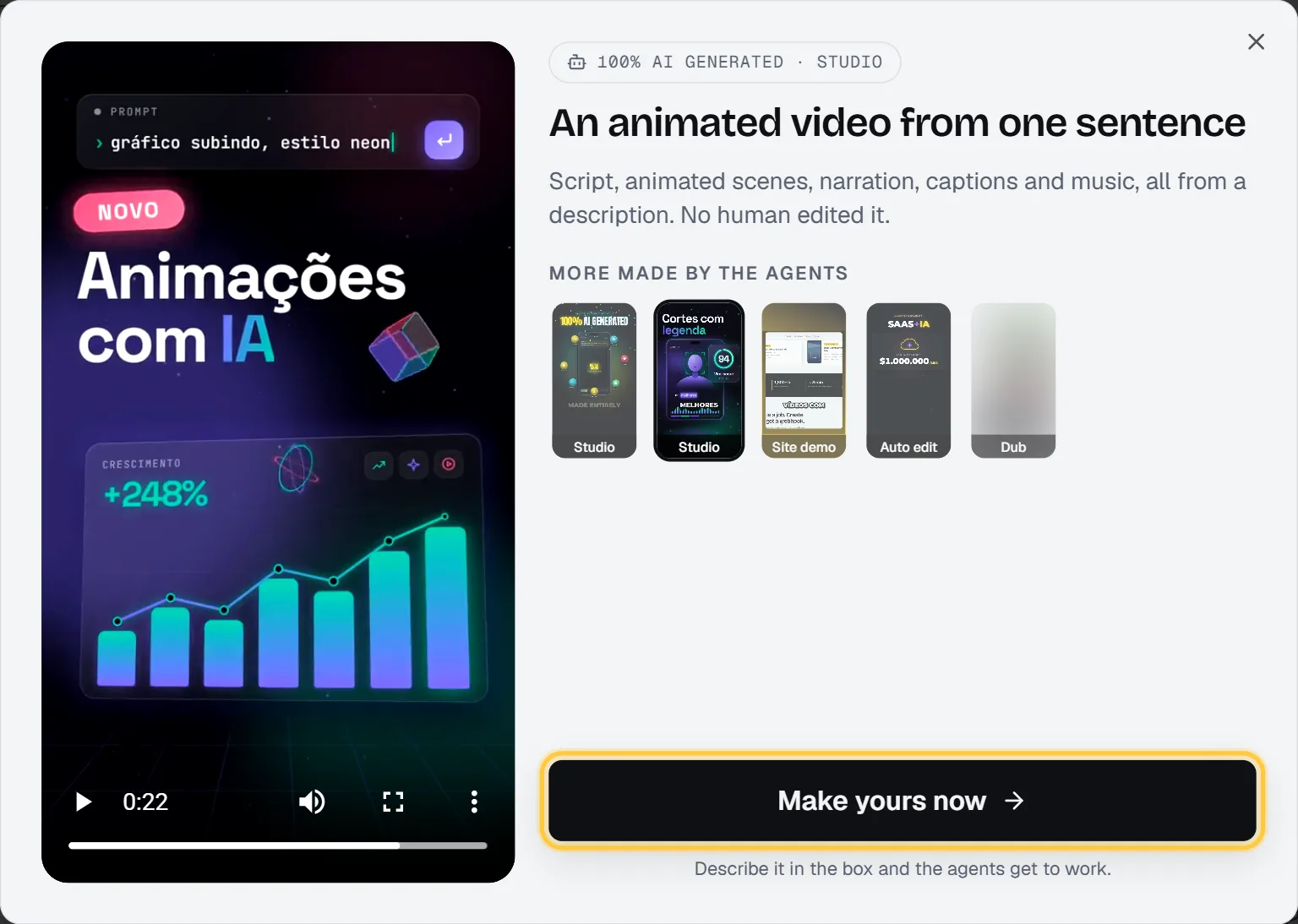
The Studio page has real examples made this way, untouched by a human editor. One is a 28-second animated video made from a single sentence; another is a video the agents made about themselves.
What you need
A free Renderster account for your first video (up to 20 seconds, with a watermark). For longer videos without the mark, any paid plan; each starts with a 7-day free trial.
Step 1: Describe the video (a prompt template that works)
Open Studio. The big box is What should the video be?. Write it the way you would brief a designer. A good description answers five things:
- What it's about and for whom. "A 30-second explainer for small shop owners about how our invoicing app works."
- The structure. "Open with the problem (invoices in spreadsheets), then the solution in 3 steps, then the result in numbers, then a call to action."
- The facts to show. Real numbers, names, the exact call to action. The agents can't know your conversion rate; if you want "3x faster" on screen, write it.
- The look. Colors, mood, references: "dark background, neon green, big kinetic type".
- The tone. Calm and didactic, or fast and hyped.
Here's a template you can copy:
A [length]-second [explainer / launch / ad] video about [topic] for [audience].
Structure: [hook or problem], then [point 1], [point 2], [point 3], then [call to action: exact text].
Show these facts: [numbers, names, claims].
Look: [colors, style, brand color].
Tone: [didactic / energetic / premium / playful].
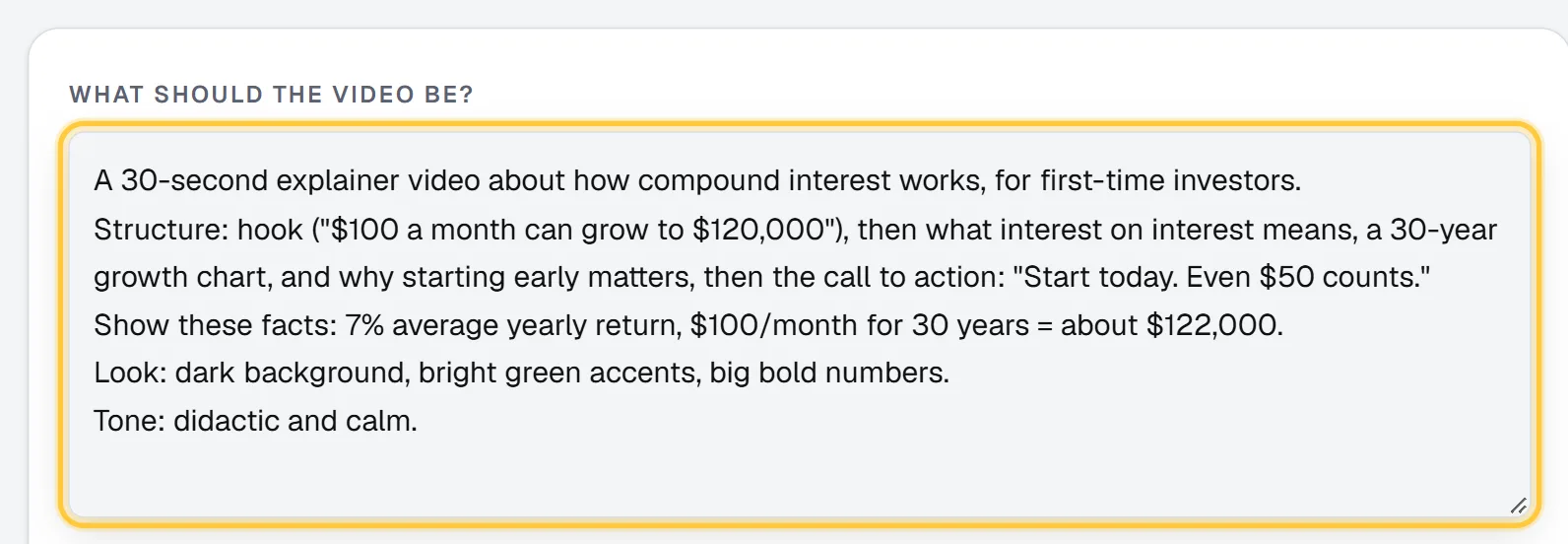
Under the box there are example chips you can click to see a full description, and further down there's a Look (optional) field for colors and brand (for example "minimal white and blue, brand color #6D28D9") if you'd rather keep the look out of the main description.
Step 2: Language, narration and look
The options card below the description sets the rest:
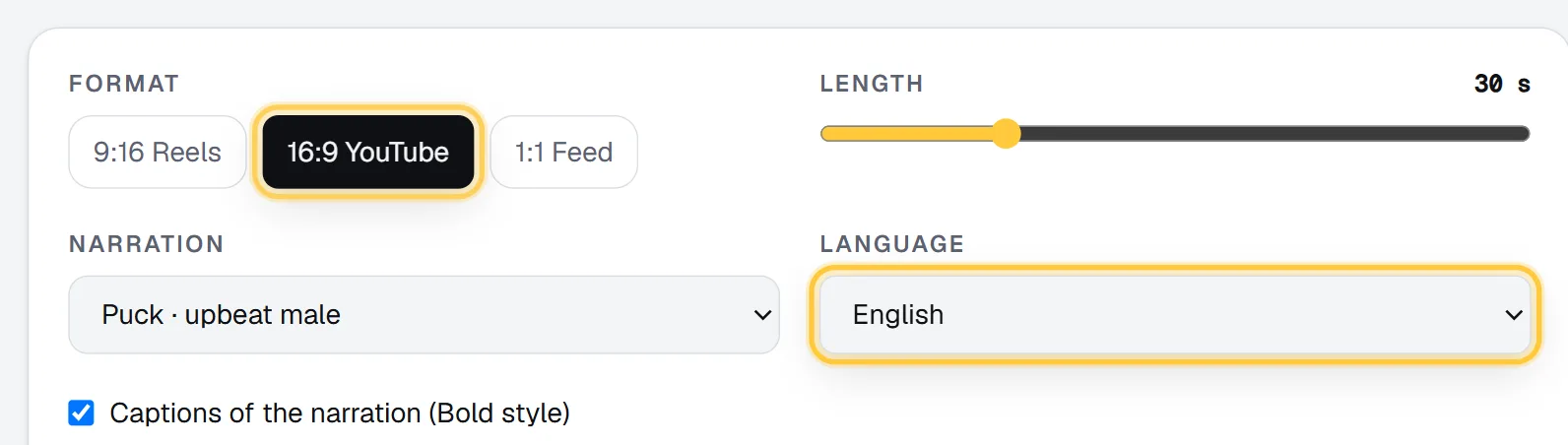
- Format: 9:16 Reels, 16:9 YouTube or 1:1 Feed.
- Length: a slider from 10 to 90 seconds (up to 20 seconds on the free video).
- Narration: pick one of the voices (each listed with its feel, such as "upbeat male"), or No narration (text and music) for a video that tells its story with on-screen text only.
- Language: Portuguese, English or Spanish, for the narration and every text on screen.
- Captions of the narration (Bold style): on by default when there's a narrator.
- Music: let the agent pick a fitting track from the free library, choose and listen to one yourself, order an original track made for the video (+5 credits, paid plans), paste a link to your own, or none.
The line under the music shows the quality: Standard · 2 credits/s by default, or Premium · 5 credits/s if you chose it in Settings (a stronger designer for richer scenes and finer motion).
On the right, The team card lists the agents and what each does, with a Watch them work link to the examples. Under it you see the price for your settings ("60 credits for up to 30 s") and the Create the video button.
Step 3: Watch the agents work
After you click Create the video, the job page opens. While the video is made, the Agents at work panel shows their conversation live: the Director's script and storyboard, the Designer's scenes, the Critic sending a scene back with a note on what's wrong, the Narrator's take, the Editor's final cut. It takes a few minutes; you can follow along or leave the page.
When it's done, the video plays on the same page, and a card lists every scene: its title, what the narrator says in it, its length and the Critic's score out of 10, plus how many scenes were redone after review.
Step 4: Tweak and re-render
You don't edit scene by scene. If something is off, change the description and create it again. Some changes that work well:
- A scene is too busy: add "one idea per scene, at most 6 words on screen".
- The pace is wrong: change the length, or say "slow and calm" or "fast cuts, high energy".
- Wrong colors or style: be specific in Look (hex codes, "flat, no gradients", "like a fintech app").
- A fact is missing or wrong: write the exact sentence or number you want on screen.
Run again on the job page repeats the same request, which gives you a new take on the same brief. Open in editor puts the finished video on a timeline if you want to add your logo, a text or another track by hand.
Prompt examples for 5 use cases
1. SaaS launch (9:16, 30 s)
A 30-second launch video for a personal finance app. Problem: messy spreadsheets. Solution in 3 steps: connect your bank, set goals, see a weekly summary. End with "Download free". Dark background, neon green, kinetic type, energetic.
2. Concept explainer for a lesson (16:9, 45 s)
Explain in 45 seconds how compound interest works for high school students. Show 1,000 growing at 10% a year for 10 years with an animated chart, then compare it with simple interest side by side. Calm, didactic, white background, blue accents.
3. Offer ad (1:1, 20 s)
A Black Friday ad for a sneaker store: 50% off, a countdown, the code BLACK50. Yellow and black, high energy, big numbers.
4. Top 3 list (9:16, 30 s)
Top 3 habits of productive people, each with an animated icon and a big number. Minimal white and blue. End with "Follow for more".
5. Product update for customers (16:9, 40 s, no narration)
Announce three new features of our project management tool: a calendar view, recurring tasks and e-mail alerts. Each feature as a clean interface mockup with a short headline. No narration, upbeat music, brand color #2563EB.
Costs and limits
| Free video | Paid plans | |
|---|---|---|
| How many | One per account | As many as your credits and daily limit allow |
| Length | Up to 20 s | 10 to 90 s |
| Watermark | Yes | No |
| Quality | Standard | Standard or Premium |
| Original music track | No (free library) | Yes, +5 credits |
| Website demo | No | Yes |
Price on paid plans: 2 credits per second in Standard (5 in Premium), at least 20 credits. A shorter video than you asked for gives credits back.
| Length | Standard | About, on Starter |
|---|---|---|
| 15 s | 30 credits | US$1.45 |
| 30 s | 60 credits | US$2.90 |
| 60 s | 120 credits | US$5.80 |
| 90 s | 180 credits | US$8.70 |
Studio videos have a daily limit per plan: 5 a day on Starter, 15 on Pro and 40 on Business (2 a day during the free trial). Starter is US$29 for 600 credits a month, about US$0.048 a credit; all plans are on the pricing page.
If what you need is the same video over and over with different text (a weekly report, a quote card, a product of the day), an animated template rendered from data is cheaper per video than asking the agents each time.
Do it automatically
Studio is also an API endpoint, POST /motion, so you can make a video from a script, a spreadsheet row or an n8n workflow:
curl -X POST https://renderster.com/motion \
  -H "X-API-Key: YOUR_API_KEY" \
  -H "Content-Type: application/json" \
  -d '{
    "prompt": "A 30-second explainer of how our invoicing app works: the problem, 3 steps, a call to action. Dark, neon green, kinetic type.",
    "aspect": "16:9",
    "duration": 30,
    "language": "en",
    "music": "auto"
  }'
The response has a status_url to poll, and the video is in result.url when it's done. The docs list every field. You can also ask for it in a chat: with Renderster connected to Claude or ChatGPT, "make a 30-second animated video explaining X" starts a Studio job. See how to make videos with Claude.
FAQ
Can I make an animated video with AI for free?
Yes. Every Renderster account gets one free Studio video, up to 20 seconds, with a watermark. Longer videos (up to 90 seconds) without the watermark need a paid plan, which starts with a 7-day free trial.
How do I make an explainer video with AI from a script?
Paste the script into "What should the video be?" in Studio and add the look and tone you want. The Director turns it into a storyboard, the Designer animates each scene, the Narrator reads it and the Editor puts it together. If your script has exact lines, say "use this script word for word".
Is it stock footage with a voice-over?
No. Each scene is animated for your topic (kinetic type, charts, interface mockups, icons), and a critic agent reviews the frames and sends weak scenes back before the video is finished.
Which languages can the narration be in?
Portuguese, English and Spanish, for both the narration and the text on screen. You can also choose no narration and let the text and music carry the video.
How long does it take?
A few minutes for a 30-second video. You can watch the agents talk in the "Agents at work" panel while it's made, or leave the page and come back.
Can I edit the video after it's made?
You can change the description and create it again, use "Run again" for a new take on the same brief, or open the finished video in the editor to add a logo, text or another track.