How to Make a Product Demo Video From Your Website URL (AI Agents Click Through It for You)
How to make a product demo video with AI from your website URL: an agent clicks through your site, then the video is narrated, captioned and edited.
The short answer: give an AI agent your site address and one sentence about what to show. It opens the site in a real browser, clicks through the flow, and a team of agents turns the recording into a narrated, captioned demo.
- In Studio, describe the video and tick Show a website (demo video).
- Paste your URL, write the goal, pick Phone or Computer.
- Click Create the video and watch the agents work.
Start a 7-day free trial and make your demo →
What a good SaaS demo shows in 30 to 60 seconds
A product demo on a landing page or a social feed has one job: make someone think "I get it, I want that". Not a full tour. The demos that work tend to follow the same shape:
- The problem, in one line. "Reports take you a whole afternoon."
- The one flow that solves it. Sign in, create the thing, see the result. Three to five screens, not fifteen.
- The result, on screen, for a beat. The chart, the exported file, the published page.
- What to do next. "Try it free."
Recording that yourself means a screen recorder, a clean test account, three takes because a notification popped up, then zooms, a voice-over, captions and music in an editor. That is a half-day job for a 45-second video, and it goes stale every time the UI changes.
Renderster's Studio does it differently. You describe the video, give it the site, and a team of AI agents does the rest: an explorer agent visits the site in a real browser and records it, a director writes the script around what was recorded, a narrator records the voice, a designer animates the intro and outro scenes, a critic reviews the frames and sends weak scenes back, and an editor puts it together with captions and music.
What you need
- The address of a public site (a landing page, a web app, a store). It must start with
http://orhttps://. - A paid Renderster plan. Site demos are not part of the Free plan, but every paid plan starts with a 7-day free trial with 100 credits, which covers a demo (see costs below).
- If the flow is behind a login: a test account for the site.
Step 1: Describe the video, then paste your URL and the goal
Open Studio in the app. The first box, What should the video be?, is the brief for the whole video, so write it like you'd brief a freelancer:
A 45-second demo of my invoicing app for freelancers. Open with the problem (chasing late payments), show how to create an invoice and send it in under a minute, end with "Start free". Calm, friendly tone. Brand color #2563EB.
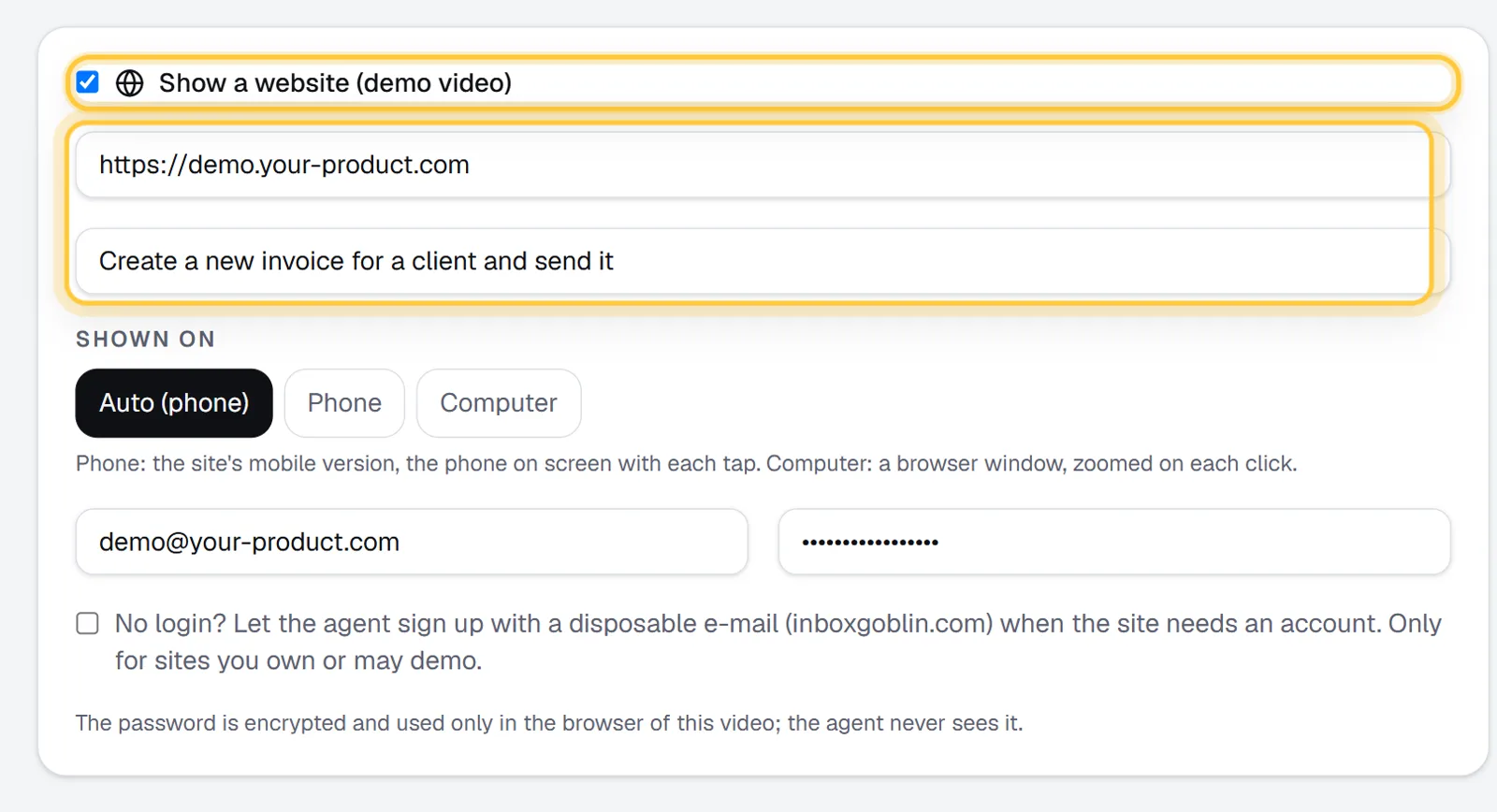
Then tick Show a website (demo video). Two fields appear:
- Site address:
https://your-product.com - Goal on the site ("What to do and show there"): the flow the agent should go through, in plain words. For example: "Sign in, create a new invoice for a client, add two items and send it."
The goal is what the explorer agent works toward. It looks at the screen, sees the buttons and links, and picks the next click, step by step, toward that goal. It also names the "chapters" of the visit (for example "the dashboard", "the new invoice form"), and each chapter can become a scene of the video.
Keep the goal to one flow. The visit has a cap on actions and time, so "sign up, create a project, invite a teammate, set up billing and export a report" is too much for one video. Make two videos instead.
Step 2: Phone or computer
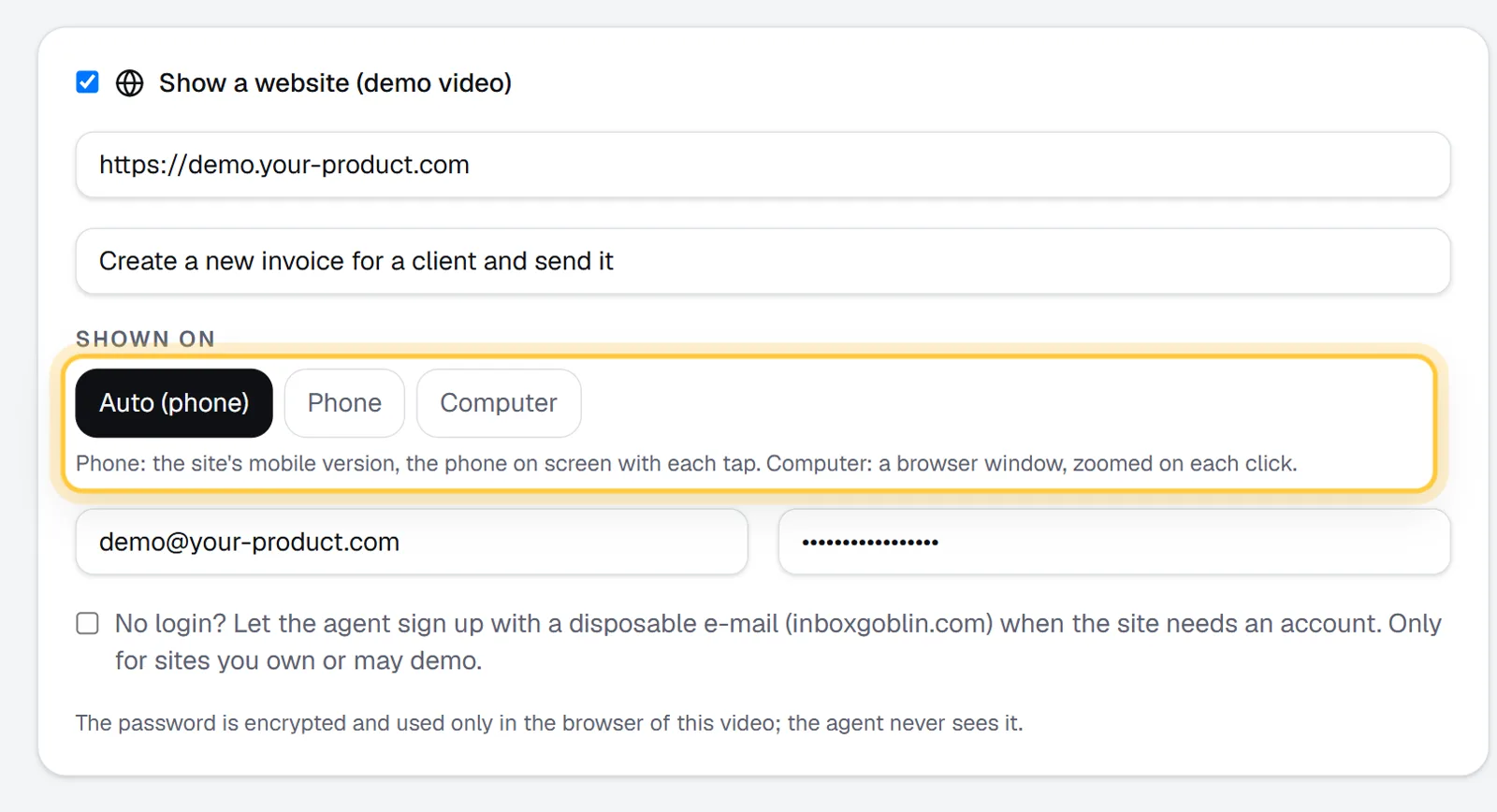
Under Shown on you pick how the site appears in the video:
- Phone: the site's mobile version, with a phone on screen and each tap shown.
- Computer: a browser window, zoomed on each click.
- Auto: phone when the video is vertical (9:16), computer otherwise.
Pick the format first (9:16 Reels, 16:9 YouTube or 1:1 Feed) and let it guide you:
| Where the demo goes | Format | Shown on |
|---|---|---|
| TikTok, Reels, Shorts, Stories | 9:16 | Phone |
| Landing page hero, YouTube, a sales email | 16:9 | Computer |
| LinkedIn or X feed | 1:1 | Computer (or Phone for a mobile-first product) |
If your product is a desktop web app with a dense UI (dashboards, tables), choose Computer even for a vertical video only if you accept small text. The zoom on each click helps, but a wide table on a phone-shaped frame is still hard to read.
Step 3: Logged-in pages (and how the password stays safe)
Most SaaS demos happen after the login. You have three options:
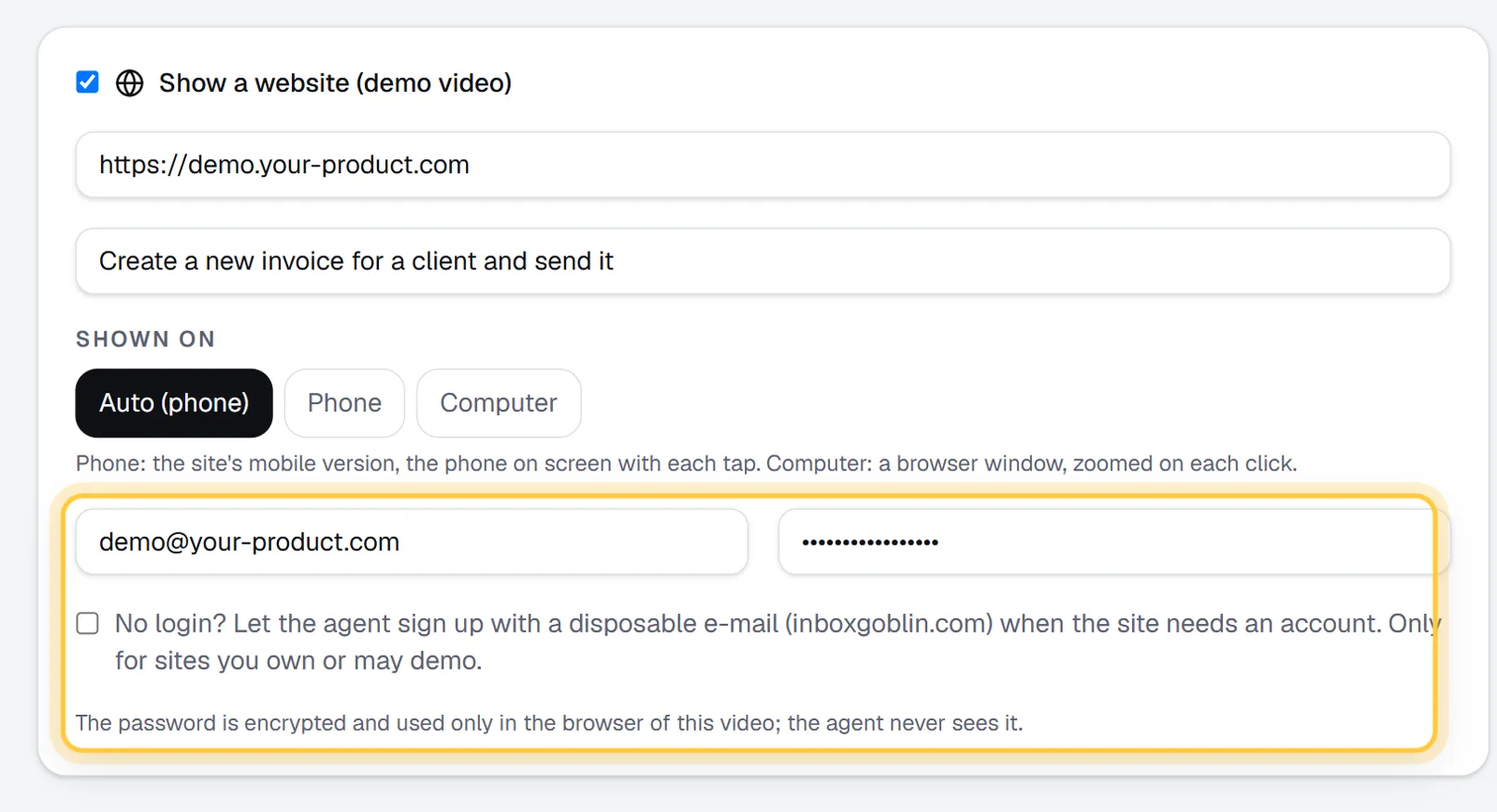
- Give it a login. Fill Login e-mail and Password. Use a test account with demo data, never your admin account. The note under the fields says exactly what happens: "The password is encrypted and used only in the browser of this video; the agent never sees it." The password is sealed when you submit and is not kept in clear on the job either. When you click Run again on a finished demo, the same login is reused without showing it to you again.
- Let it sign up. Tick "No login? Let the agent sign up with a disposable e-mail (inboxgoblin.com) when the site needs an account." The agent creates an account with a throwaway inbox and can read the confirmation e-mail there. Use this only for sites you own or may demo.
- No login. For a public landing page, a store or docs, leave the fields empty.
A note on what to expect: if the site blocks automated browsers, or asks for a CAPTCHA or a code sent to a phone, expect the agent to get stuck there. If the explorer doesn't reach the goal, the job page tells you, and the video shows only what was recorded. A demo-only test account with no two-factor step avoids most of this.
Step 4: Narration, music, length and look
The rest of the form is the same as for any Studio video:
- Length: 10 to 90 seconds on paid plans. For a product demo, 30 to 60 is the useful range.
- Narration: a list of voices, or No narration (text and music) if the demo will autoplay muted on a landing page.
- Language: English, Spanish or Portuguese for the narration and the text on screen.
- Captions of the narration (Bold style): leave it on for social feeds, where most people watch muted.
- Music: from the free music library (the agent picks a fitting track by default), a track made for this video (+5 credits), your own music link, or none.
- Look (optional): colors, brand, references. "Minimal white and blue, brand color #2563EB" is enough.
The sidebar shows the price before you start, for example "75 credits for up to 30 s with the site demo". Then click Create the video.
Step 5: Watch the agents work
You land on the job page. It takes a few minutes, and you can leave the page. The first line you'll see is "The explorer is opening the site...". From there the agents' conversation shows live: what the explorer clicked, what the director planned, which scenes the critic sent back.
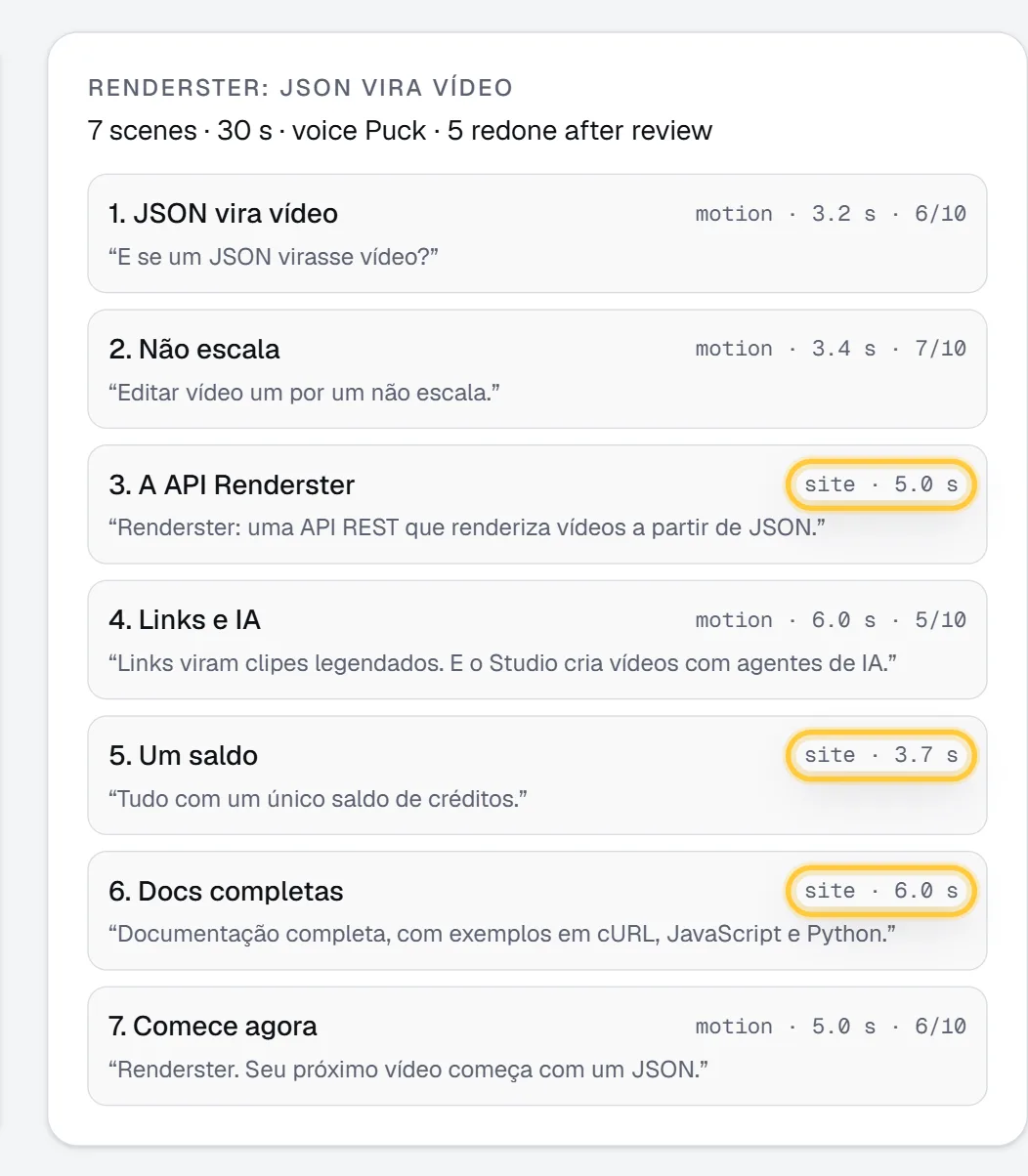
When the video is ready, the job page lists the scenes: what each one says, whether it is a recorded site scene or an animated motion scene, its length and the critic's score out of 10. If the critic made the designer redo scenes, you see how many ("2 redone after review").
Don't like it? Run again repeats the same request (with the same login, still sealed). To change the brief or the goal, start a new video in Studio. Being more specific in the goal ("click New invoice in the top right") usually fixes a visit that wandered.
The result
The finished video has an animated opening that states the problem, the recorded steps of your site with a zoom on each click (or the phone with each tap), the narration with captions, music under it, and an animated closing with your call to action. It plays on the job page, where you can copy its link or click Open in editor to add your logo or change a text.
The Studio page has a real example: open Studio, click Watch them work in "The team" card, and pick A demo of a real website. The agent visited a real site, clicked through it and turned the visit into a narrated demo, with no human editing.
Tips for a better demo
- Prepare the test account. An empty dashboard makes a sad demo. Add a few realistic projects, clients or orders before you run it.
- Mind the cookie banner. A big consent banner costs the agent a step and shows up in the video. A demo account that already accepted it is cleaner.
- Write the goal as clicks, not as marketing. "Open Reports, pick Last 30 days, click Export PDF" beats "show how powerful our reporting is".
- One video per audience. A 30-second phone version for social and a 60-second computer version for the landing page cost two runs, but each one fits its place.
Costs
Studio videos are priced per second. In standard quality it is 2 credits per second (at least 20 credits), and a site demo adds 15 credits for the explorer's visit. A shorter final video gives credits back, and a job that fails gives all its credits back.
| Demo length | Credits (standard) | About, on Starter |
|---|---|---|
| 30 s | 75 | US$3.60 |
| 45 s | 105 | US$5.04 |
| 60 s | 135 | US$6.48 |
| 90 s | 195 | US$9.36 |
Premium quality (set in Settings) uses the best designer model at 5 credits per second, so a 30-second demo is 165 credits. A track made for the video adds 5 credits.
Site demos also have a daily limit per plan: 1 a day on Starter and during the trial, 5 on Pro and 15 on Business. Plans start at US$29 a month for 600 credits; all the numbers are on the pricing page.
For a sense of scale: a single demo on Starter costs less than an hour of a freelancer's time, and you can run it again every time your UI changes.
Do it automatically
The same video is one API call. POST /motion with site_url makes a demo; goal, device and login are the same fields as in the form:
curl -X POST https://renderster.com/motion \
  -H "X-API-Key: YOUR_API_KEY" \
  -H "Content-Type: application/json" \
  -d '{
    "prompt": "A 45-second demo of my invoicing app: the problem (late payments), creating and sending an invoice, then Start free. Calm tone, brand color #2563EB.",
    "aspect": "16:9",
    "duration": 45,
    "language": "en",
    "site_url": "https://your-product.com",
    "goal": "Sign in, create an invoice with two items and send it",
    "device": "desktop",
    "login": {"email": "demo@your-product.com", "password": "YOUR_TEST_PASSWORD"}
  }'
The answer has the job id, the credit_cost and a status_url to poll; the finished video is result.url. The login is encrypted on arrival and never shown back. A practical use: after each release, a CI step calls this endpoint so your demo always shows the current UI. Field details are in the API docs.
Prefer to ask in plain words? Studio videos can also be made from Claude or ChatGPT through the Renderster connector (see How to Make Videos With Claude). And if you don't need a site at all, the same agents make animated explainers from a description: How to Make an Animated Explainer Video With AI.
FAQ
Can AI make a product demo video from a website URL?
Yes. In Renderster's Studio, an AI agent opens your URL in a real browser, follows the goal you write (for example "create an invoice and send it"), and records each step. Other agents then write the script, record the narration and edit the recording with captions, zooms and music.
Can the agent log in to my app?
Yes. Add a login e-mail and password; the password is encrypted and used only in the browser that records the video, and the AI never sees it. Use a test account with demo data. Expect a CAPTCHA or a code sent to a phone to stop the agent.
How long does it take?
A few minutes. The job page shows the agents' conversation live, so you can watch the explorer click through your site, or leave the page and come back when it's done.
Is the site demo free?
No. The Free plan includes one Studio video of up to 20 seconds with a watermark, without a site. Site demos are on paid plans, and every paid plan starts with a 7-day free trial with 100 credits, enough for a 30-second demo (75 credits).
What if the agent doesn't finish the flow?
The job page tells you that the explorer did not reach the goal, and the video shows what it recorded. Make the goal more specific (name the buttons), make sure the test account has no extra verification step, and start the video again from Studio.
Can I make demos of a mobile app?
Not of a native app from the App Store or Google Play. The agent visits websites. With Phone, it shows your site's mobile version inside a phone on screen, which works well for mobile-first web apps.