JSON to Video API: Render an MP4 From JSON in One API Call (Templates, Editor and Bulk)
A JSON to video API guide: render an MP4 from JSON with cURL, Python or Node, start from a template, build it visually, or make 200 videos from a CSV.
To render a video from JSON:
- Describe the video in JSON: format, length, background, text, music.
- Send it to
POST https://renderster.com/renderswith your key inX-API-Key. - Poll
statusUrl(or setwebhookUrl) and downloadoutput_urlwhenstatusiscompleted.
A 1080p render costs 1 credit per started minute of video. Get an API key →
This guide shows the smallest JSON that works, then the three ways people actually use a JSON to video API: templates with variables, a visual editor that writes the JSON for you, and a spreadsheet that turns into a hundred videos.
What "JSON to video" means
You don't open an editor. You send a description of the video and get an MP4 back. The description is a JSON document with layers:
| Part | What it holds |
|---|---|
aspect, fps, durationMode, fixedDuration |
The frame (16:9, 9:16, 1:1 or 4:5), frame rate and length |
background |
A color, an image, a video, or a list of slides played in order |
texts |
Positioned text with an entrance animation (fade, slide-up, pop, typewriter, words…) |
overlays |
Images or videos on top (logos, a facecam, a green-screen clip with chromaKey) |
captions / subtitles |
Timed text, or an SRT file burned in |
audio |
Music and voiceovers; the music ducks under the voice |
watermark |
A logo in a corner for the whole video |
Because it's just data, you can build it from anything: a database row, a form, a product feed, an AI agent's output. That's why people use it for product ads, listings, quote cards, news recaps and personalized videos.
Your first render (cURL, Python, Node)
A 15-second vertical slideshow with music and a title:
curl -X POST https://renderster.com/renders \
  -H "X-API-Key: YOUR_API_KEY" \
  -H "Content-Type: application/json" \
  -d '{
    "aspect": "9:16",
    "fps": 30,
    "durationMode": "fixed",
    "fixedDuration": 15,
    "background": {
      "slides": [
        {"src": "https://images.unsplash.com/photo-1500530855697-b586d89ba3ee?w=1080", "length": 5},
        {"src": "https://images.unsplash.com/photo-1470770841072-f978cf4d019e?w=1080", "length": 5},
        {"src": "https://images.unsplash.com/photo-1441974231531-c6227db76b6e?w=1080", "length": 5}
      ],
      "slideTransition": {"type": "fade", "duration": 0.5}
    },
    "kenBurns": true,
    "audio": {"music": {"src": "https://cdn.pixabay.com/audio/2022/10/25/audio_946bc3eb1f.mp3", "gain": 0.8}},
    "texts": [{"text": "Three places to see before 30", "start": 0.5, "length": 4, "position": "top", "fontFamily": "Anton", "animation": "slide-down"}]
  }'
The answer is 201 with the job. Note the camelCase statusUrl on render jobs:
{
  "id": "5bfa42f4-8dc2-4c4e-bc35-2641e215c55b",
  "status": "queued",
  "progress": 0,
  "statusUrl": "https://renderster.com/renders/5bfa42f4-8dc2-4c4e-bc35-2641e215c55b"
}
Poll it until status is completed, then use output_url:
Python
import os, time, requests

API = "https://renderster.com"
HEADERS = {"X-API-Key": os.environ["RENDERSTER_API_KEY"]}  # YOUR_API_KEY

payload = {
    "aspect": "9:16",
    "durationMode": "fixed",
    "fixedDuration": 8,
    "background": {"color": "#101828"},
    "texts": [{"text": "Summer sale", "fontSize": 110, "animation": "pop"}],
}

job = requests.post(f"{API}/renders", headers=HEADERS, json=payload, timeout=60)
job.raise_for_status()
url = job.json()["statusUrl"]

while True:
    j = requests.get(url, headers=HEADERS, timeout=30).json()
    if j["status"] in ("completed", "failed", "cancelled"):
        break
    time.sleep(5)

print(j["status"], j.get("output_url") or j["message"])
Node (18+)
const API = 'https://renderster.com'
const headers = { 'X-API-Key': process.env.RENDERSTER_API_KEY, 'Content-Type': 'application/json' } // YOUR_API_KEY

const payload = {
  aspect: '9:16',
  durationMode: 'fixed',
  fixedDuration: 8,
  background: { color: '#101828' },
  texts: [{ text: 'Summer sale', fontSize: 110, animation: 'pop' }],
}

const res = await fetch(`${API}/renders`, { method: 'POST', headers, body: JSON.stringify(payload) })
if (!res.ok) throw new Error(`${res.status} ${await res.text()}`)
let job = await res.json()

while (!['completed', 'failed', 'cancelled'].includes(job.status)) {
  await new Promise(r => setTimeout(r, 5000))
  job = await (await fetch(job.statusUrl, { headers })).json()
}
console.log(job.status, job.output_url ?? job.message)
Check it for free first
POST /renders/preview takes the same body and renders it free: 480p, a small "Preview" mark, cut at 3 minutes, kept for a day. Use it while you tune positions and timing. You get 20 previews a day on paid plans and 5 on Free. Paid plans also get a sandbox key (it starts with rs_test_) for free test renders on POST /renders from your test environment.
If the request is wrong, you get a 400 that names the field, for example background requires src, color, slides, or slidesImages. An unknown animation or a bad color code is refused the same way, before any credit is spent.
Build it visually, export the JSON
Writing coordinates by hand gets old. The editor in the app is a timeline with a canvas: drag images, videos, text and audio onto tracks, place them on the frame, pick the Format (16:9 · YouTube, 9:16 · Shorts / Reels, 1:1 · Square, 4:5 · Feed) and the frame rate.
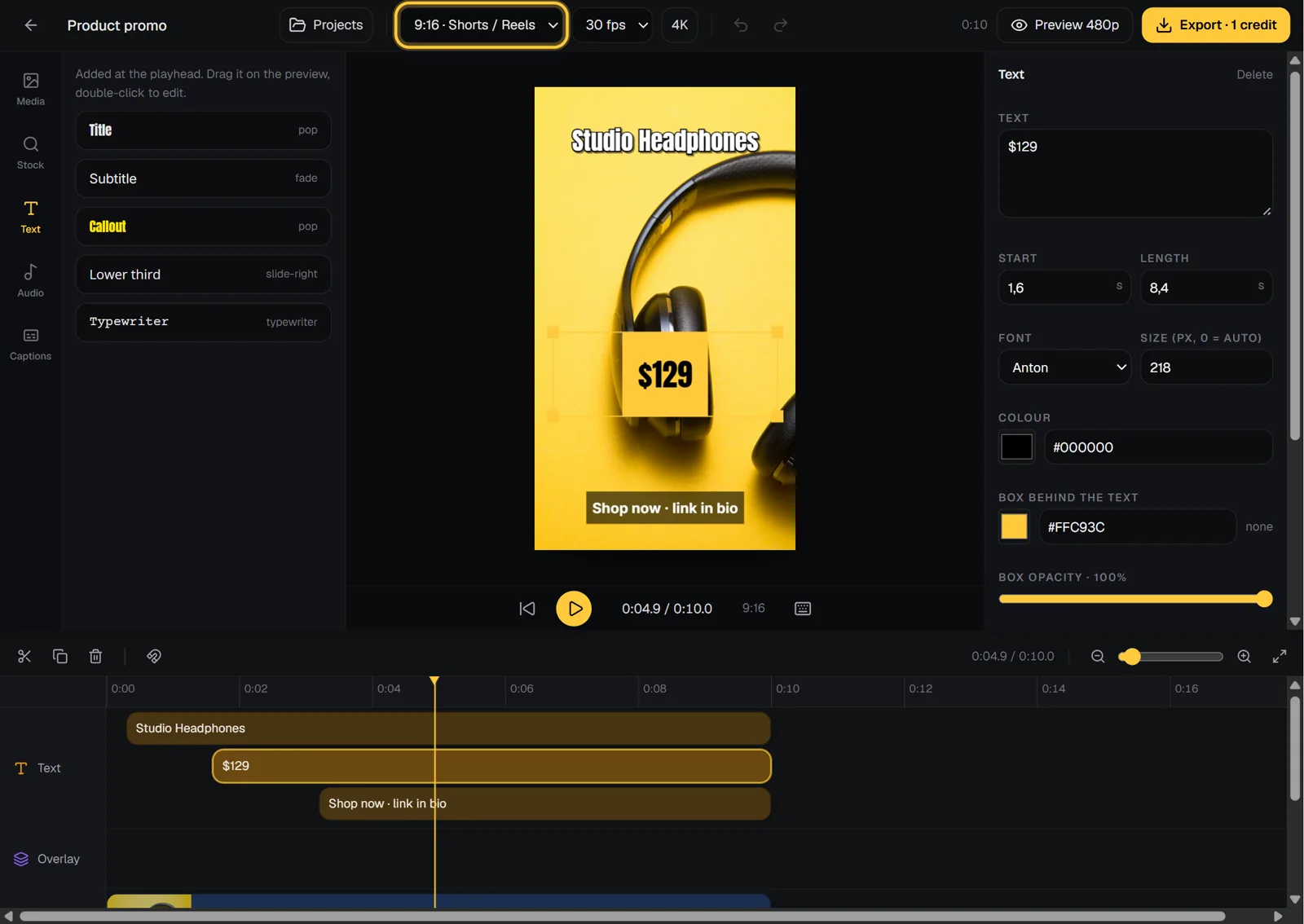
Every layer maps to a field of the render JSON, and the canvas uses the same geometry as the renderer, so what you place is where it lands. Preview 480p makes a free render of the exact result. Export renders it in full quality; the button shows the credit cost.
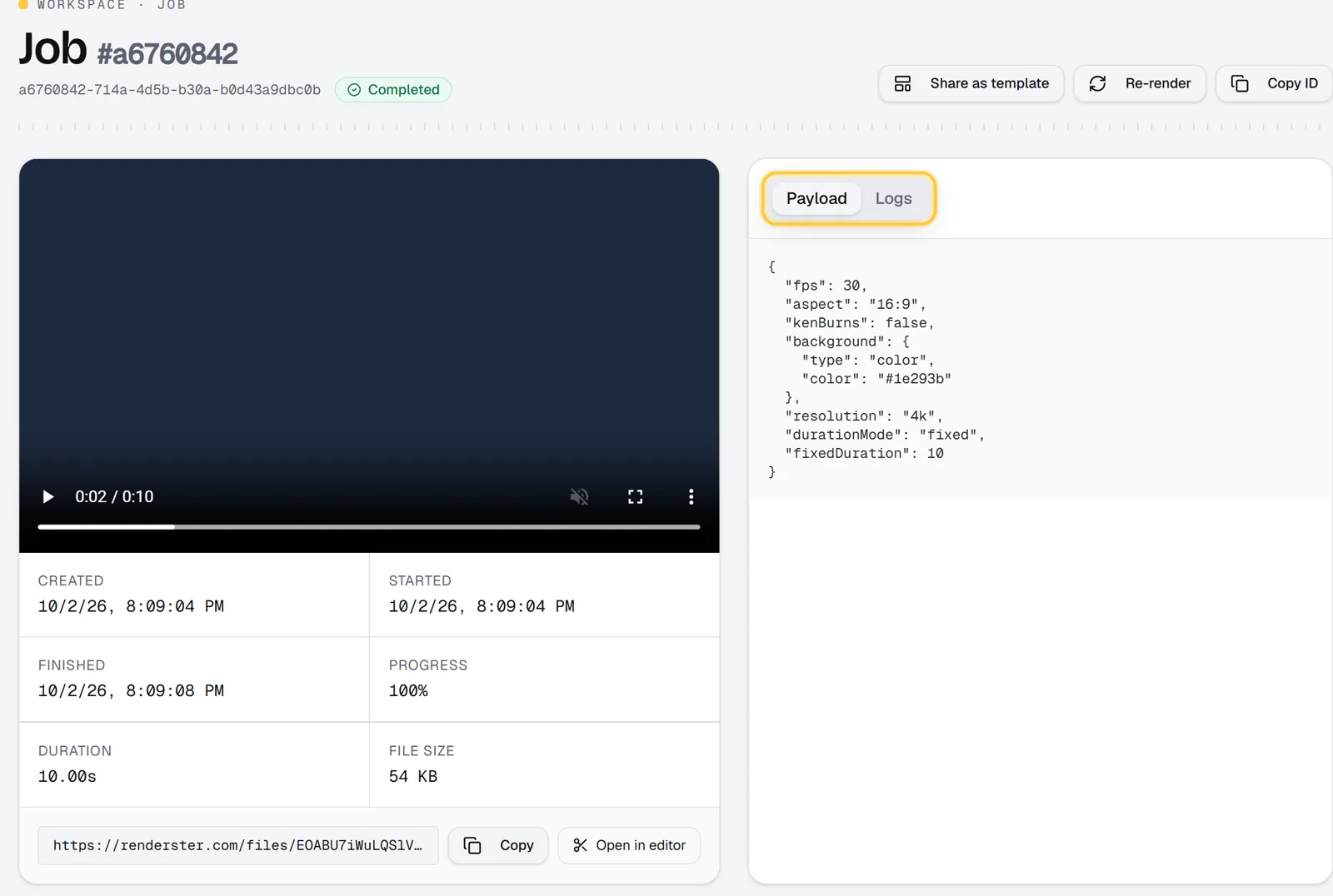
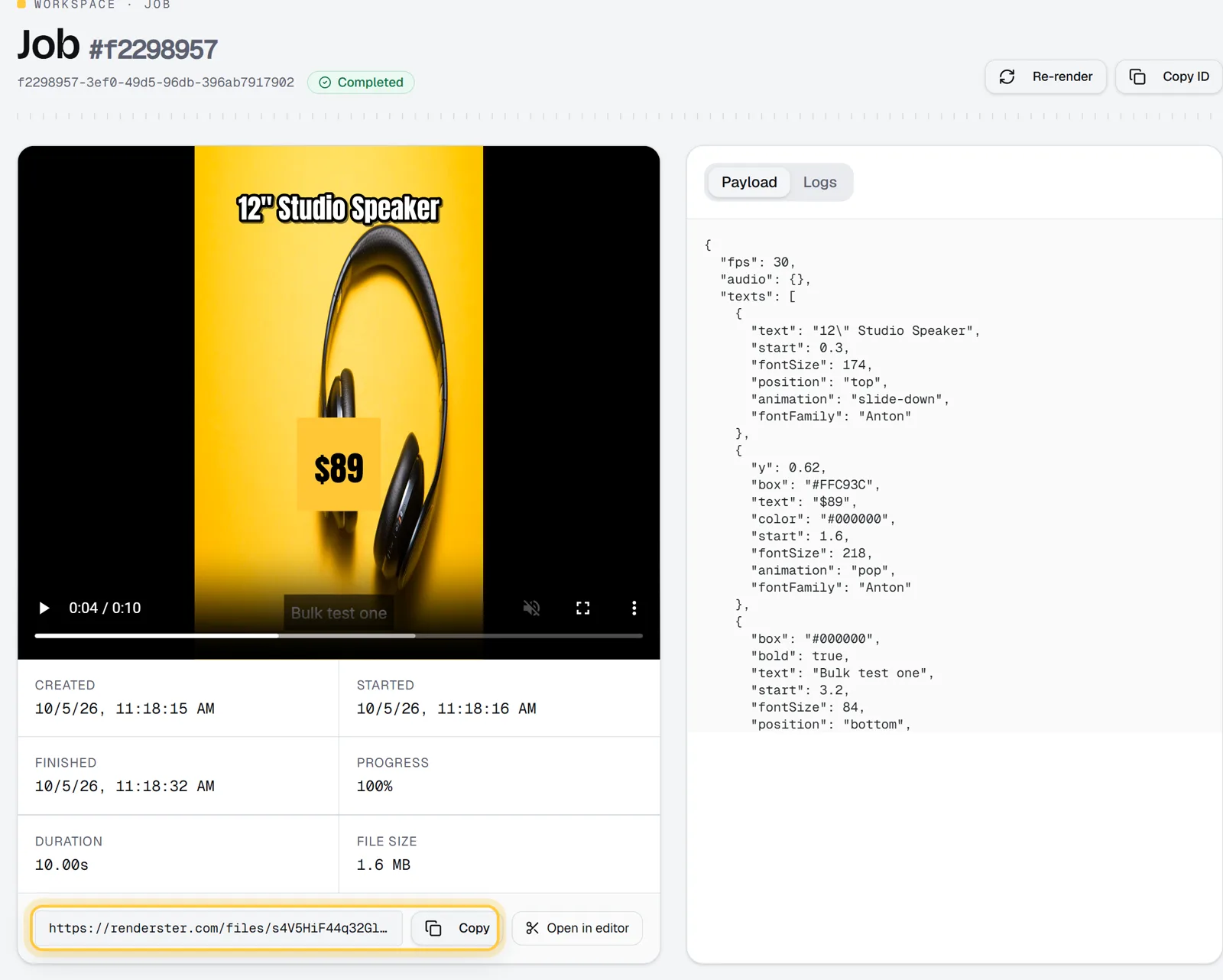
To get the JSON out, open the finished job. Its Payload tab shows the exact request the editor sent. Copy it, swap the text and image links for your own variables, and send it to POST /renders from your code.
Templates with variables
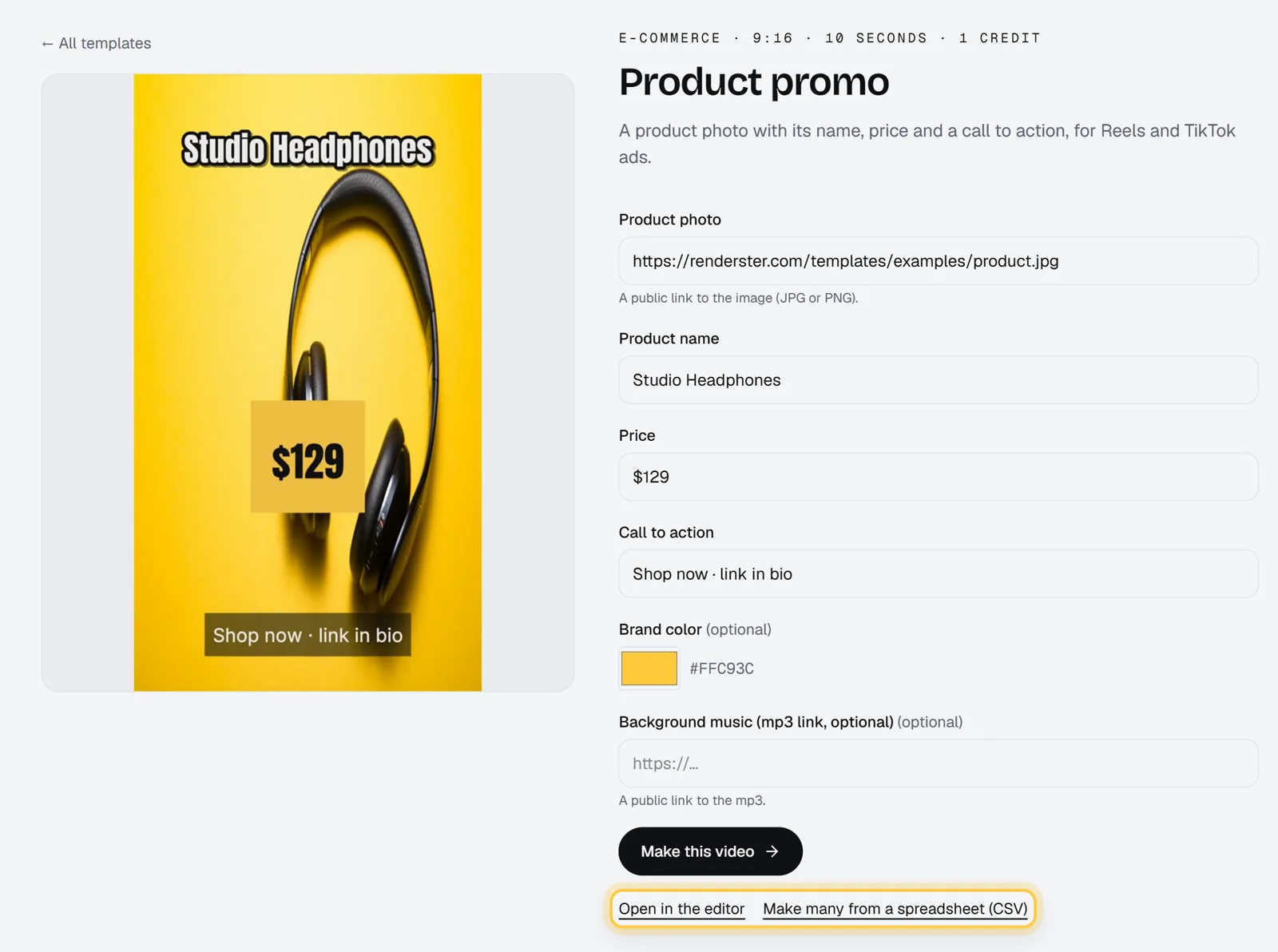
If you don't want to design anything, start from a template. GET https://renderster.com/render-templates (no key needed) lists them with their fields, an example value for each field and the credit cost. Today there are ten: product promo, real estate tour, quote card, news headline, photo slideshow, top 3 list, event announcement, testimonial, job opening and menu special. You can browse them at /templates.
Render one by sending its id and your values:
curl -X POST https://renderster.com/renders \
  -H "X-API-Key: YOUR_API_KEY" \
  -H "Content-Type: application/json" \
  -d '{
    "template_id": "product-promo",
    "merge": {
      "IMAGE": "https://example.com/headphones.jpg",
      "NAME": "Studio Headphones",
      "PRICE": "$129",
      "CTA": "Shop now · link in bio",
      "COLOR": "#FFC93C"
    }
  }'
The fields are checked (required ones, max lengths) and the render is priced like any other: the product promo is 10 seconds, so 1 credit. GET /render-templates/{id}/payload gives the template's full JSON if you want to change more than the fields.
100 videos from a spreadsheet
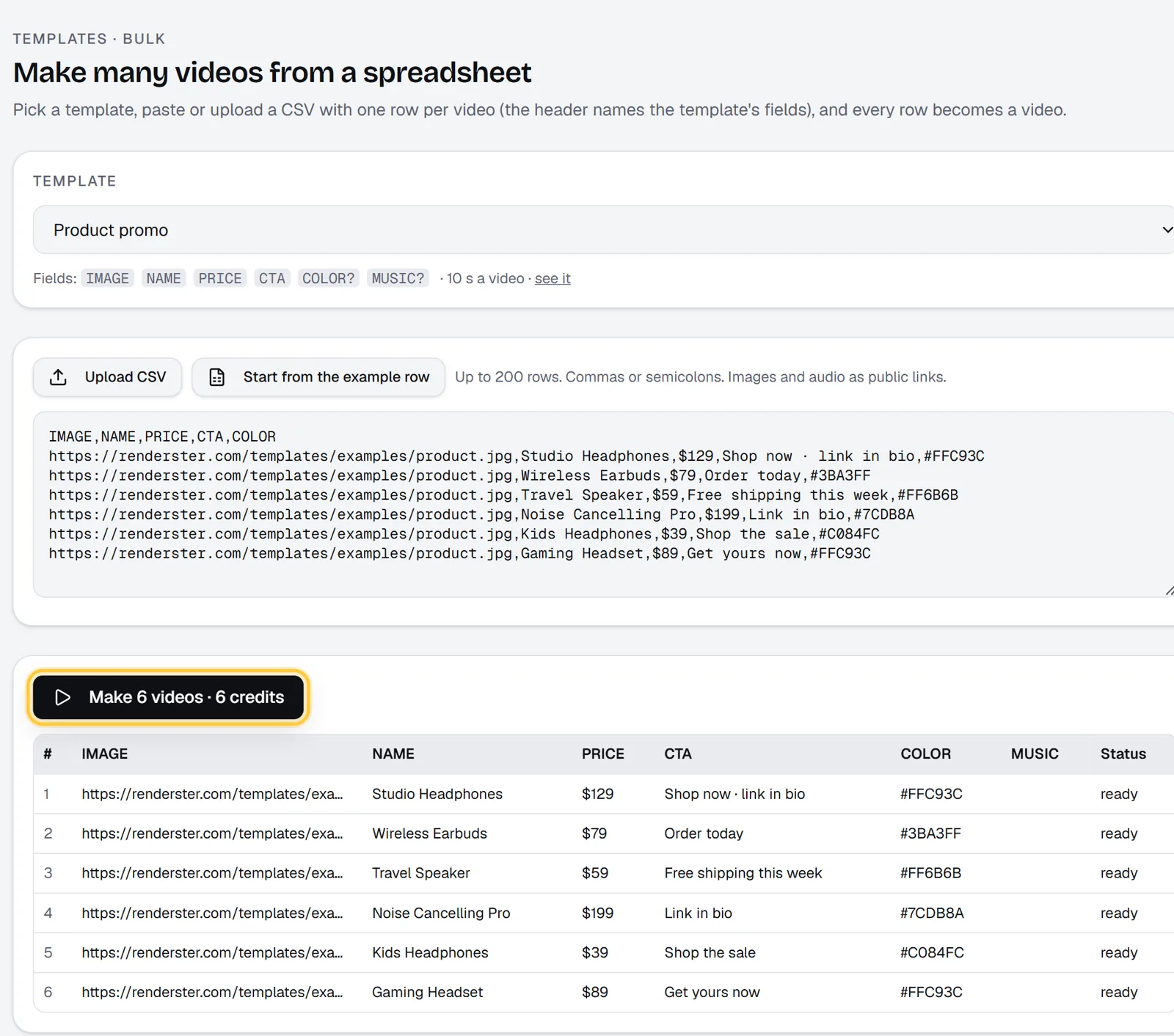
For one-off batches you don't need code at all. The bulk page, Make many videos from a spreadsheet, takes a template and a CSV:
- Pick the template.
- Click Upload CSV, or Start from the example row to see the expected columns. Headers can be the field's name (
NAME) or its label (Product name). - Click Make N videos · X credits. The button shows the total before anything runs.
- When the rows finish, Results CSV gives you each row's status, job id and
video_url.
Up to 200 rows per batch. Each row is a normal POST /renders with template_id and merge, so you can move the same thing into code later.
Compilations with hard cuts
A compilation is a list of clips back to back. In JSON that's background.slides with video files. Leave out slideTransition and the slides are joined with straight cuts, no forced crossfade:
{
  "aspect": "9:16",
  "durationMode": "fixed",
  "fixedDuration": 18,
  "background": {
    "slides": [
      {"src": "https://example.com/clips/goal-1.mp4", "trimStart": 12, "length": 6, "keepAudio": true},
      {"src": "https://example.com/clips/goal-2.mp4", "trimStart": 3.5, "length": 6, "keepAudio": true},
      {"src": "https://example.com/clips/goal-3.mp4", "trimStart": 40, "length": 6, "keepAudio": true, "speed": 0.5}
    ]
  },
  "texts": [{"text": "TOP 3 GOALS", "start": 0, "length": 2, "position": "top", "fontFamily": "Anton", "animation": "pop"}]
}
trimStartis where each file starts, in seconds of the file.lengthis how long it stays on screen.keepAudioplays the clip's own sound.speed(0.25 to 4) plays it faster or slower;lengthstays the time on screen and the sound keeps its pitch.
Add "slideTransition": {"type": "fade", "duration": 0.5} only if you want a fade. More on this use case at /for/compilations.
Webhooks and file links
Set webhookUrl in the render JSON (camelCase here, unlike the media endpoints) and Renderster POSTs this when the render ends:
{"id": "5bfa42f4-8dc2-4c4e-bc35-2641e215c55b", "status": "completed", "output_url": "https://renderster.com/files/…/5bfa42f4-….mp4"}
A failed render sends "status": "failed" and an error. Delivery is tried 3 times, only to public addresses, and any answer below 500 counts as received.
output_url and thumbnail_url are signed links on renderster.com (/files/<signature>/<key>). They open without an API key, so you can put them straight in an email, a CMS, a Slack message or a social scheduler. They support Range for players and ?download=1 to force a download. Rendered videos are kept for 30 days (expires_at on the job says exactly when); copy them to your own storage if you need them longer.
For your inputs, POST /assets/upload stores your images, videos and music and gives you a link to use in any src. Assets stay as long as you keep them: 500 MB on Free, 10 GB on paid plans.
Price per minute
Renders cost 1 credit per started minute of output at 1080p (4K, on Business, costs twice). Set durationMode: "fixed" for a cost you know up front.
| Plan | Price | Credits | Per rendered minute |
|---|---|---|---|
| Free | US$0 | 60 once | free |
| Starter | US$29/mo | 600 | about US$0.048 |
| Pro | US$79/mo | 2,000 | about US$0.040 |
| Business | US$199/mo | 6,000 | about US$0.033 |
| Credit Pack | US$29 once | 500, never expire | about US$0.058 |
For comparison, Shotstack's pricing page lists 20¢ a minute pay-as-you-go and 15.6¢ on its Starter plan, and JSON2Video's lists about 20¢ to 33¢ a minute on its subscriptions (both as of October 2026). The full comparison, with sources and the trade-offs, is in Shotstack alternatives, and side by side at /vs/shotstack, /vs/creatomate and /vs/json2video.
The same key also cuts clips from long videos, transcribes and dubs. If you'd rather drive it from a chat, the MCP connector has a render_video tool that takes this same JSON. Full field reference: /docs.
FAQ
What is a JSON to video API?
It's an API that takes a JSON description of a video (format, length, background, text, audio, overlays) and returns a rendered MP4. You change the data, not a project file, so the same layout can make thousands of videos.
How do I convert JSON to video for free?
Sign up and use the 60 free credits: a 1080p render costs 1 credit per started minute, so that's up to 60 minutes of short videos, with no watermark. POST /renders/preview is free on every plan (480p with a "Preview" mark) for checking a design.
Can I see the JSON of a video I built in the editor?
Yes. Export it, open the job and look at the Payload tab. That's the exact request; send it to POST /renders and you get the same video.
Does it support templates with variables?
Yes. POST /renders with template_id and merge fills a ready-made template. GET /render-templates lists them with their fields. You can also publish your own render as a template from the app.
How long are rendered videos kept?
30 days. The job's expires_at field gives the exact date. The links are signed links on renderster.com that anyone can open, so you can share them directly.
Can I render videos in bulk?
Yes. In the app, the bulk page renders up to 200 rows of a CSV per batch from a template. In code, send one POST /renders per row; you can send up to 120 renders a minute per account, and an Idempotency-Key header makes retries safe.